

A potential customer hears about your business, pulls out their phone, searches your name and finds nothing. No website. No presence. Just a blank page where your business should be. In that moment, a competitor with a half-decent site wins the customer you worked hard to attract.
That scenario plays out thousands of times every day. And in 2026, with over 5.35 billion internet users worldwide (Statista, 2024) and the majority of purchase decisions starting with an online search, not having a website is an active disadvantage.
The good news? Creating a business website has never been easier for beginners. You do not need to know how to code. You do not need a design background. You do not need a large budget. What you need is a clear plan, the right tools and a step-by-step process you can follow through from start to finish.
This guide gives you exactly that. Whether you are building your first small business website or finally replacing a placeholder page you set up years ago, every section here is designed to move you forward with specifics.
By the end, you will have a complete picture of what it takes to build, launch and grow a professional, accessible website that works for your business around the clock.
Why Every Business Needs a Website in 2026
The case for having a website is no longer about keeping up with trends. It is about basic visibility, trust and conversion. Here is what the data says:
- Over 70% of consumers research a business online before making contact (U.S. Small Business Administration)
- 87% of consumers used Google to evaluate local businesses in 2023 (BrightLocal)
- Global e-commerce sales topped $5.8 trillion in 2023 and continue to grow year over year (Statista)
- Businesses with professional websites consistently outperform those without in customer acquisition, credibility and long-term revenue
Beyond being found, a website establishes credibility in a way no social media presence fully replaces. When a potential customer lands on a well-structured, professional site, their confidence in your business rises immediately. When they cannot find one, questions arise.
One more consideration worth treating as foundational from the start: accessibility. With 1.3 billion people globally living with some form of disability (WHO, 2023), a website not built with accessibility in mind is actively excluding a significant share of potential customers.
In 2026, this is also a growing legal concern, with ADA enforcement in the U.S. and the European Accessibility Act reshaping compliance expectations for businesses of all sizes. We will come back to this in depth.
Step 1: Understanding the Basics Before You Start
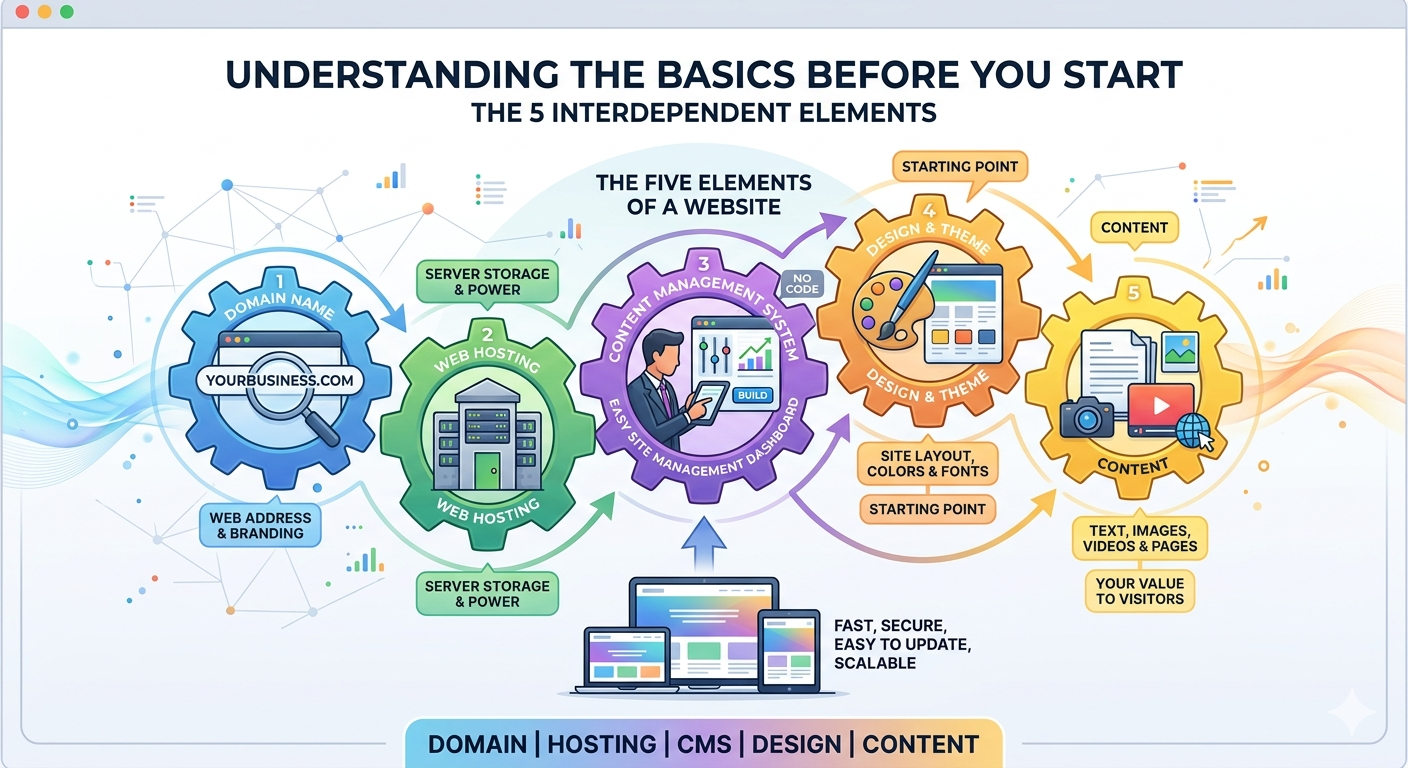
Before diving into steps and settings, it helps to have a clear mental model of what a website is actually made of. When you understand the components, the process stops feeling like a mystery.
Every business website runs on five interdependent elements:
- Domain name: your web address, the thing people type to find you, such as yourbusiness.com; it is both a technical necessity and a branding asset
- Web hosting: the server where your website's files are stored and served from; without hosting, your site has nowhere to live
- Content Management System (CMS): the software you use to build and manage your site without writing code; it sits on top of your hosting and gives you a dashboard to work from
- Design and theme: controls how your site looks: the layout, colors, fonts and structure; on most CMS platforms you choose a theme as your starting point
- Content: the text, images, videos and pages that actually communicate your value to visitors
When these five elements are chosen well and configured correctly, the result is a site that is fast, secure, easy to update and capable of growing with your business.
Which Platform Should You Use?
This is the first decision most beginners face and the answer for the vast majority of small businesses is WordPress. Here is why:
- WordPress powers over 43% of all websites on the internet as of 2024, making it the most widely used CMS in the world
- It is open-source and free to use, backed by a massive global community of developers, designers and contributors
- It has tens of thousands of themes and over 59,000 plugins in its official directory, covering virtually any feature a business website needs
- Non-technical users can manage their own content without ever touching code
- It is purpose-built for SEO, scales from a simple brochure site to a full e-commerce platform and has the deepest ecosystem of any CMS
Other platforms worth knowing about:
- Wix: beginner-friendly drag-and-drop builder; works well for simple sites but loses flexibility at scale
- Squarespace: clean templates; strong choice for portfolio and creative businesses
- Shopify: purpose-built for e-commerce; excellent if selling products is your primary focus
- Webflow: powerful visual builder with a steeper learning curve; popular with designers
For most small businesses, WordPress on self-hosted infrastructure gives the best combination of control, flexibility, SEO capability and long-term value. That is the platform this guide is built around.
Step 2: Choosing the Perfect Domain Name for Your Business
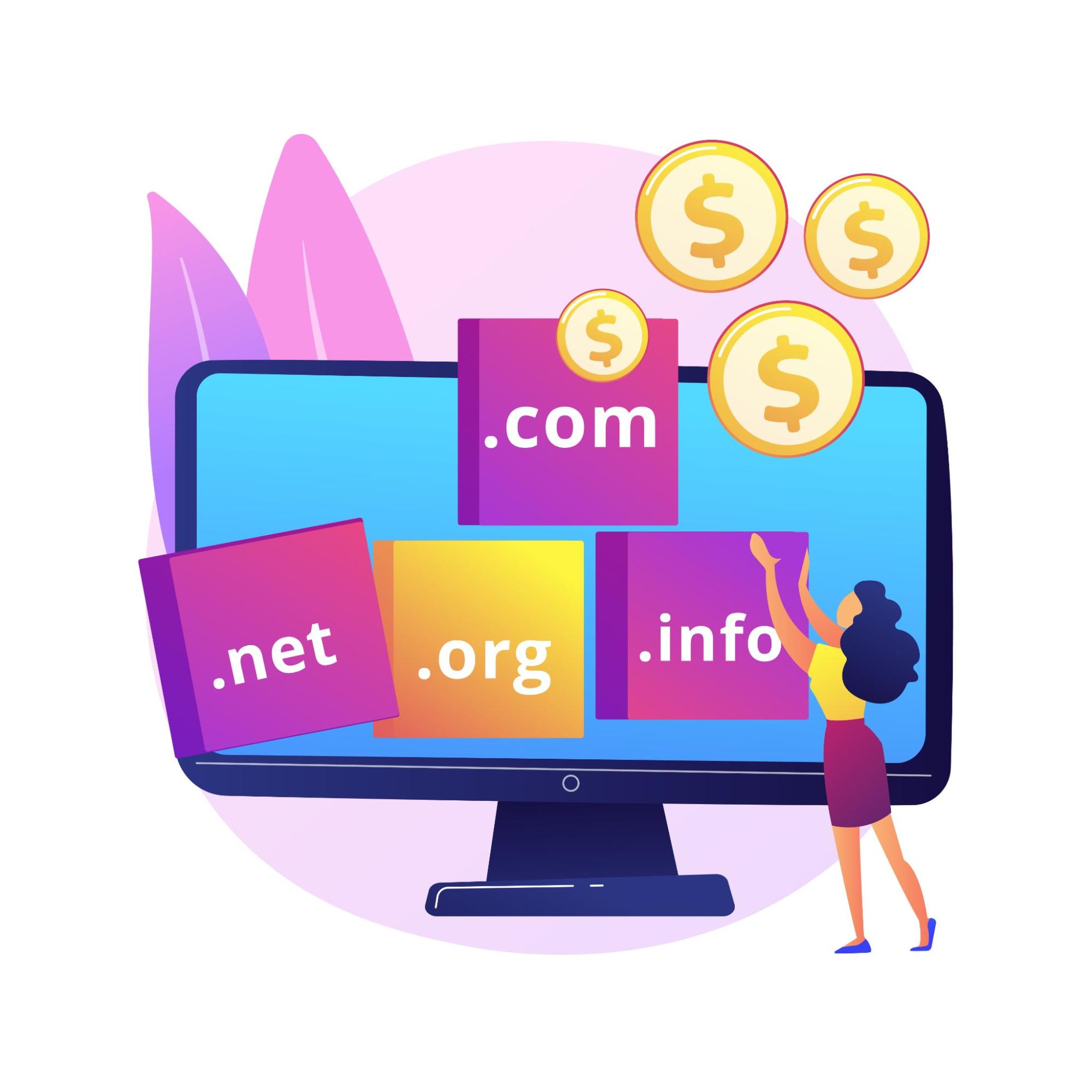
Your domain name is your address on the internet and it is part of your brand identity. A well-chosen domain name is memorable, trustworthy and reinforces who you are every time someone types it or sees it in a link.
Step 2.1: What Makes a Good Domain Name
- Keep it short and easy to spell. If someone hears it spoken aloud, they should be able to type it without guessing. Avoid creative spellings or unusual words.
- Align it with your brand. Your domain should match your business name or be a close, logical variation of it.
- Add a keyword if it fits naturally. A domain like
austinplumbingco.comorgreenleafcatering.comcommunicates something useful to both visitors and search engines without being forced. - Use .com when possible. While .co, .io, .net, .store and country-specific TLDs are all legitimate, .com carries the strongest recognition and trust signal for most business audiences worldwide.
- Avoid hyphens and numbers. These create confusion when sharing verbally and look less professional.
- Check trademark conflicts. Before registering, run a quick trademark search to make sure the name is not already in use in your industry.
Step 2.2: Where to Register Your Domain Name for Business
These are the most reliable and widely used domain registrars:
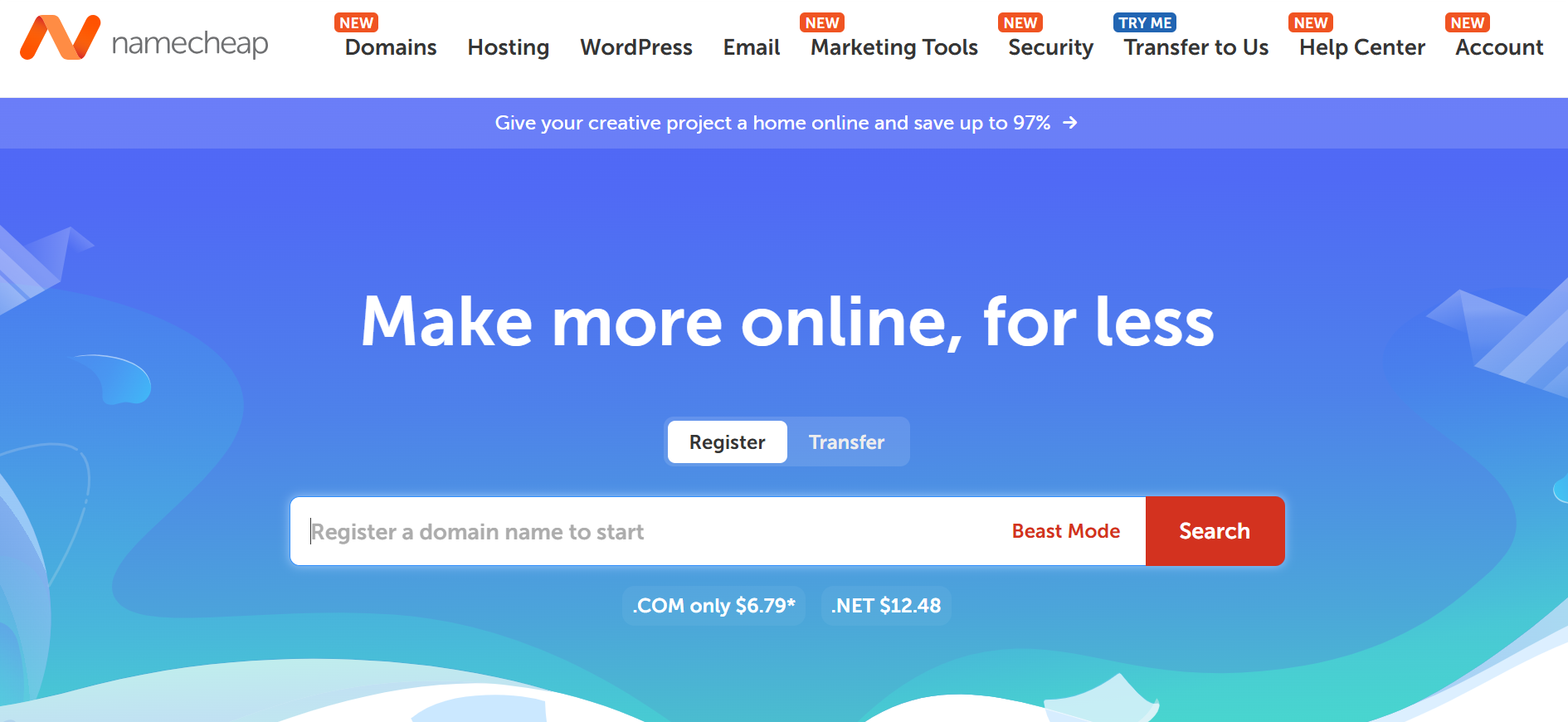
- Namecheap: affordable pricing, clear interface, privacy protection often included
- Cloudflare Registrar: sells domains at wholesale cost with no markup; excellent for cost-conscious buyers
- Google Domains via Squarespace: clean interface, straightforward management
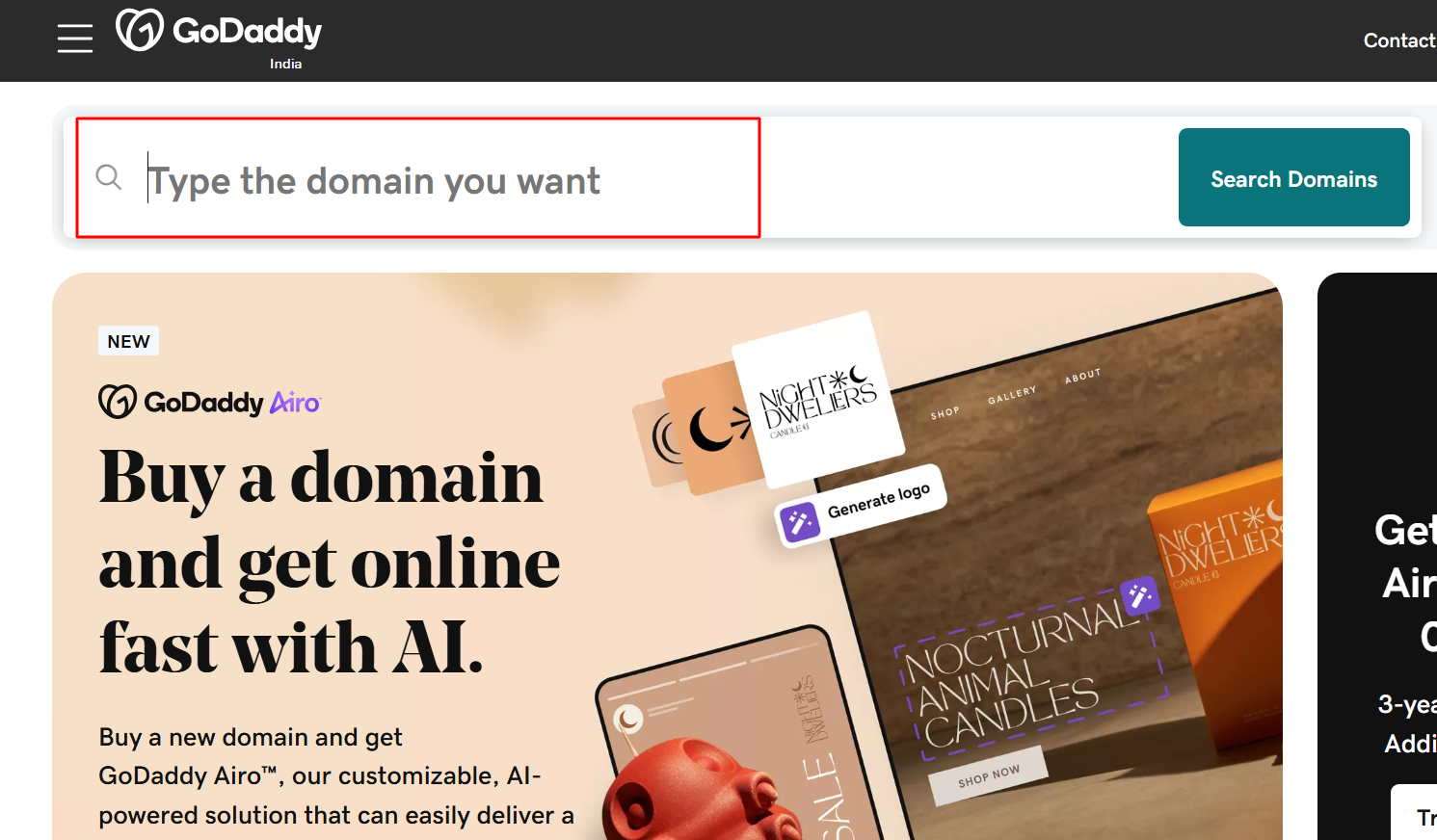
- GoDaddy: largest registrar globally; be selective at checkout to avoid unnecessary upsells
- Hover: privacy-first registrar with a no-upsell experience
Standard .com domains cost between $10 and $15 per year. Many hosting providers include a free domain for the first year when you sign up for a plan, which can reduce your initial costs.
Step 3: Selecting Reliable Hosting for Performance and Security
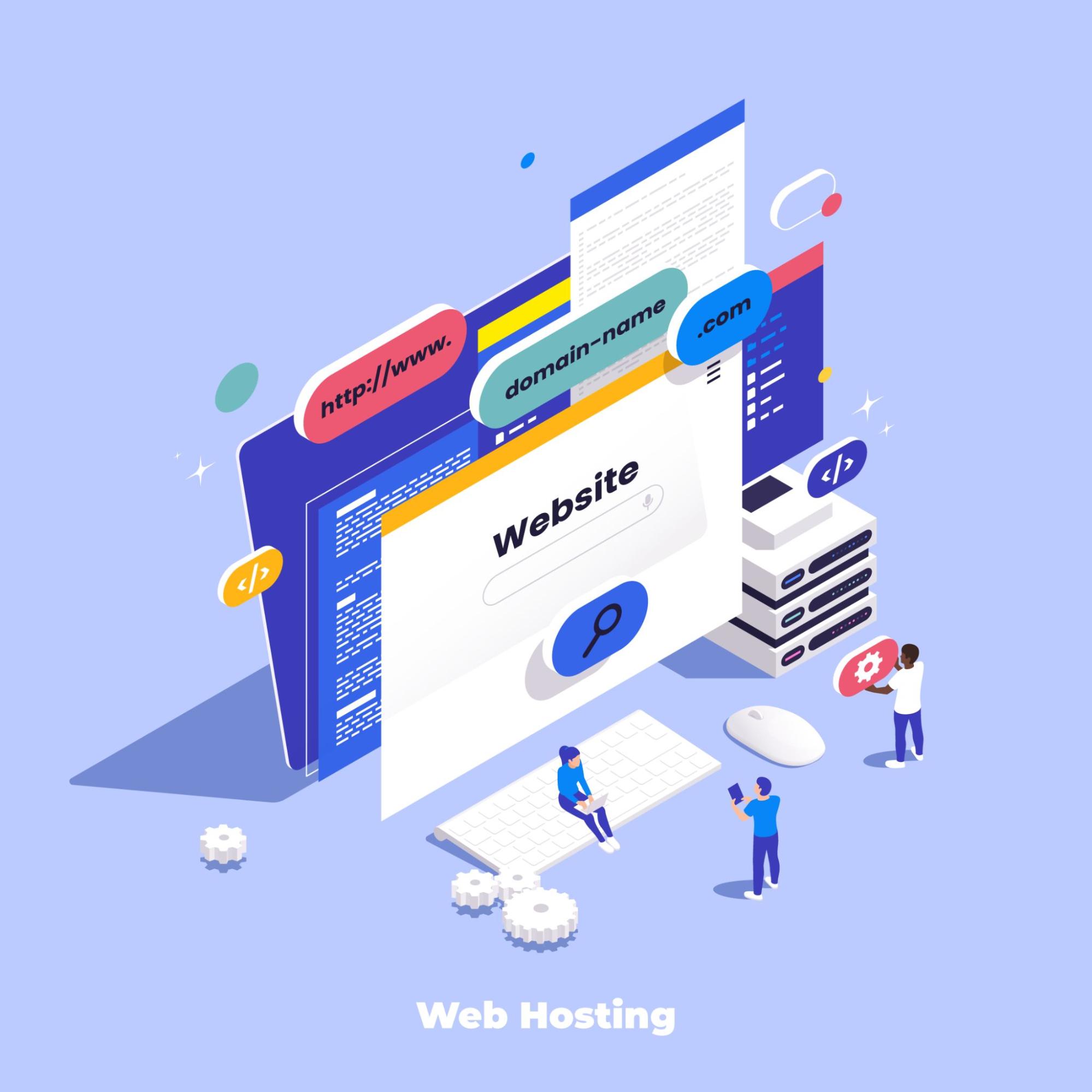
Hosting is the infrastructure that makes your website available to visitors. Choose well and your site is fast, secure and always online. Choose poorly and slow load times, frequent downtime and unresponsive support will frustrate you and your visitors from day one.
Step 3.1: Types of Hosting Explained
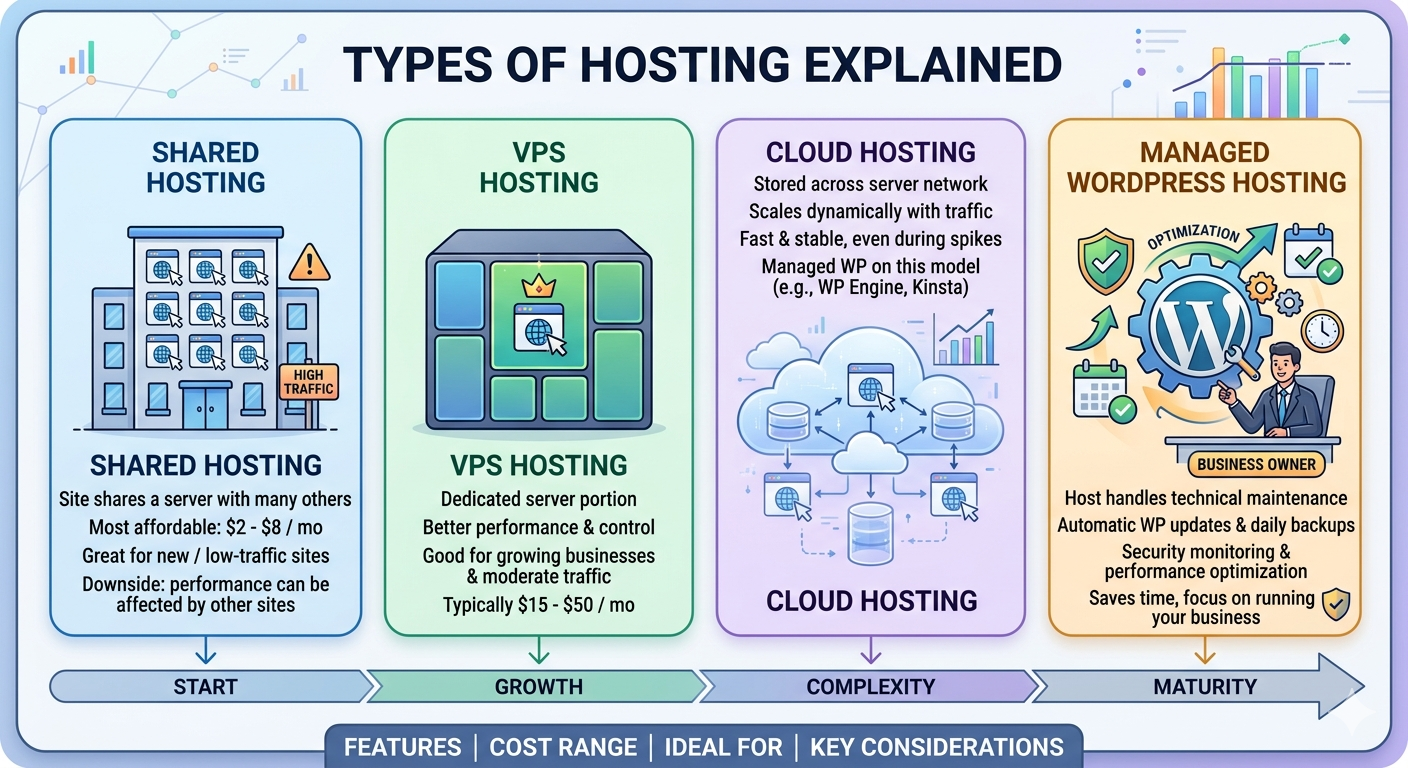
- Shared hosting: your site shares a server with many other websites; the most affordable option at $2 to $8 per month; perfectly adequate for new or low-traffic sites; the downside is that heavy traffic to another site on the same server can occasionally affect your performance
- VPS (Virtual Private Server) hosting: you get a dedicated portion of a server with better performance and more configuration control than shared hosting; good for growing businesses with moderate traffic; typically $15 to $50 per month
- Cloud hosting: your site is stored across a network of servers and scales dynamically with traffic, keeping the site fast and stable even during spikes; providers like WP Engine and Kinsta offer managed WordPress cloud hosting on this model
- Managed WordPress hosting: the host handles all technical maintenance on your behalf, including automatic WordPress updates, daily backups, security monitoring and performance optimization; costs more than shared hosting but saves significant time; ideal for business owners who want to focus on running their business rather than managing a server
Step 3.2: What to Look for in a Host
When evaluating website hosting for small business needs, prioritize these criteria:
- 99.9% uptime guarantee (some hosts offer 99.99%)
- Server response time under 200ms
- Free SSL certificate included
- One-click WordPress installation
- Automated daily or weekly backups
- 24/7 customer support with fast response times
- Data center locations close to your primary audience
Step 3.3: Beginner-Friendly Hosting Recommendations
- Hostinger: fast servers, affordable pricing, trusted by over 2.5 million users globally; excellent for budget-conscious beginners
- Bluehost: officially recommended by WordPress.org since 2005; plans start at around $2.95/month and include a free domain for year one; comes with a guided WordPress setup wizard
- SiteGround: consistently top-rated for support quality and performance; slightly higher price point but worth it for the reliability
- WP Engine: premium managed WordPress hosting; built for businesses where performance and security are non-negotiable
- Kinsta: powered by Google Cloud infrastructure; fast, secure and backed by excellent support; ideal for scaling businesses
Step 4: Setting Up Your Website with WordPress
With your domain and hosting in place, the next step is installing WordPress and configuring it for a business website. This is where most beginners feel the most uncertainty, but the process is more straightforward than it looks.
Step 4.1: Installing WordPress
Most hosting providers have simplified this to a few clicks:
- Log in to your hosting account dashboard
- Look for a section labeled "WordPress," "One-Click Install," or "My Sites": it is usually prominent on the homepage of your hosting dashboard
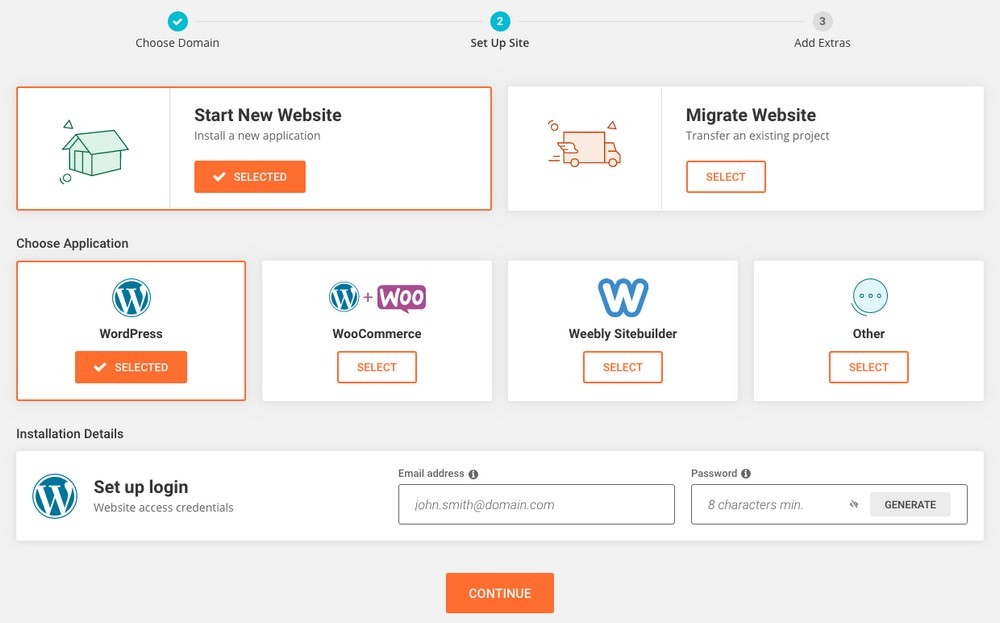
- Click the install button, select your domain from the dropdown and set a username and strong password for your WordPress admin account
- Wait one to two minutes for the installation to complete
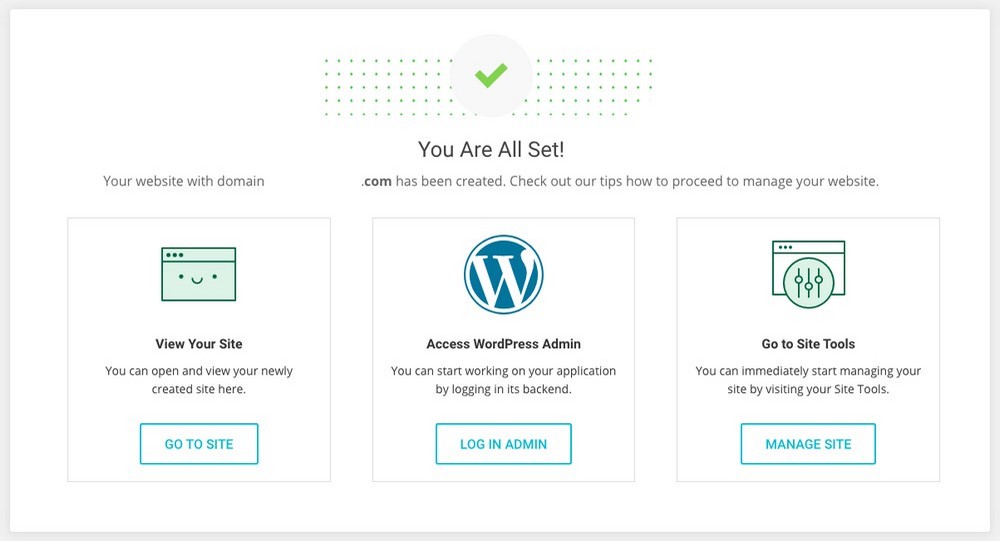
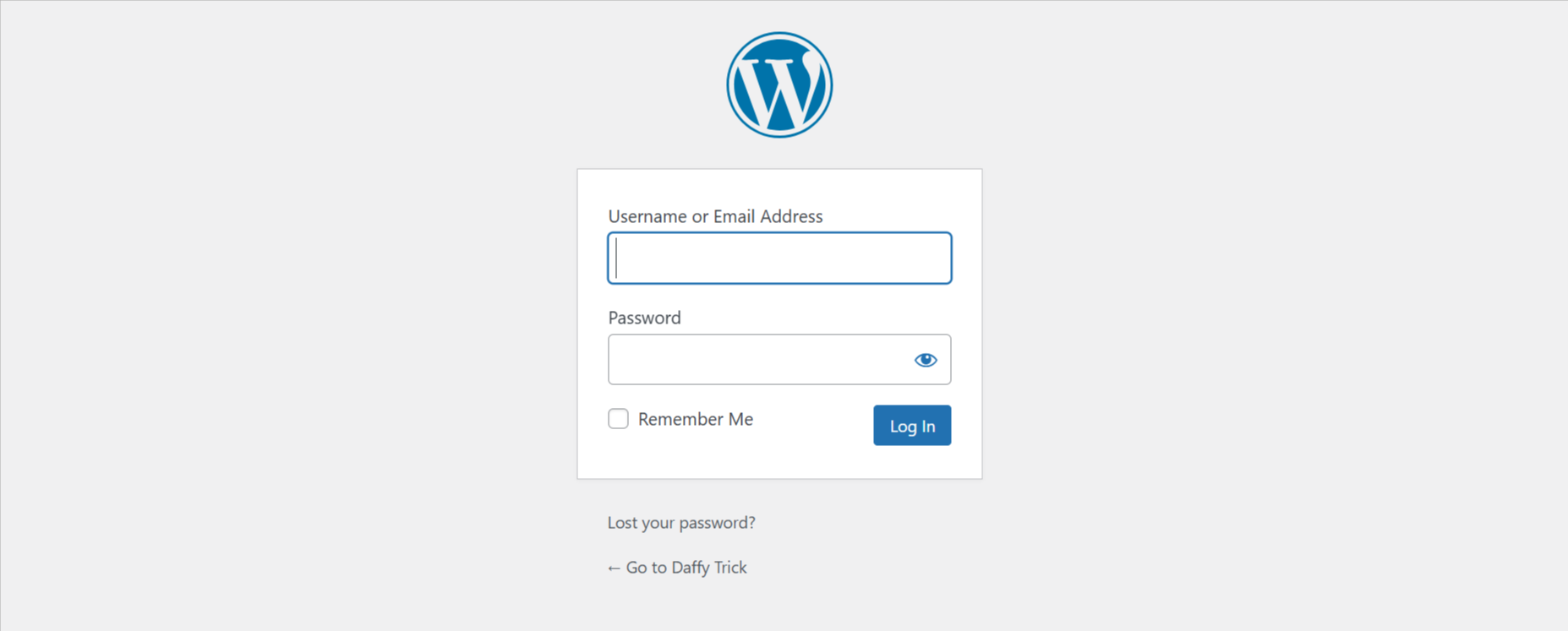
- Access your WordPress dashboard by going to
yourdomain.com/wp-adminand logging in with the credentials you just created
That is it. WordPress is now installed and running.
Step 4.2: Dashboard Overview
When you log in for the first time, you will see the WordPress admin dashboard. The main areas you will use regularly are:
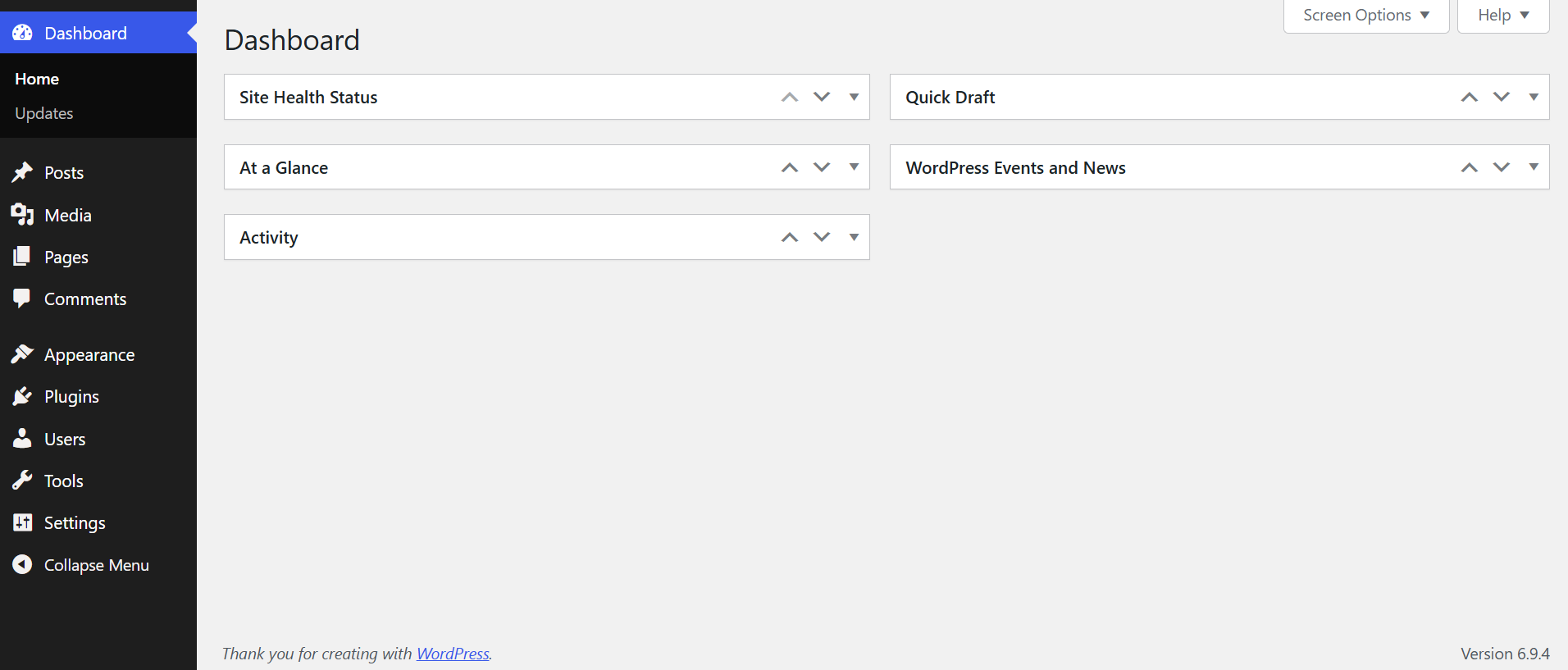
- Posts: for blog articles, news updates and any time-stamped content
- Pages: for static pages like Home, About, Services and Contact
- Appearance: where you install and customize themes, manage menus and configure widgets
- Plugins: where you install and manage plugins that extend your site's functionality
- Settings: where you configure the core behavior of your entire site
Step 4.3: Essential Settings to Configure
This is the part most beginners either rush through or skip entirely. Take 20 to 30 minutes here and you will avoid significant problems down the road.
Step 4.3.1: Settings → General
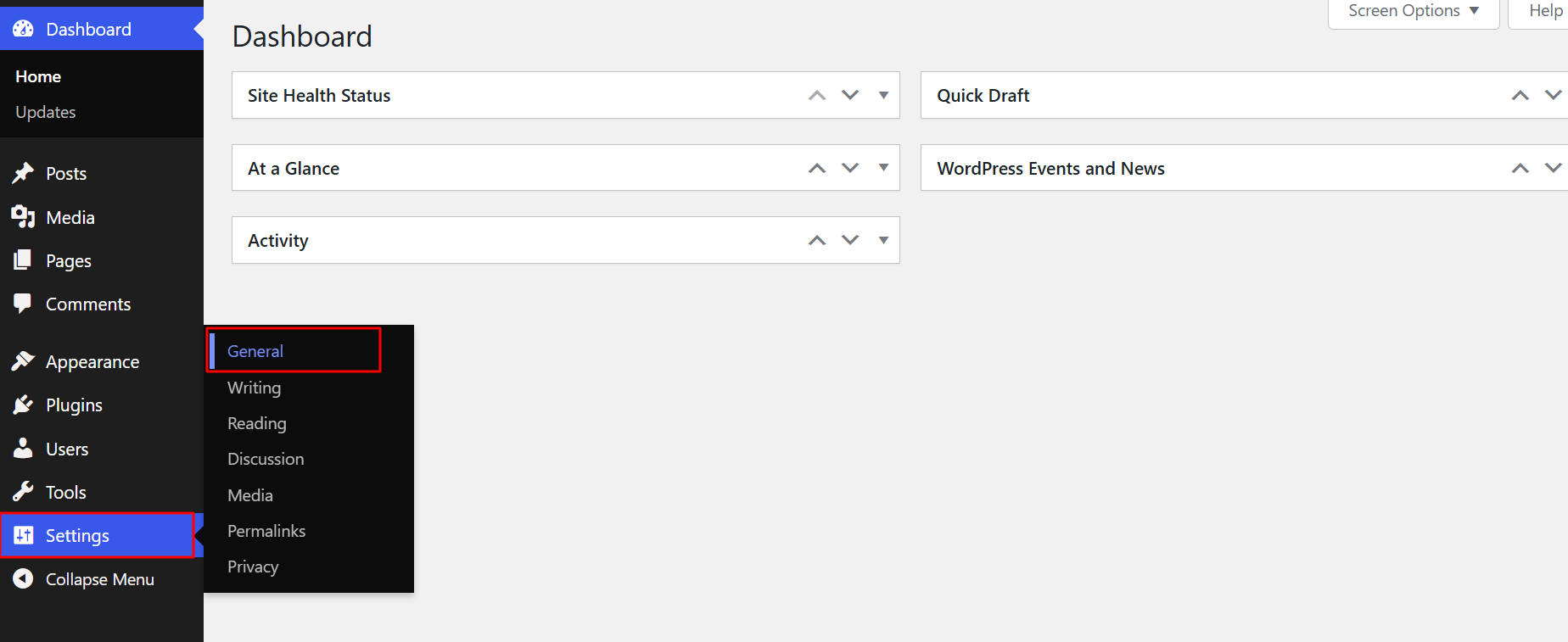
- Set your Site Title to your business name: this appears in browser tabs, is used by search engines in your site identity and is pulled by SEO plugins for default meta title formatting
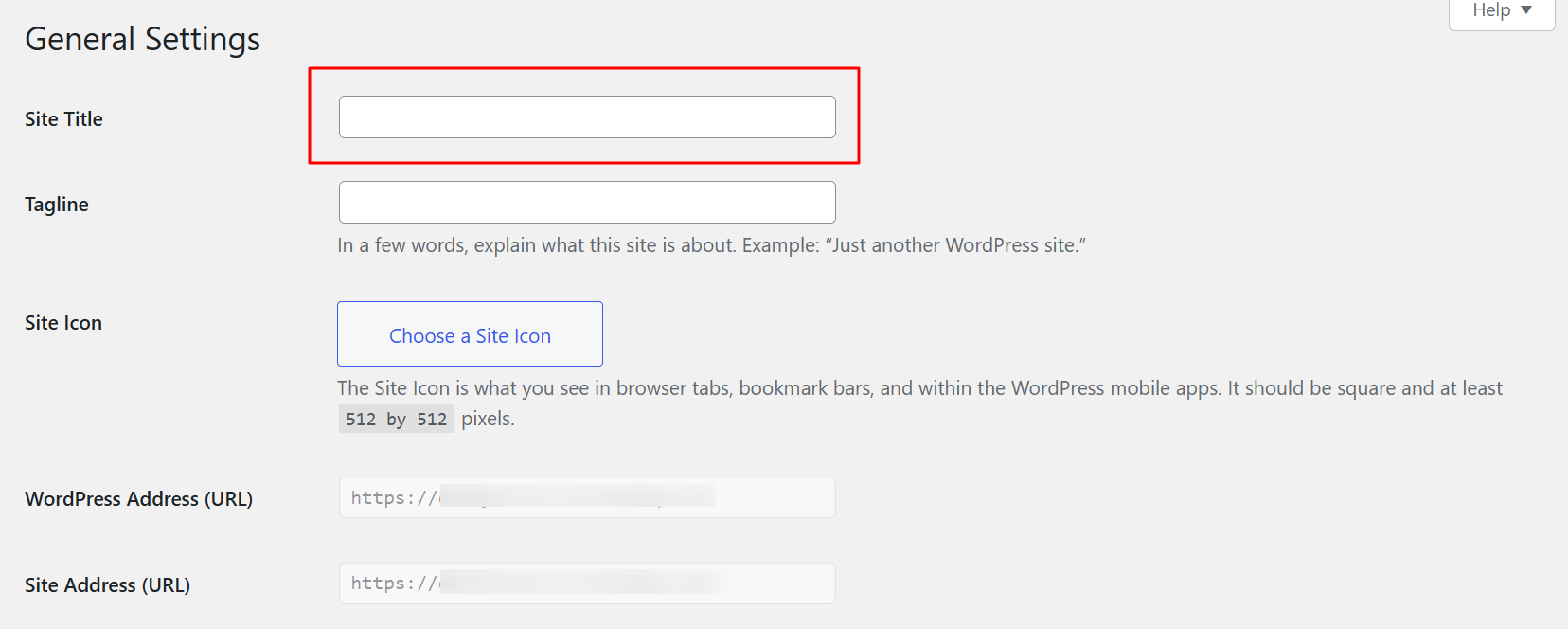
- Set your Tagline to a one-line description of what you do and who you serve; for example, "Independent Electrical Contractor Serving the Greater Melbourne Area": keep it clear and specific rather than generic
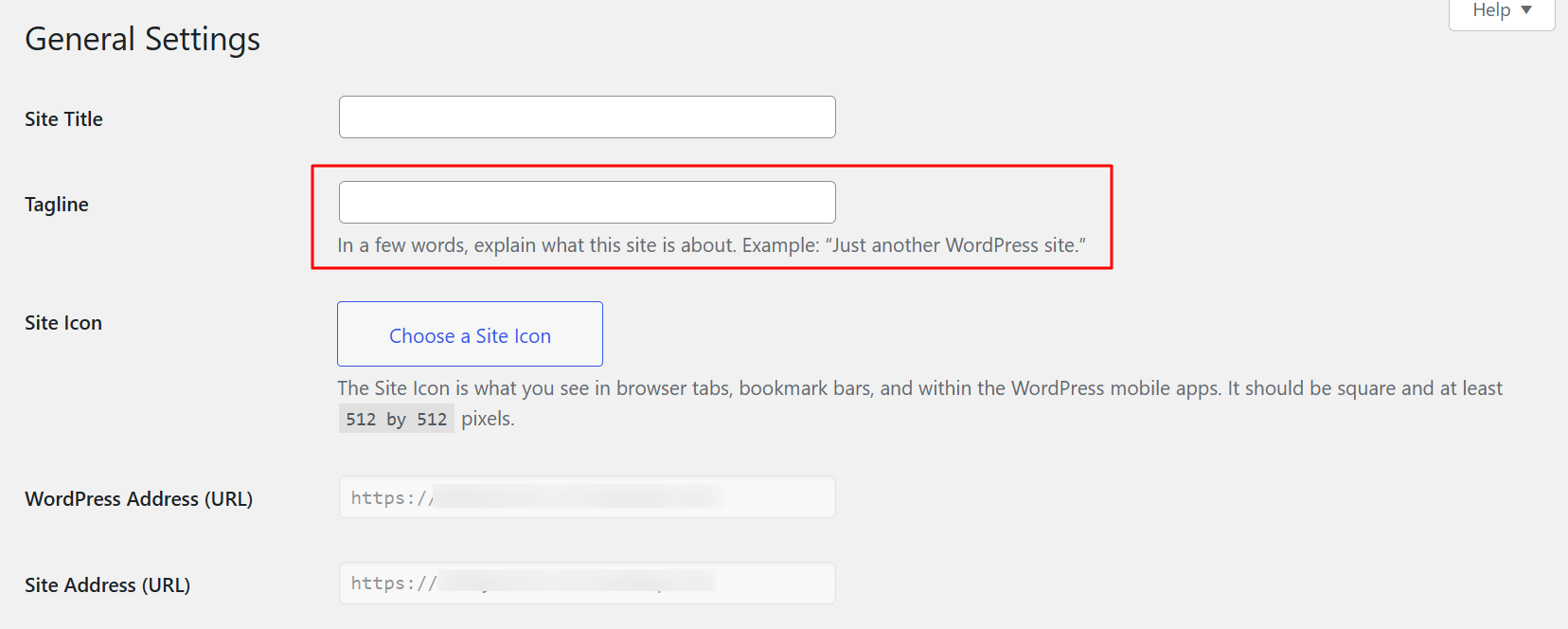
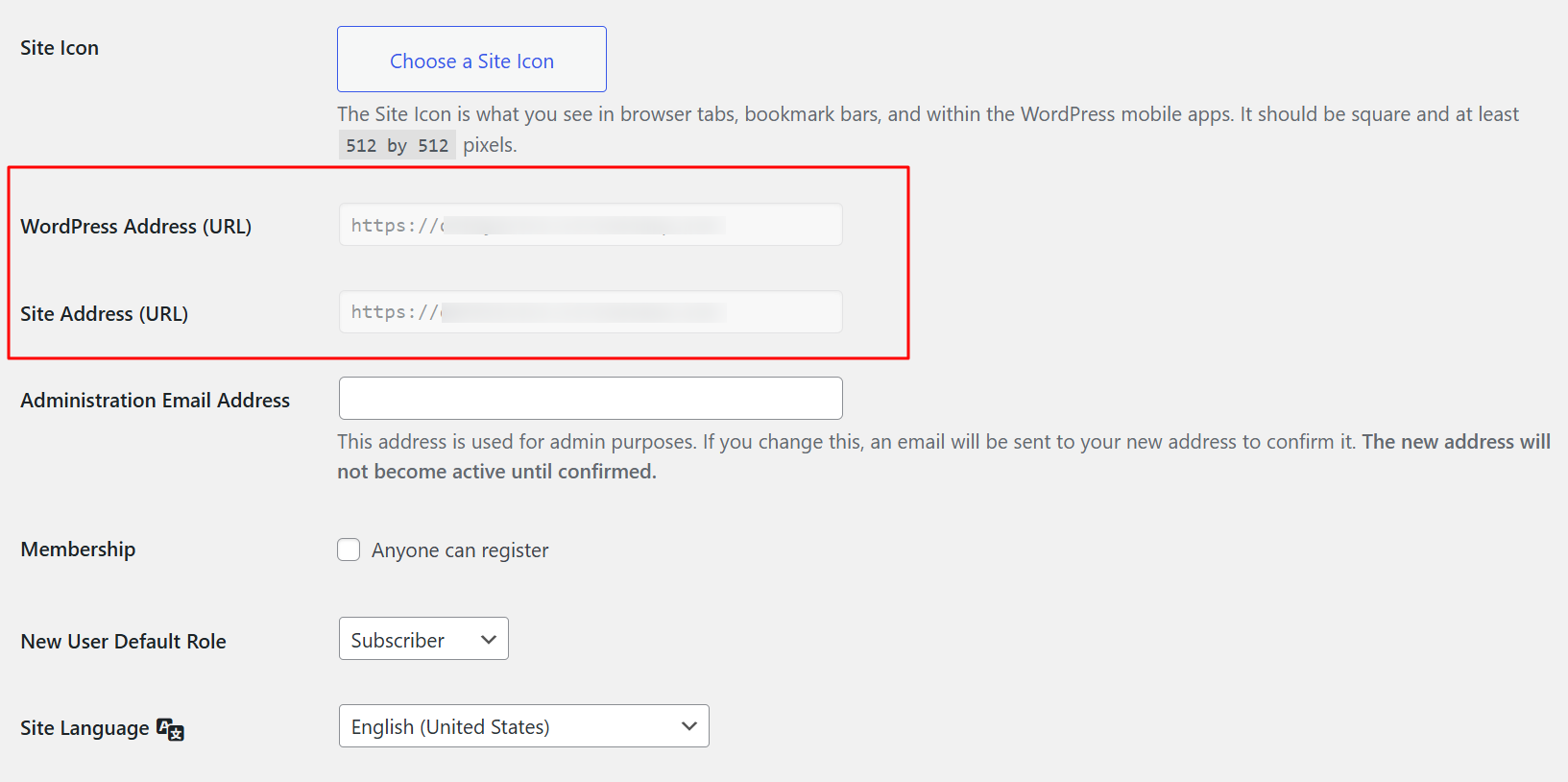
- Under WordPress Address (URL) and Site Address (URL), confirm both fields use
https://rather thanhttp://; if they still showhttp://, activate your SSL certificate through your hosting control panel first, then return here
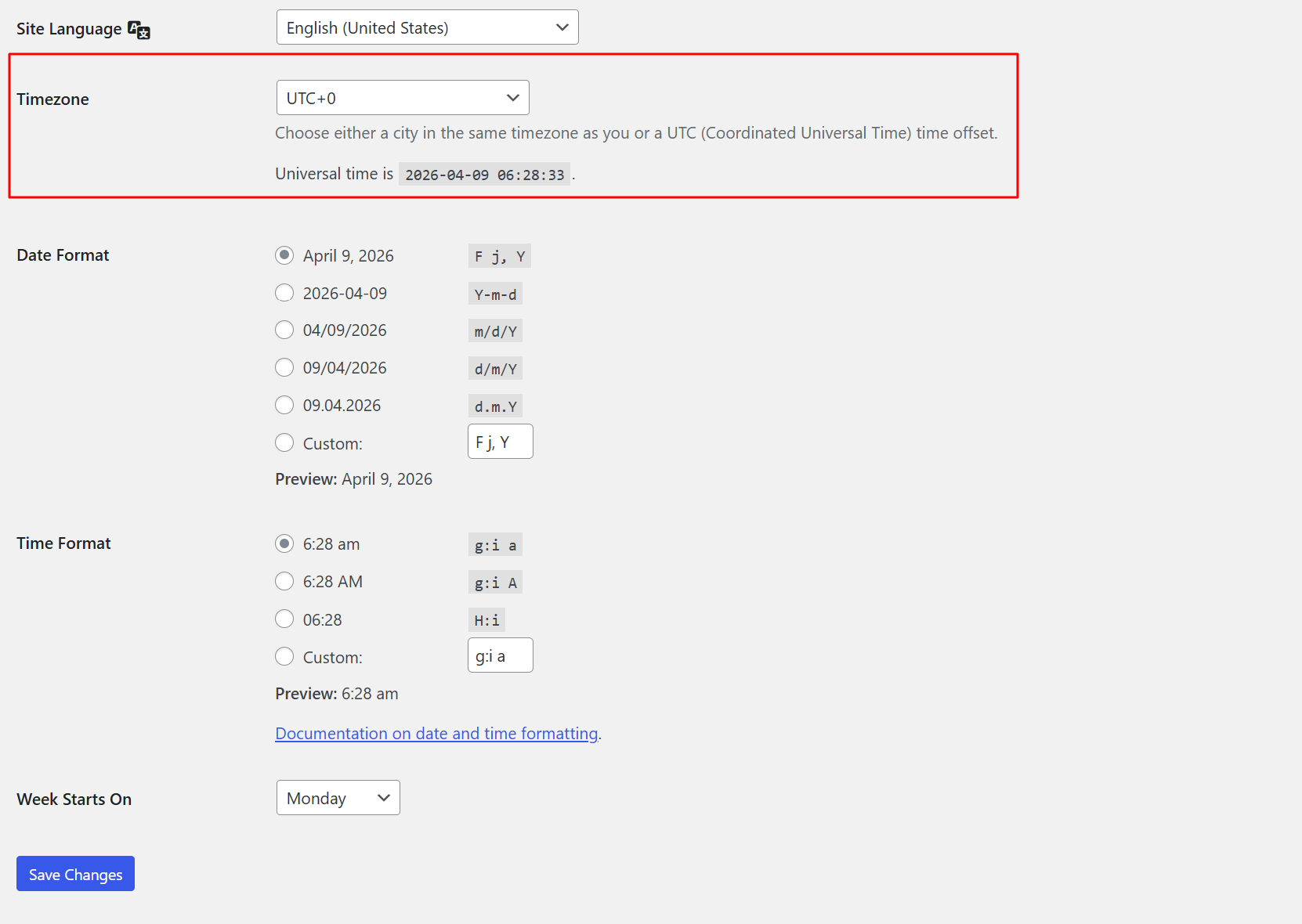
- Set your Timezone to match your business location: this affects when scheduled posts publish and what timestamp appears on form submissions and comments
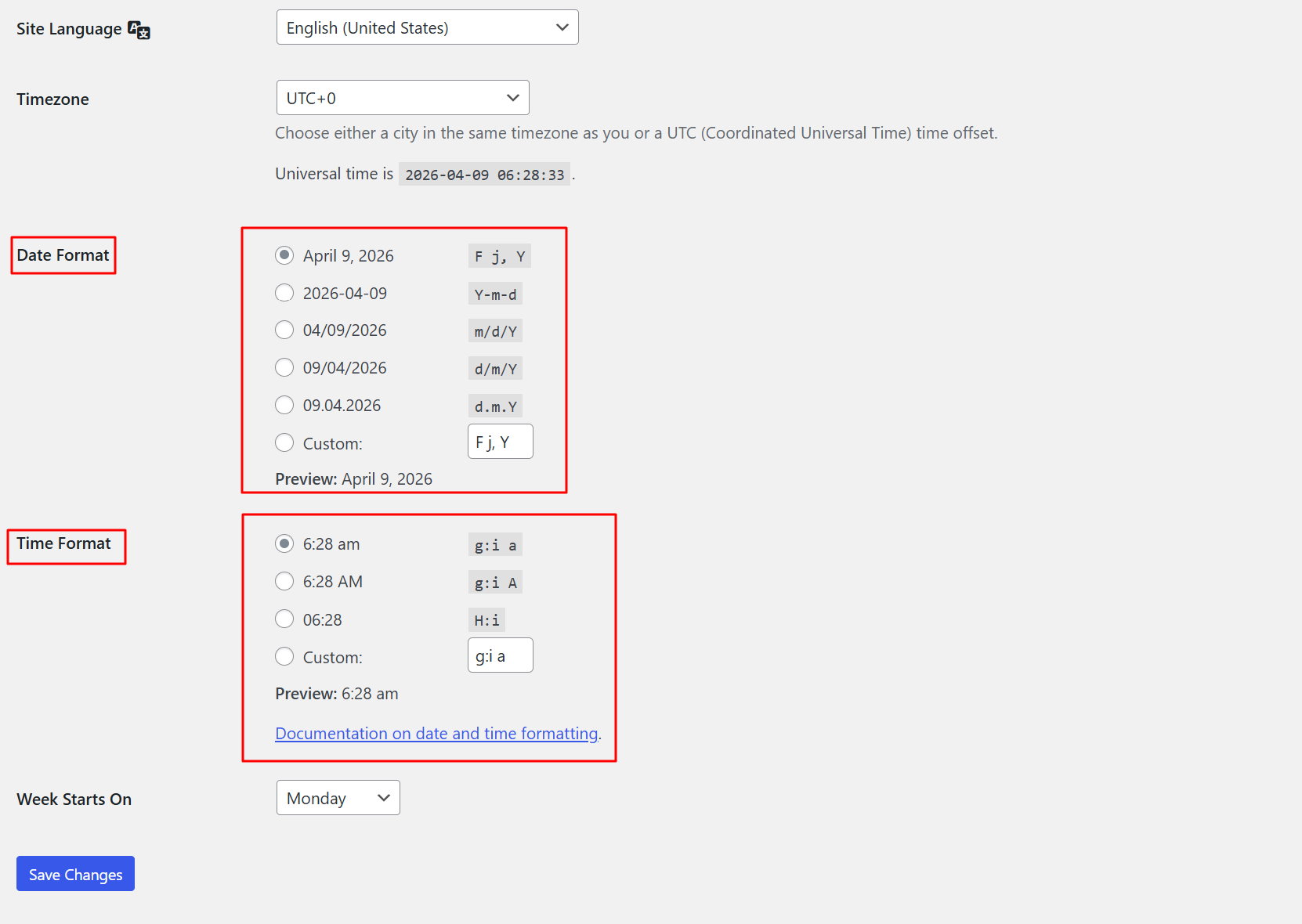
- Set your preferred Date Format and Time Format to what is standard in your market
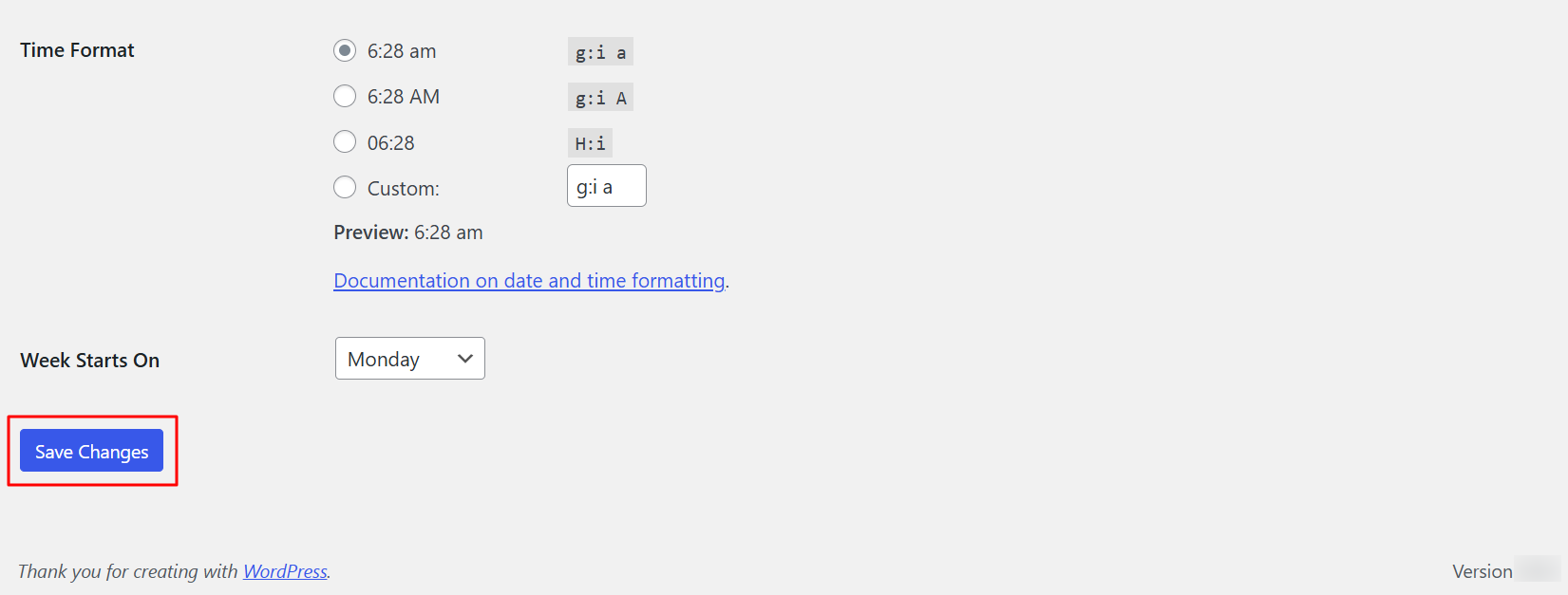
- Click Save Changes
Step 4.3.2: Settings → Reading
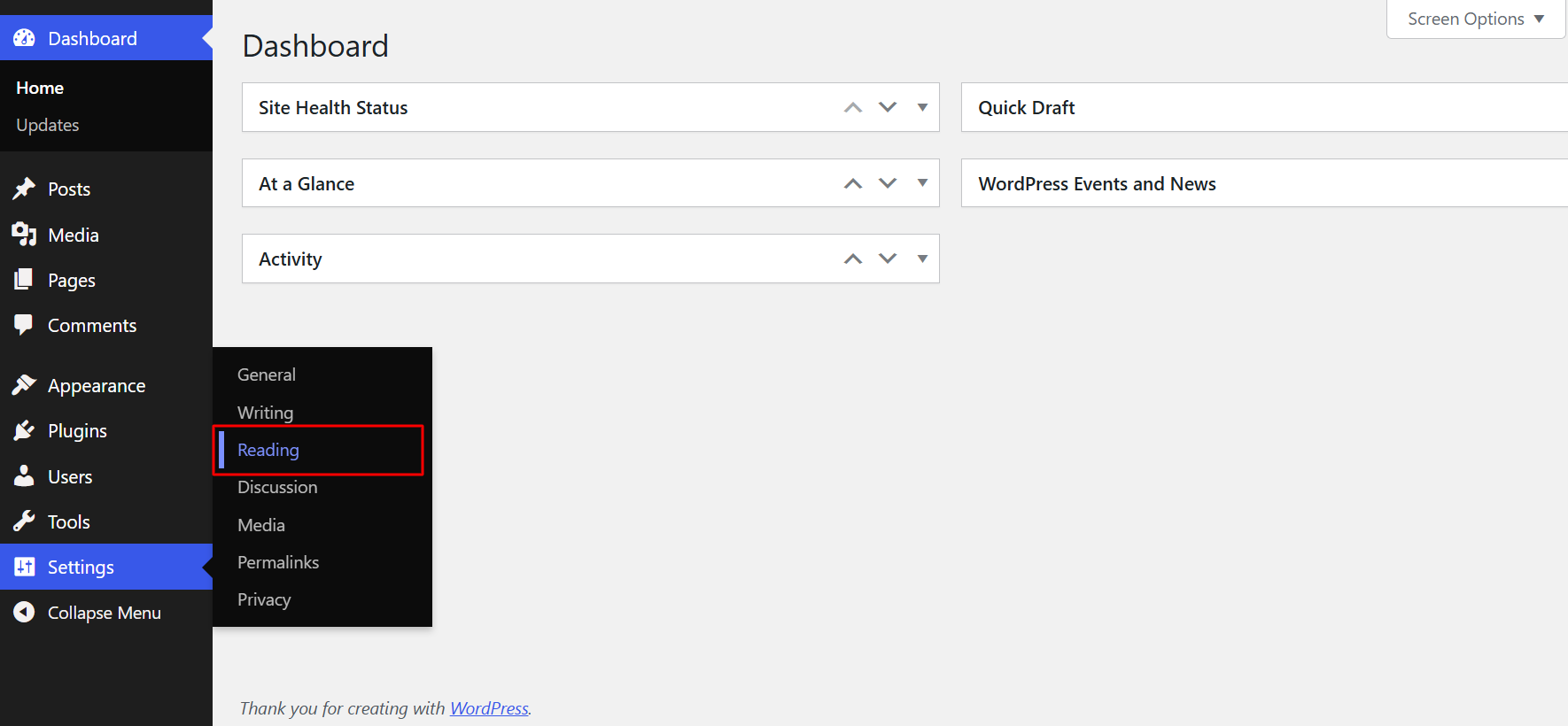
- Under "Your homepage displays," select A static page rather than "Your latest posts": this tells WordPress to show a specific page as your homepage rather than a feed of blog posts
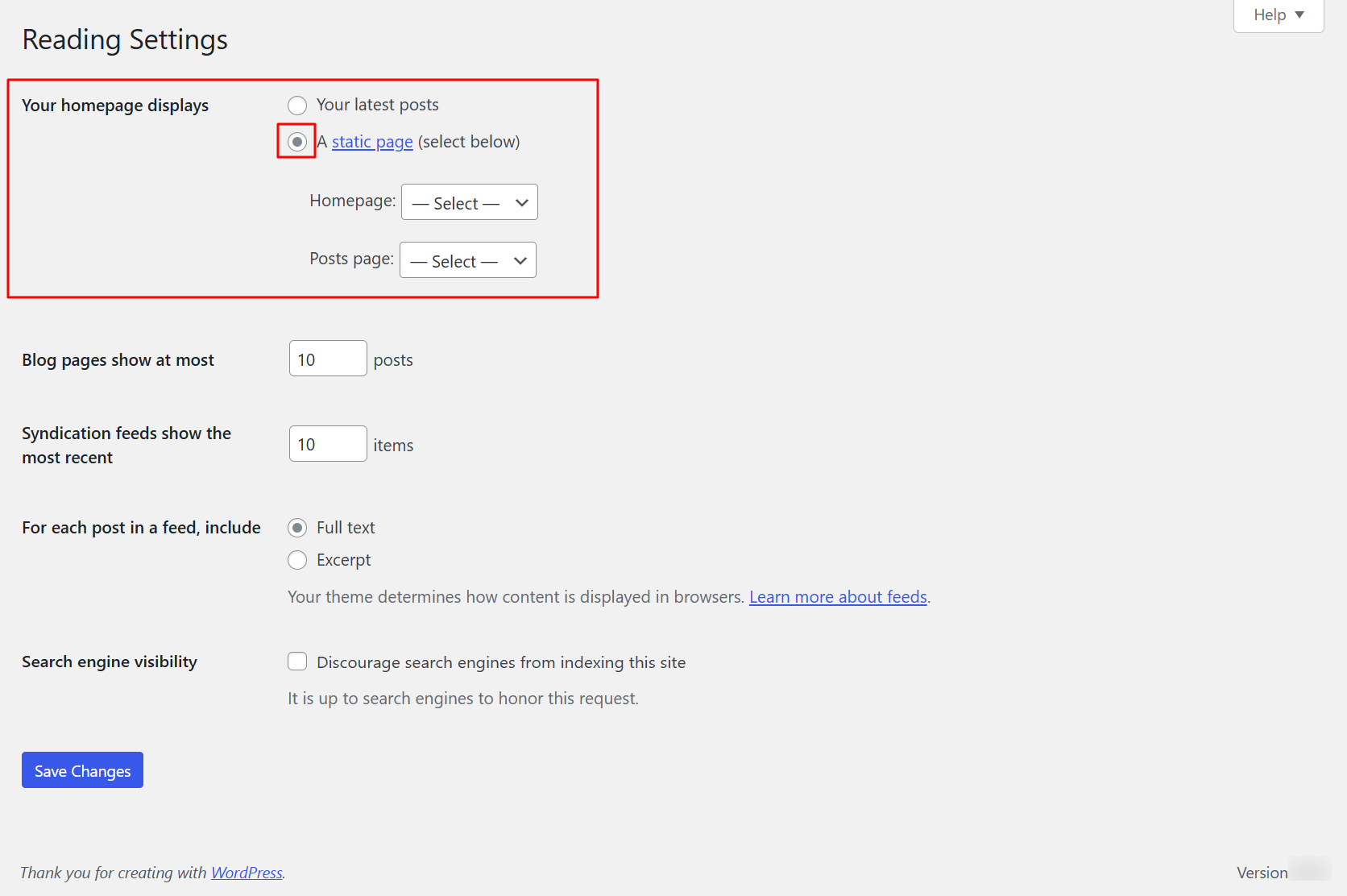
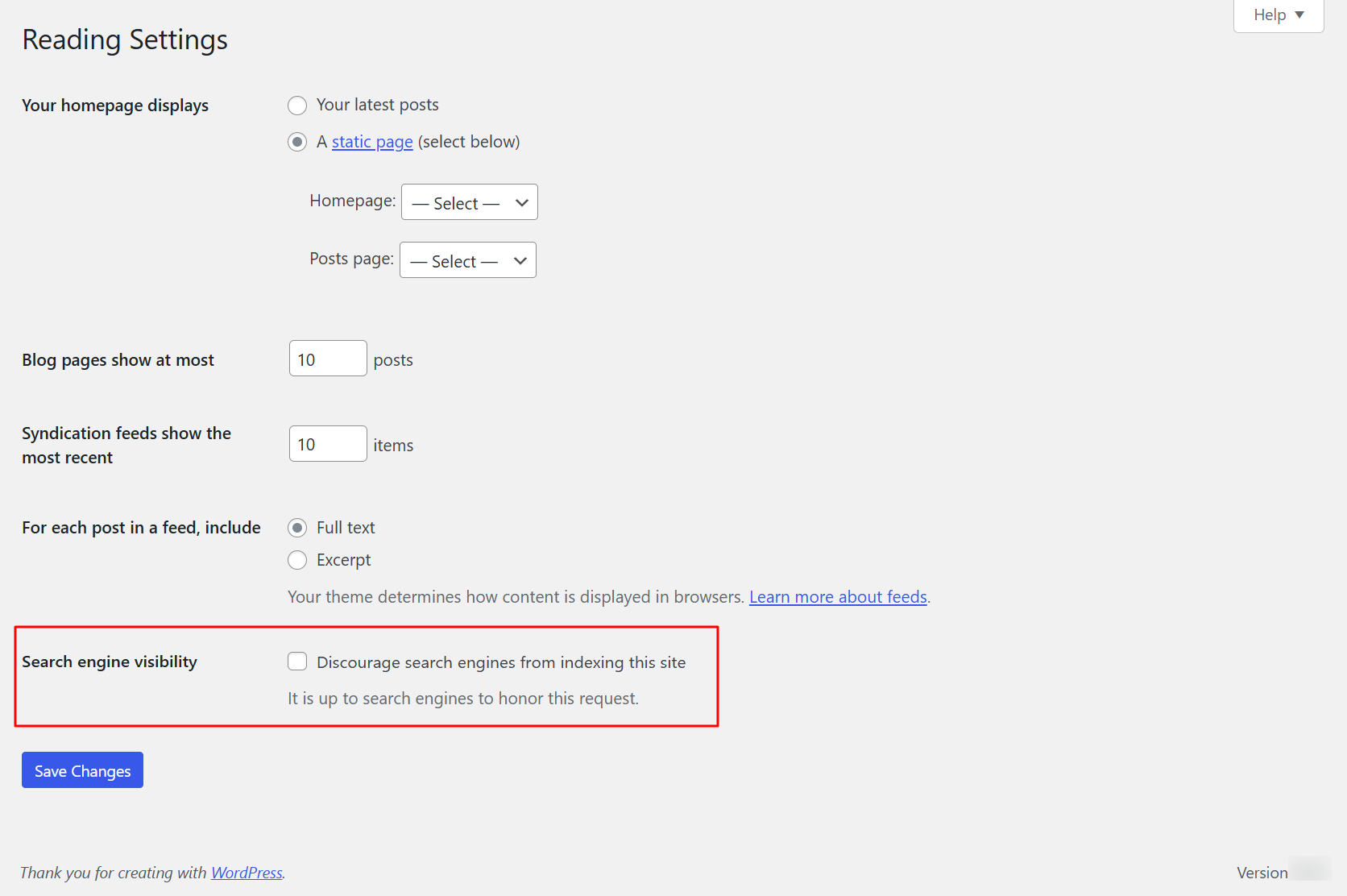
- Confirm that Search Engine Visibility is NOT checked: if the checkbox next to "Discourage search engines from indexing this site" is ticked, search engines cannot index your content; uncheck it before launch
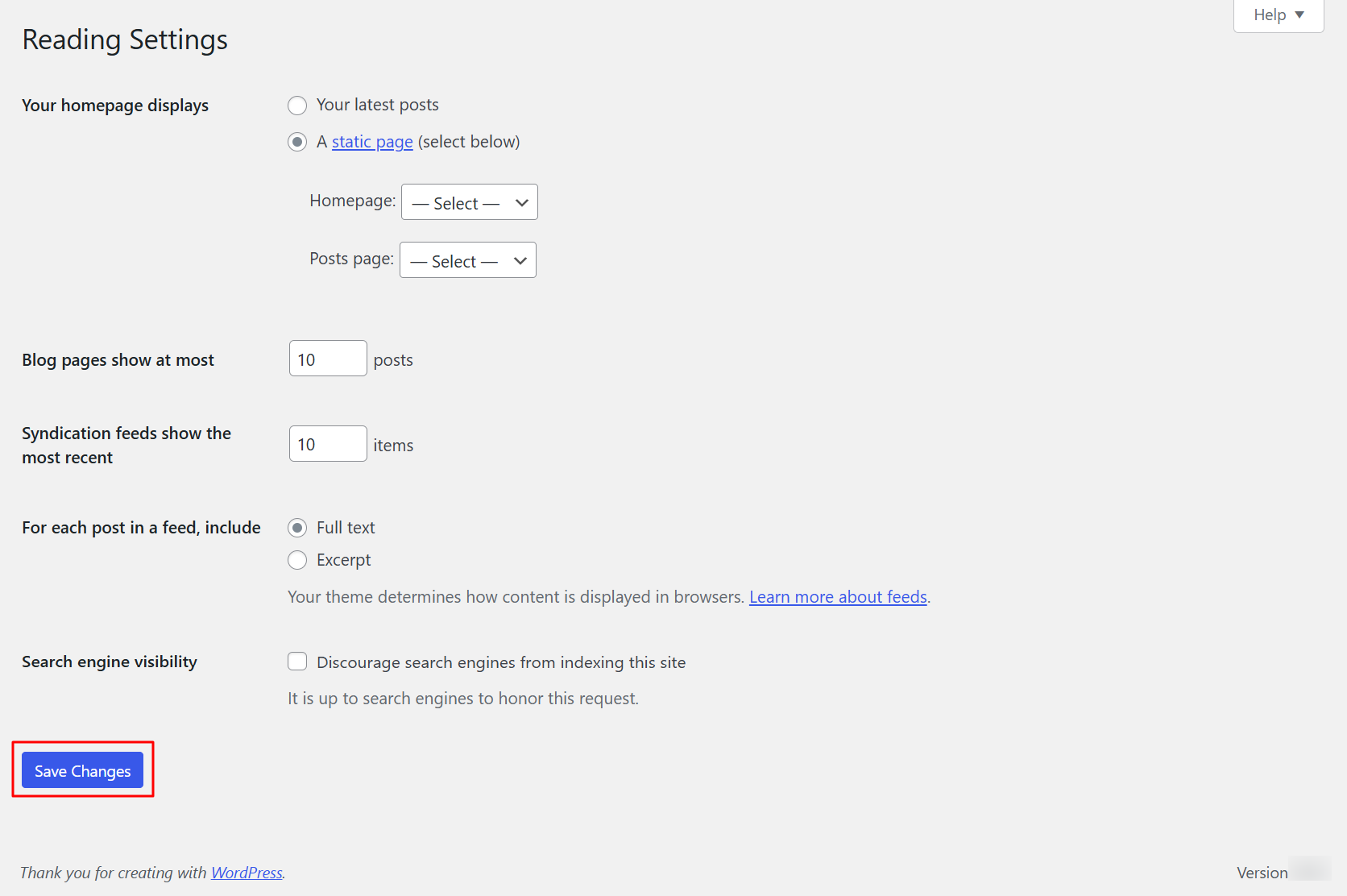
- Click Save Changes
Step 4.3.3: Settings → Permalinks
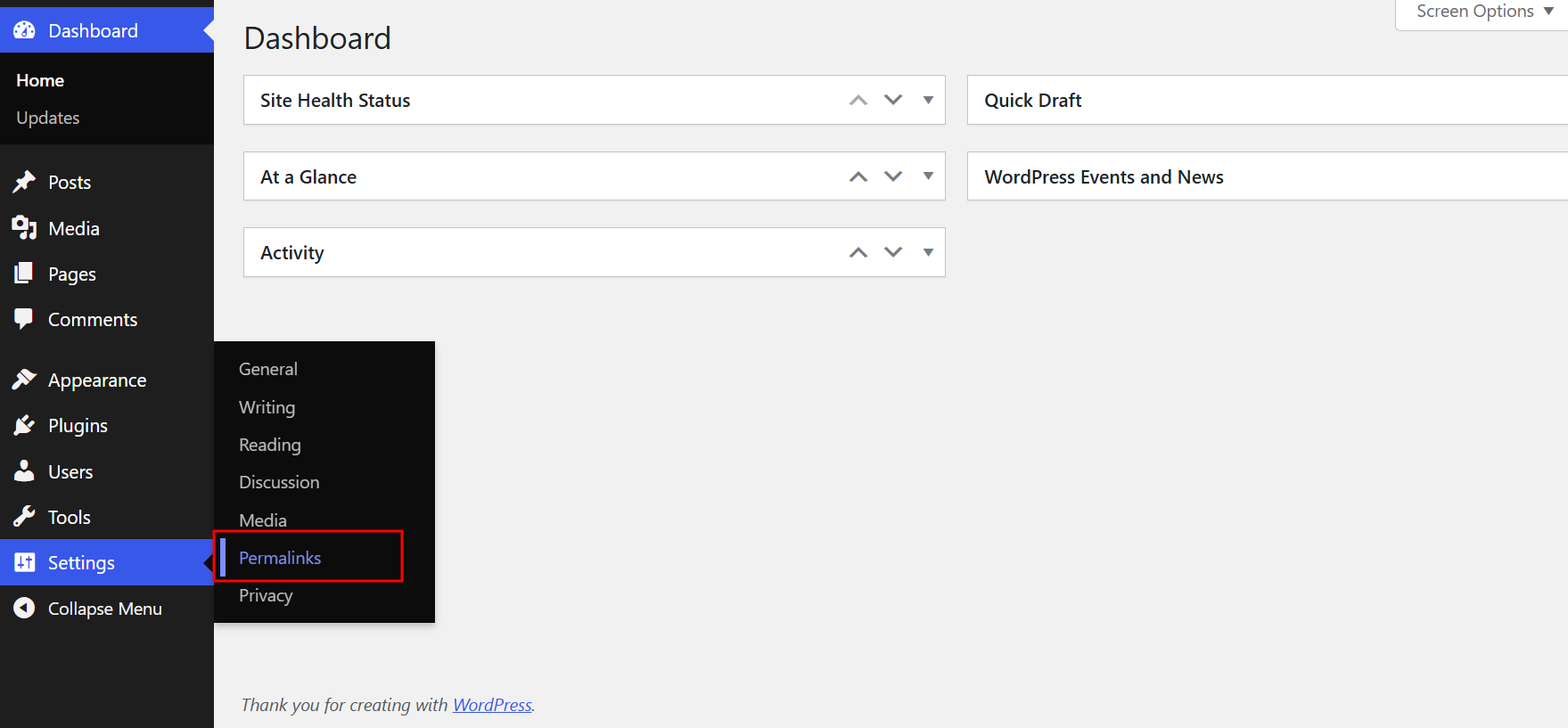
- Select Post name from the list of permalink structure options
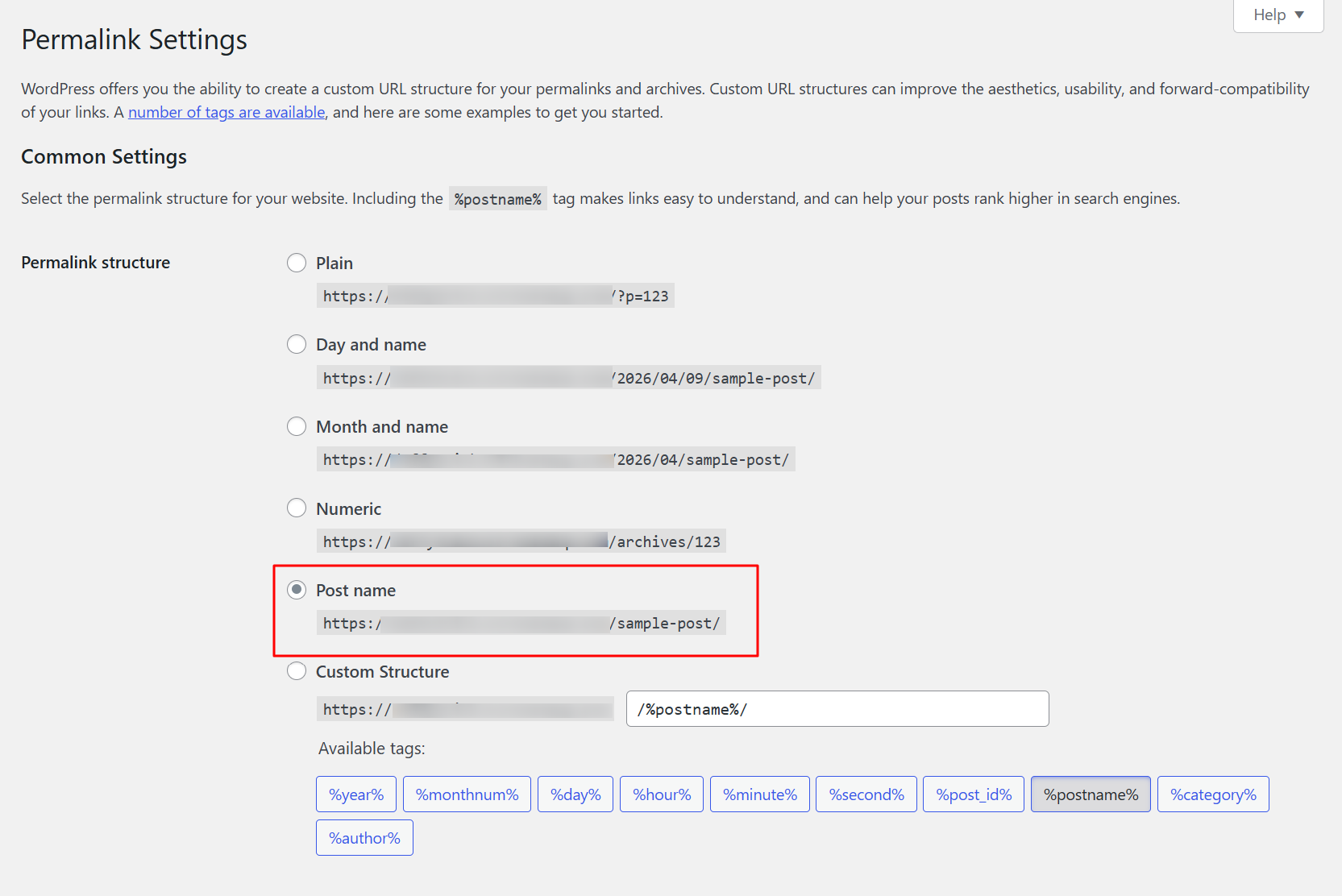
This changes your page URLs from something like yourdomain.com/?p=123 to yourdomain.com/your-page-title, which is cleaner, more readable and significantly better for SEO
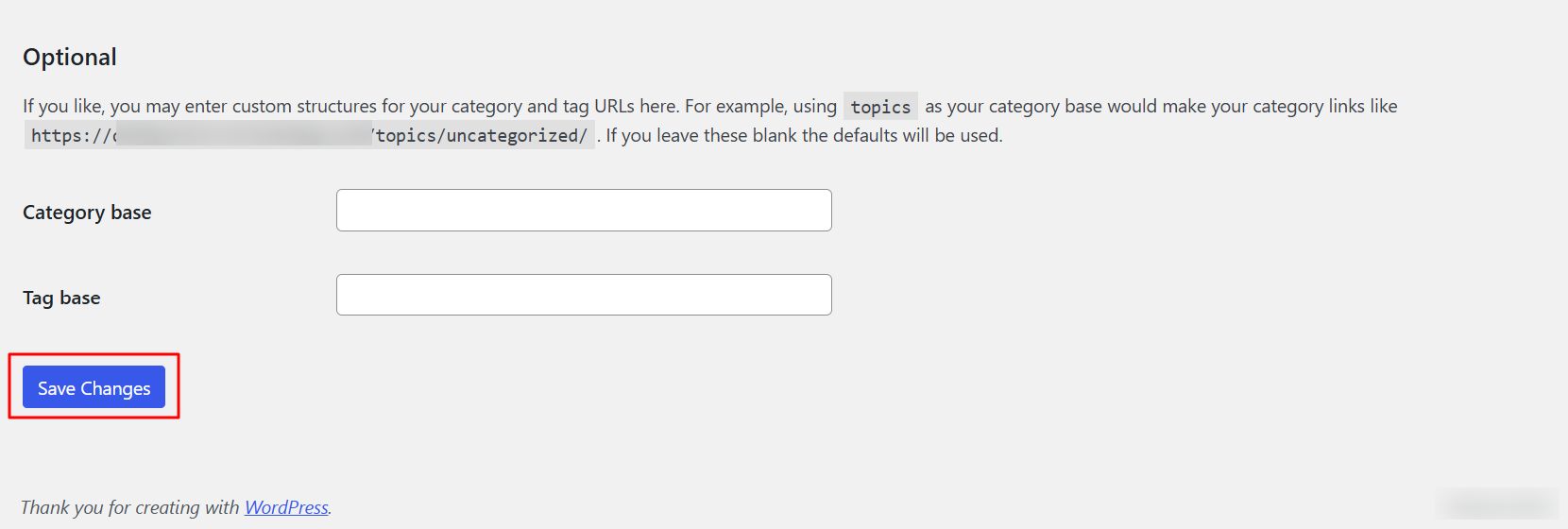
- Click Save Changes: WordPress automatically rewrites your URL structure immediately
Step 4.3.4: Settings → Discussion
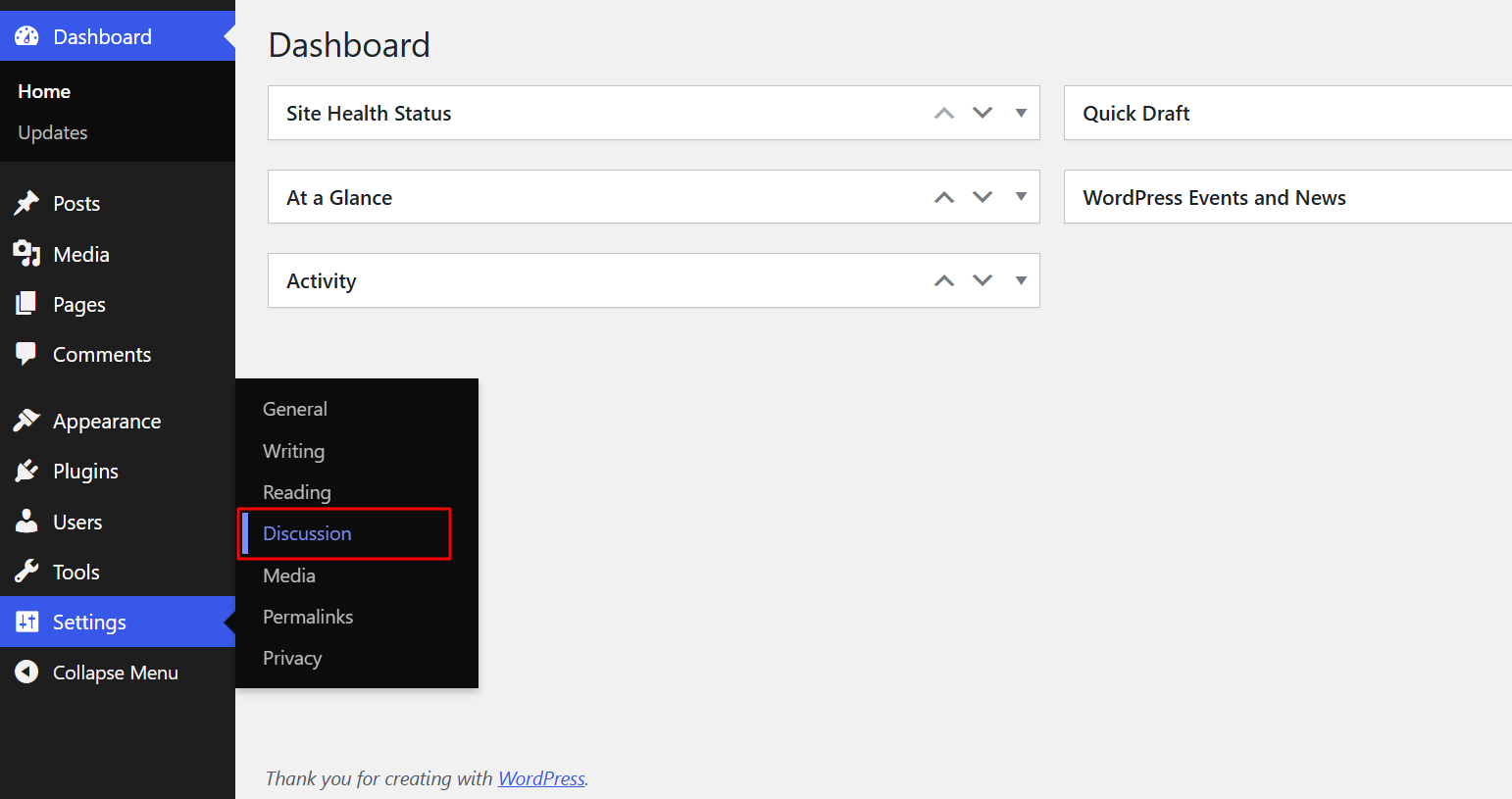
This section controls how comments work across your site. The WordPress defaults are designed for blogs, not business websites, so most need adjusting:
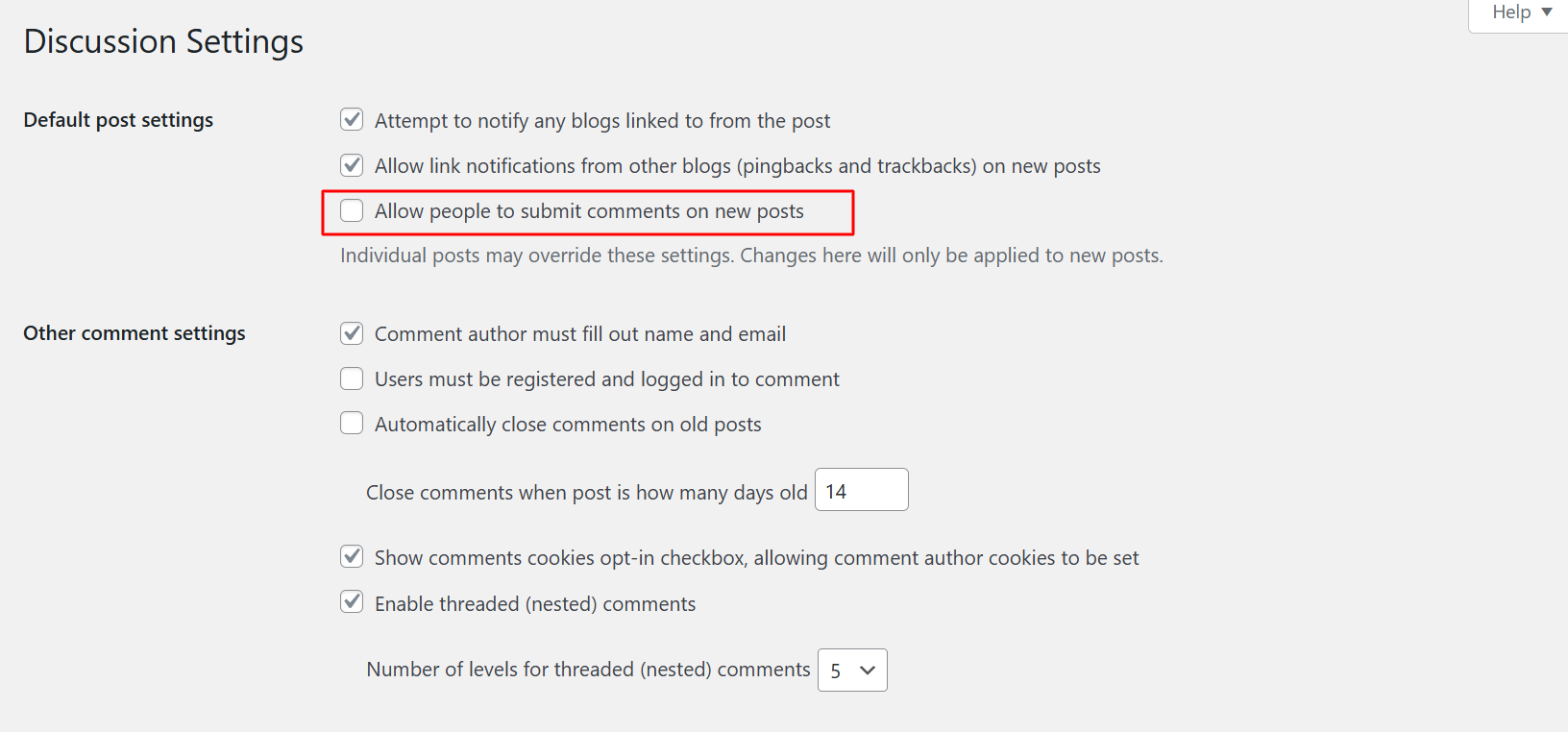
- Uncheck "Allow people to submit comments on new posts": unless you are running an active blog where you genuinely want public commentary, comments are unnecessary for most business websites; leaving them on opens you to spam and the ongoing burden of moderation
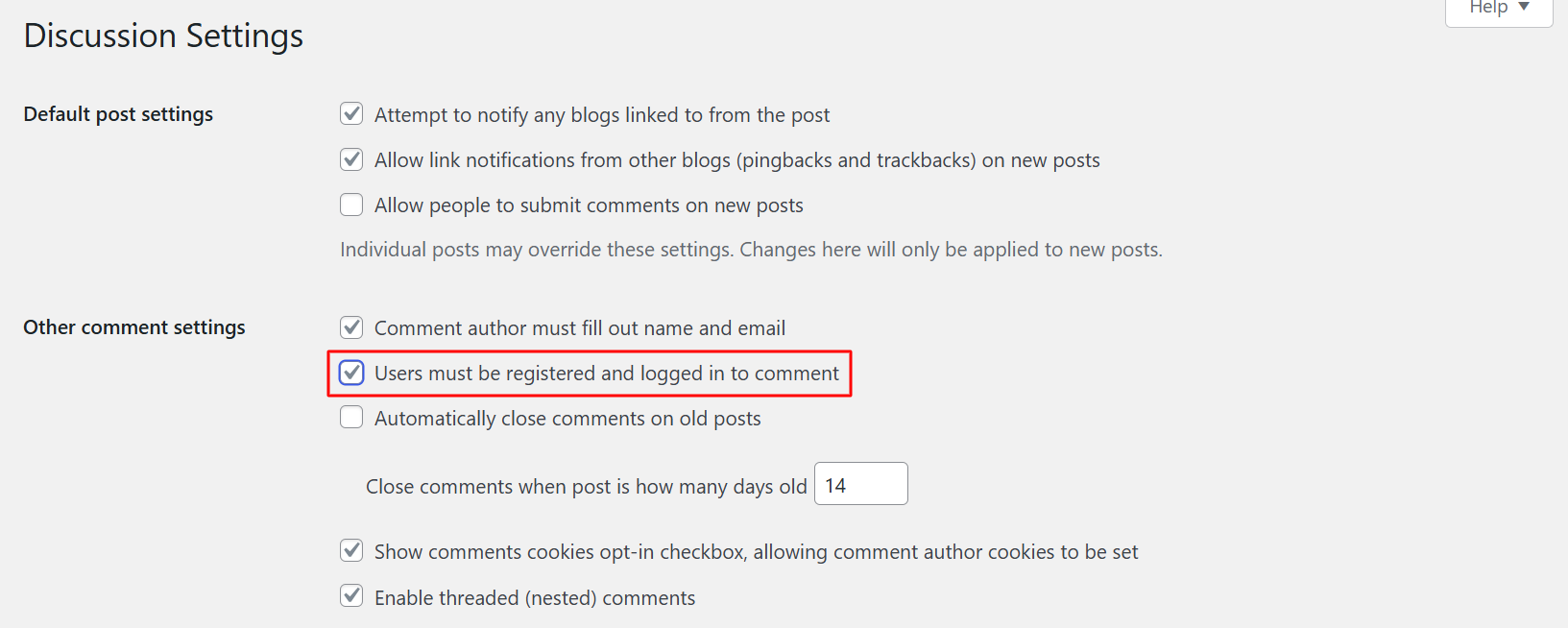
- Consider checking "Users must be registered and logged in to comment": this single setting eliminates most automated spam entirely, since bots rarely create accounts
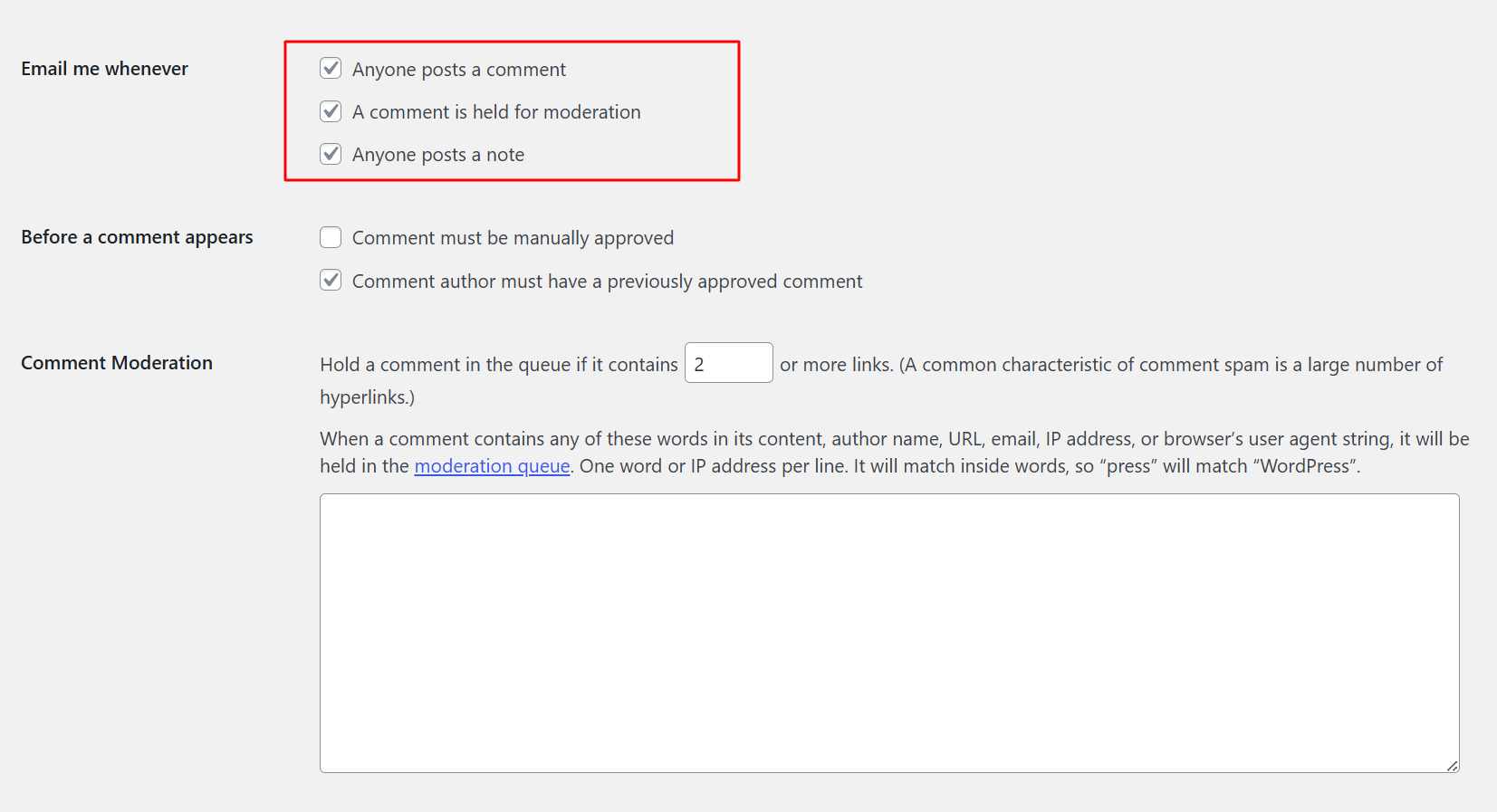
- Under "Email me whenever," check both "Anyone posts a comment" and "A comment is held for moderation": this ensures you are notified whenever activity happens and nothing falls through the cracks
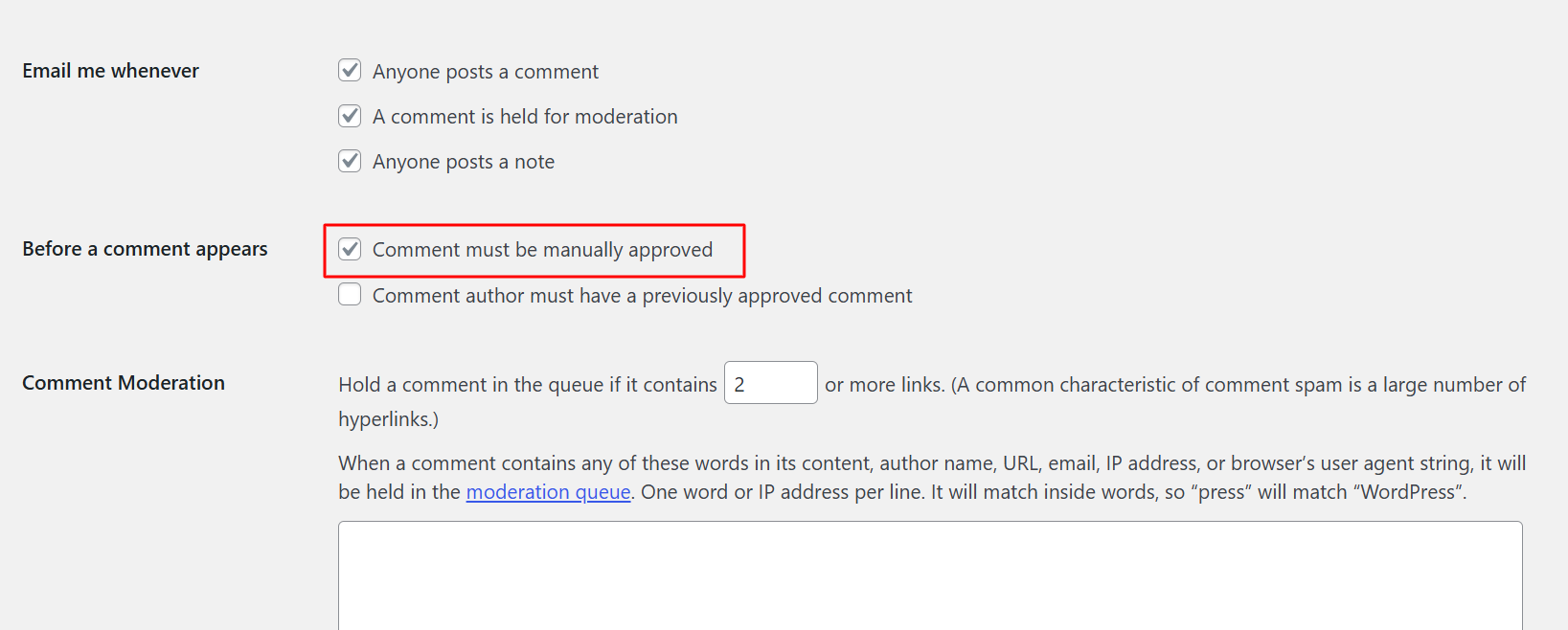
- If you choose to keep comments enabled, check "Comment must be manually approved": this means no comment appears publicly until you have reviewed and approved it, preventing spam, offensive content and unwanted surprises from going live without your knowledge
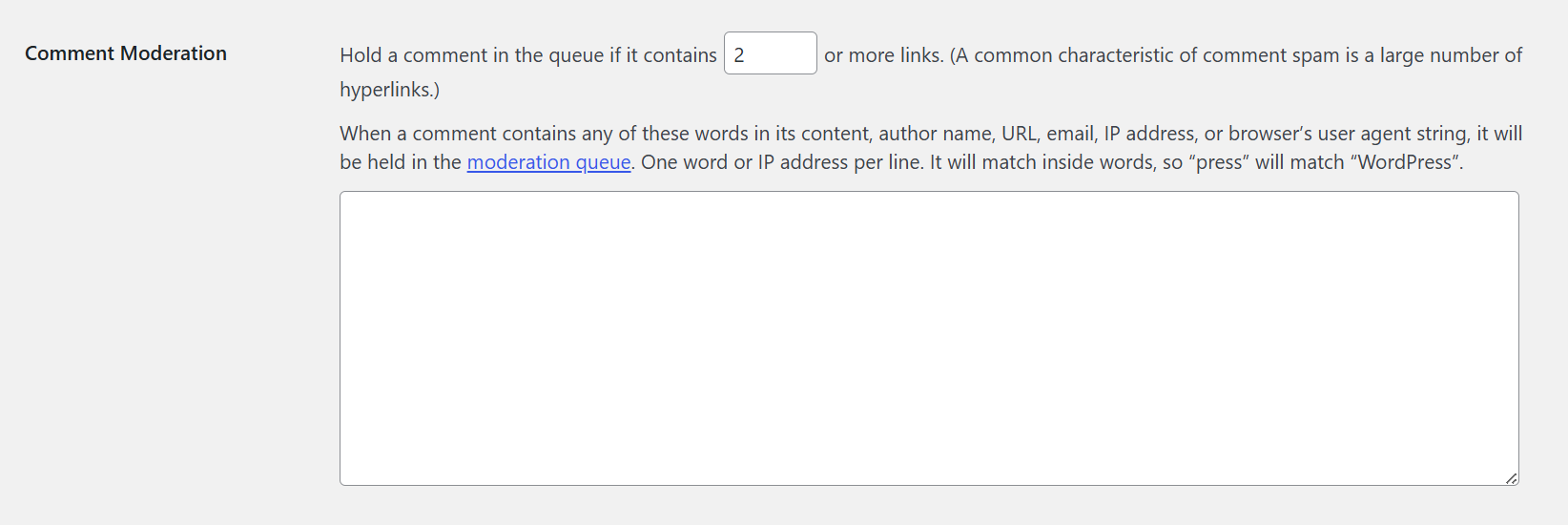
- Under Comment Moderation, you can set the number of links in a comment that automatically holds it for review: the default of 2 is reasonable for most sites
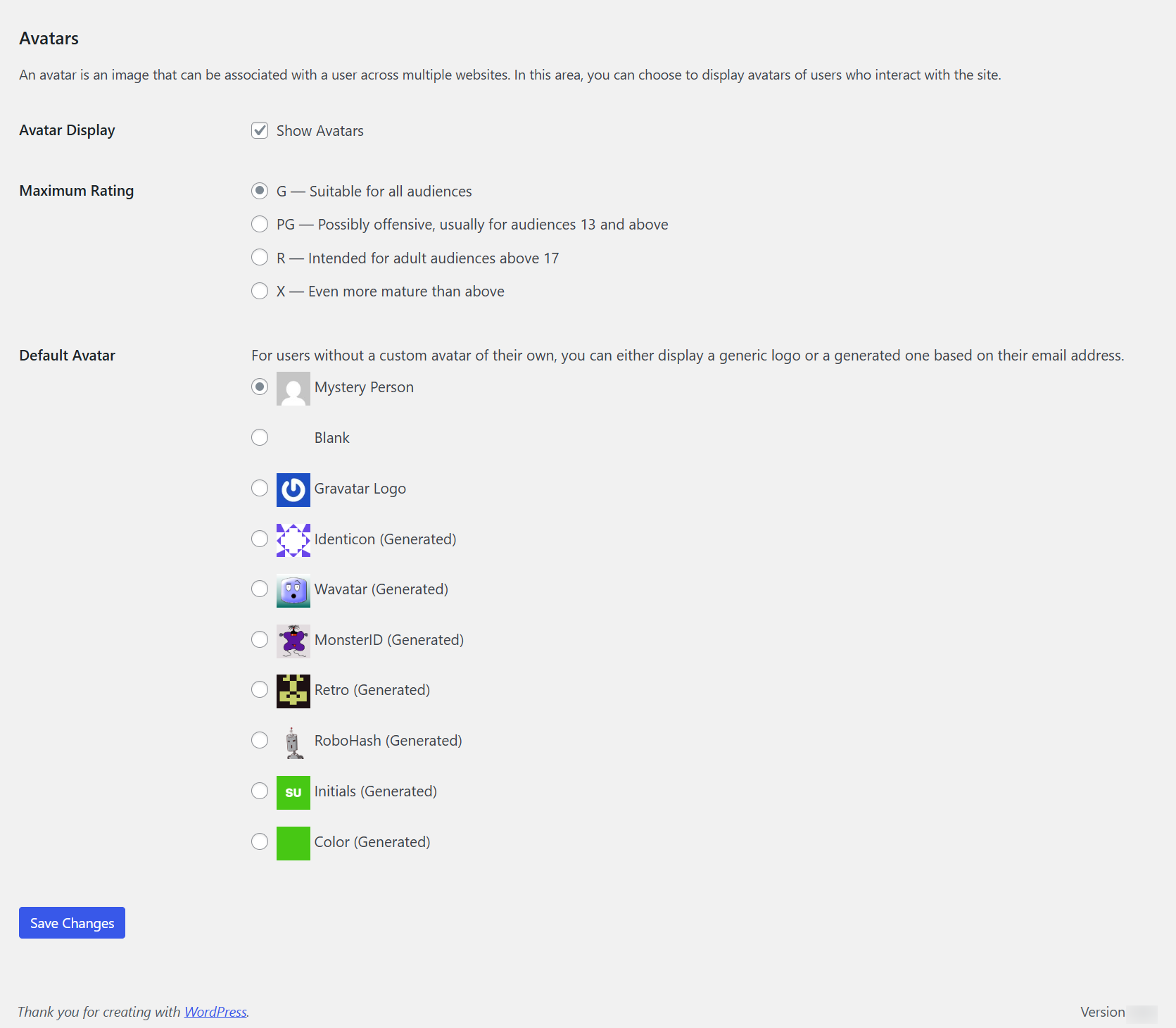
- The Avatars section controls whether profile images appear next to comments: if you disable comments entirely, this section has no effect
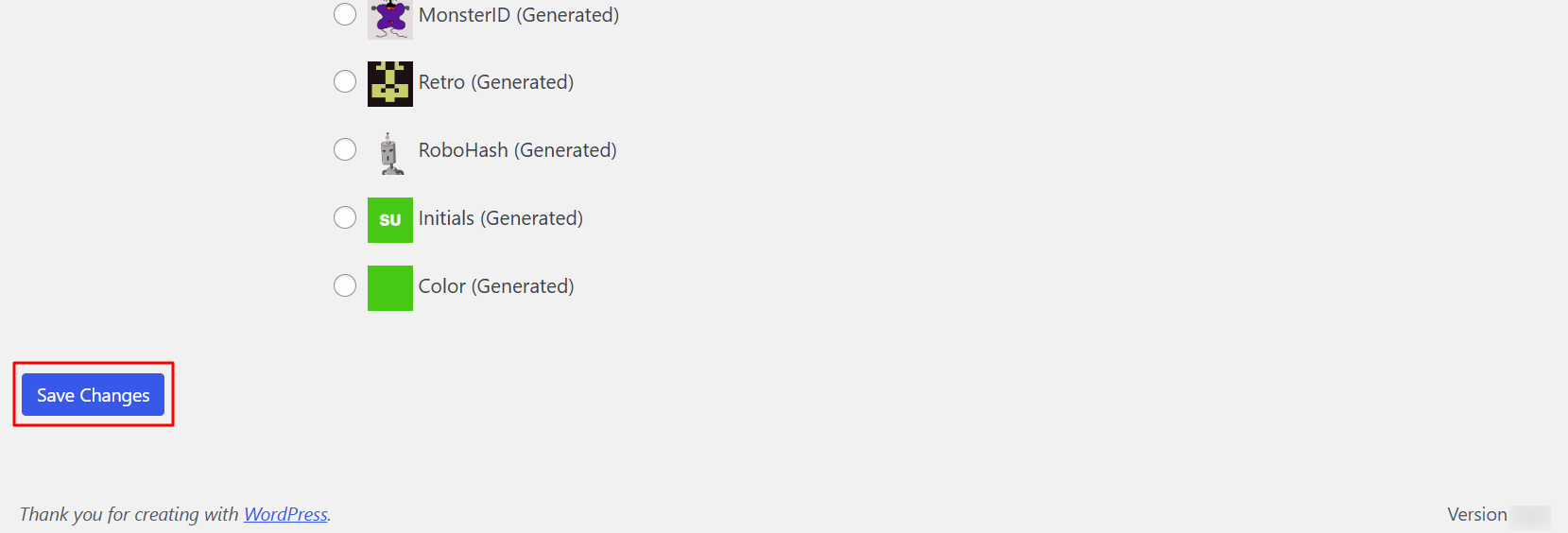
- Click Save Changes
Step 4.3.5: Settings → Media

These settings control the three image sizes WordPress automatically generates whenever you upload a file: thumbnail, medium and large
- The defaults (150x150 for thumbnails, 300x300 for medium, 1024x1024 for large) work well for most themes
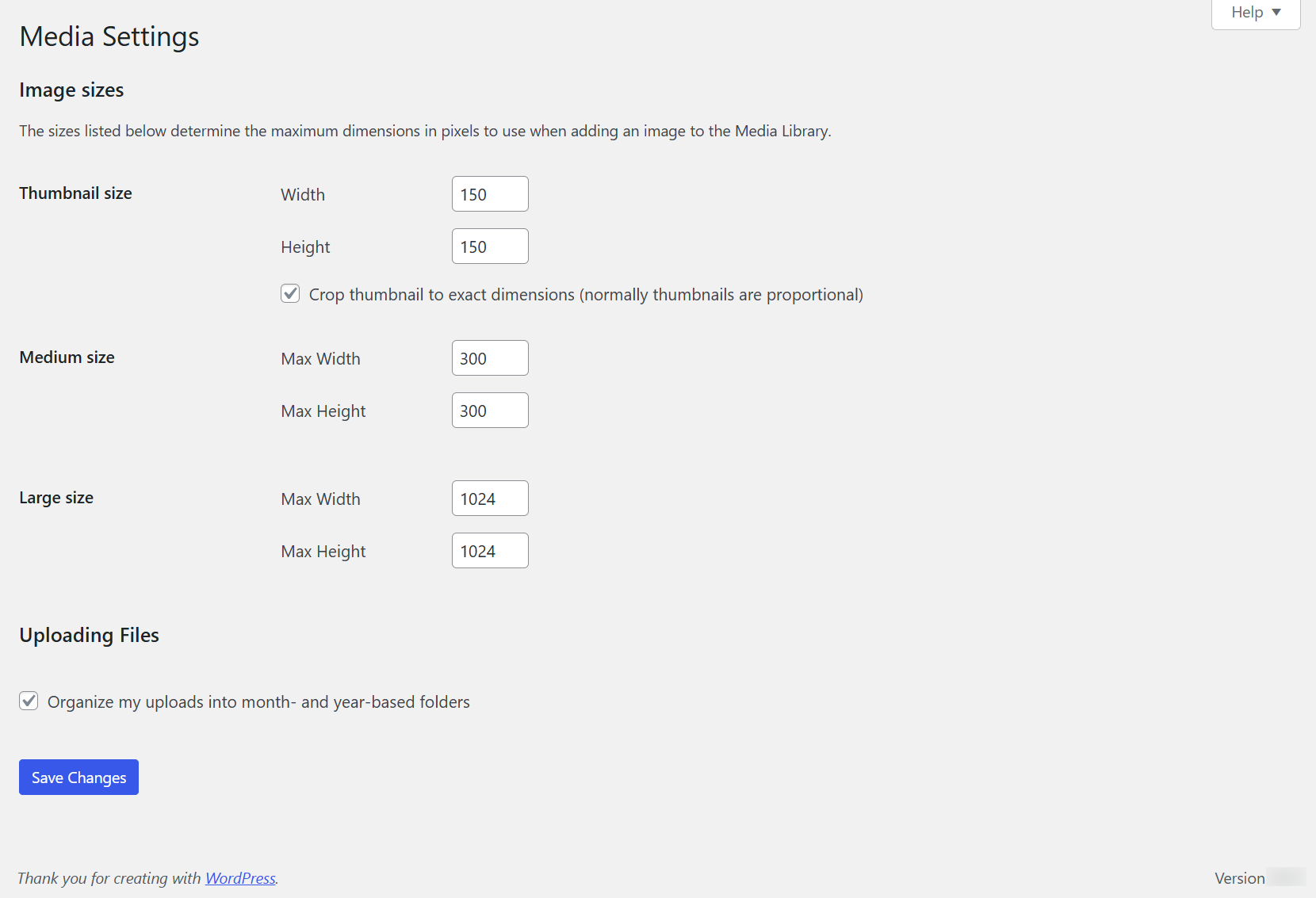
If your theme documentation recommends specific sizes, set them here before uploading your main image library: changing these settings does not retroactively resize already-uploaded images
- Click Save Changes

For a practical walkthrough of turning a fresh WordPress install into a properly structured business site, including navigation setup and working with the block editor, the guide on converting WordPress from a blog to a full business website covers the key steps in clear sequence.
Step 5: Designing a Professional Business Website
Good design is not about making something beautiful for its own sake. It is about building something that communicates trust, guides visitors toward taking action and works consistently on every device.
Step 5.1: Choosing a Theme
A WordPress theme controls the visual structure of your site: the layout, spacing, typography defaults, header and footer style and how content is presented. Choosing the right theme from the start saves enormous time compared to trying to force a poorly structured theme into something it was not built for.
Look for themes with these characteristics:
- Lightweight and fast-loading: performance matters for both SEO and user experience
- Mobile-responsive by default
- Compatible with the block editor (Gutenberg) or your preferred page builder such as Elementor
- Actively maintained with regular updates
- Accessibility ready (this is a filter available in the WordPress theme directory)
- Strong ratings and a meaningful support history
Reliable starting options include:
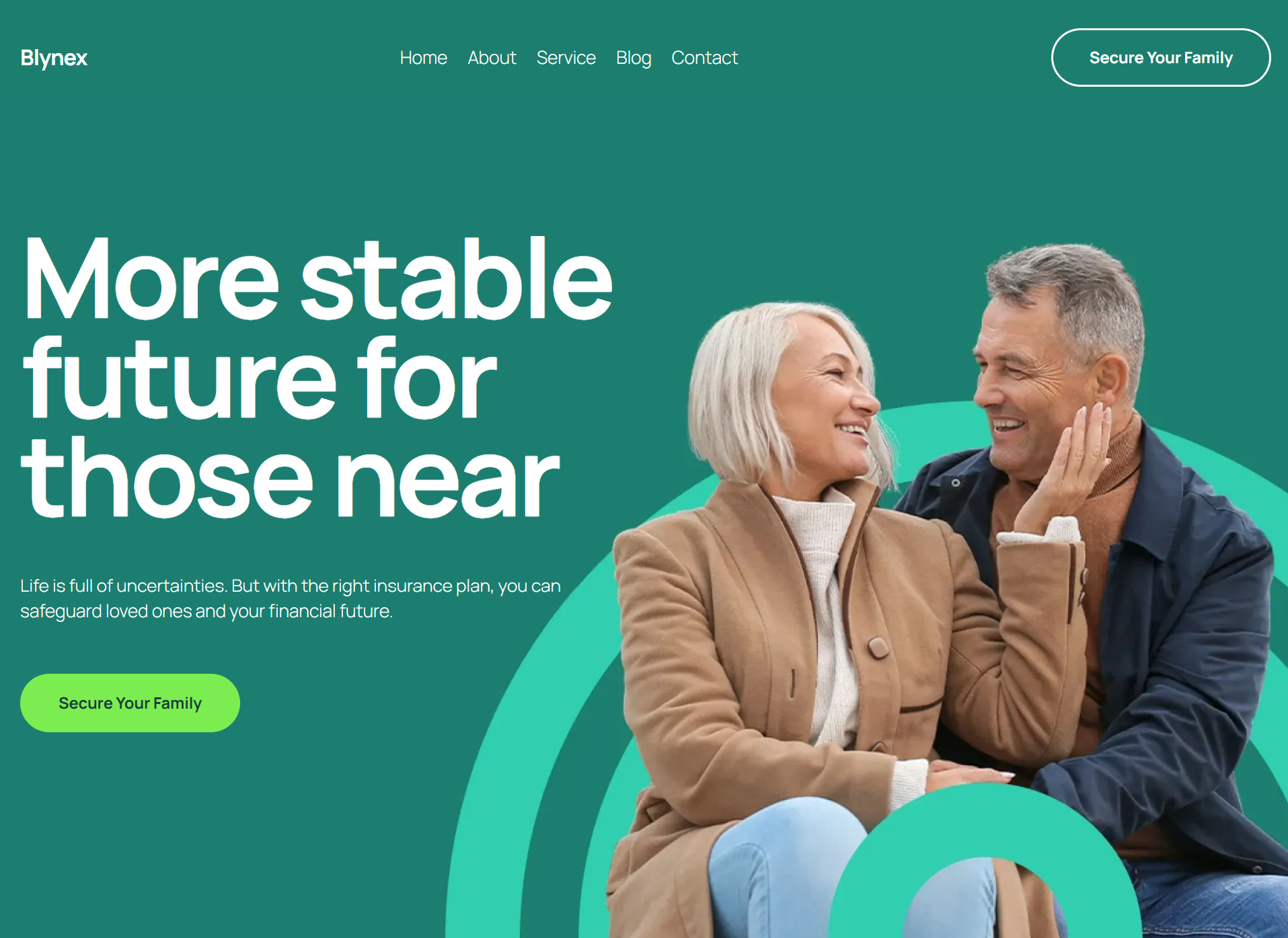
- Rooten and Blynex by BdThemes: modern, performant themes built for use with the BdThemes plugin ecosystem, with full Gutenberg and Elementor support
- Astra: fast, flexible and works with virtually every page builder; comes with a large library of starter templates for business websites
- GeneratePress: known for exceptional performance; ideal for businesses where speed is a priority
- Kadence: beginner-friendly with solid built-in customization options and a clean interface
- Hello Elementor: minimal starter theme designed for use with the Elementor page builder
For a wider selection across different categories and use cases, the comprehensive roundup of the best free WordPress themes covers options for business, portfolio, e-commerce and more.
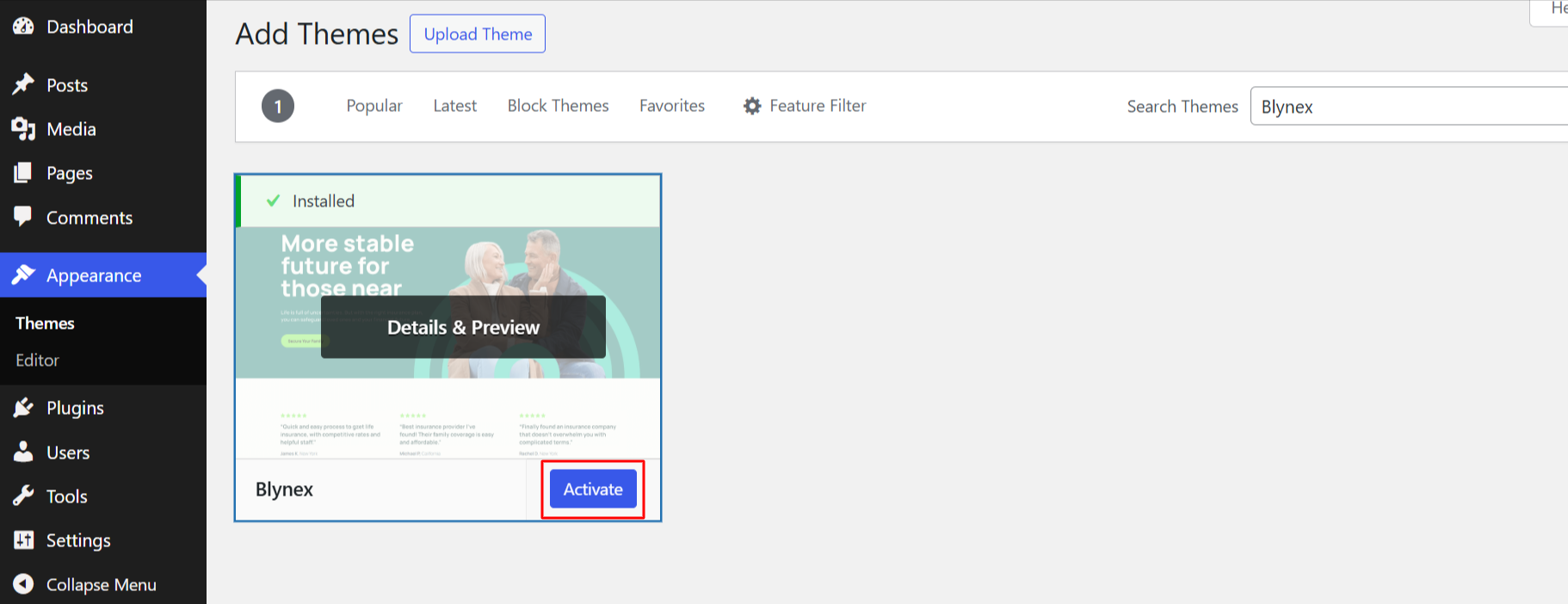
Installing a theme takes three steps:
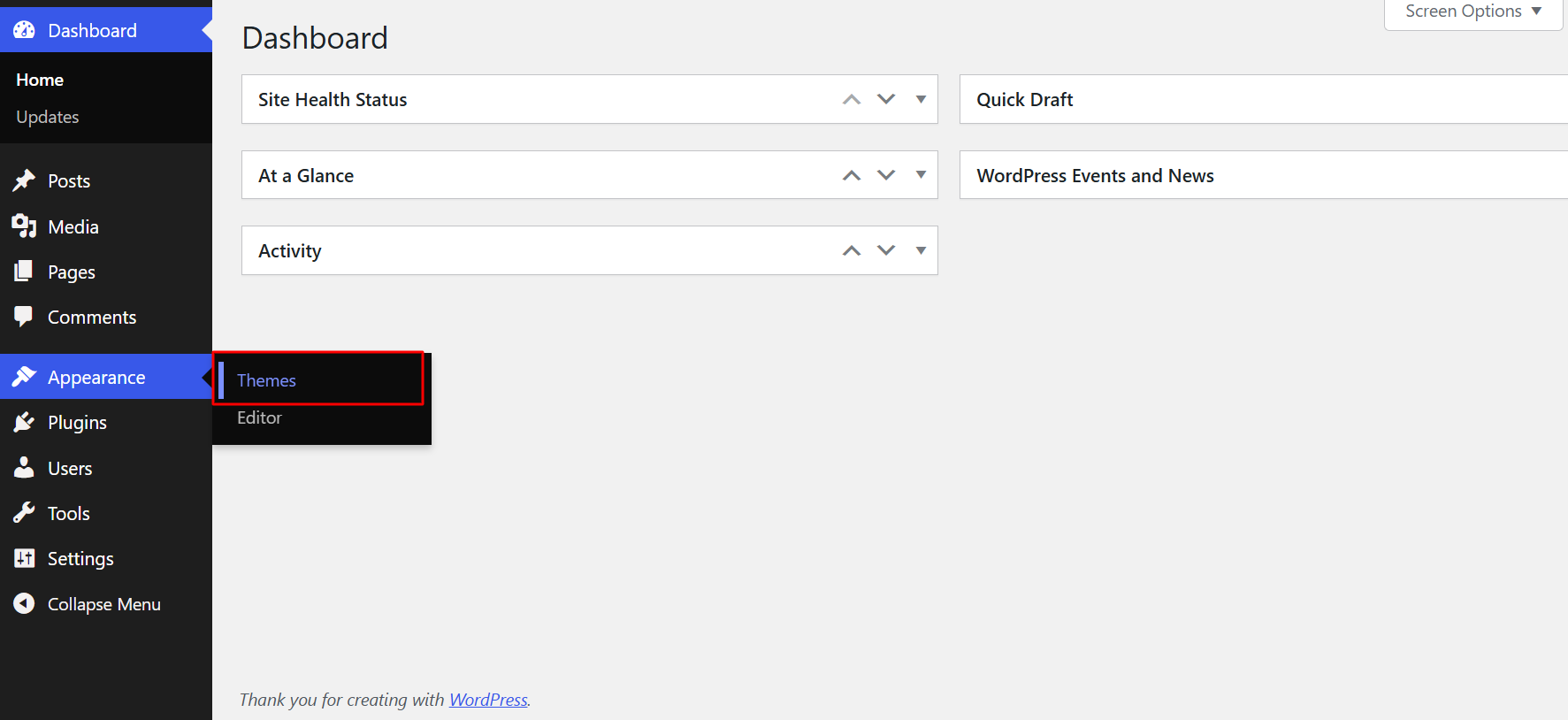
- From your WordPress dashboard, head to Appearance → Themes
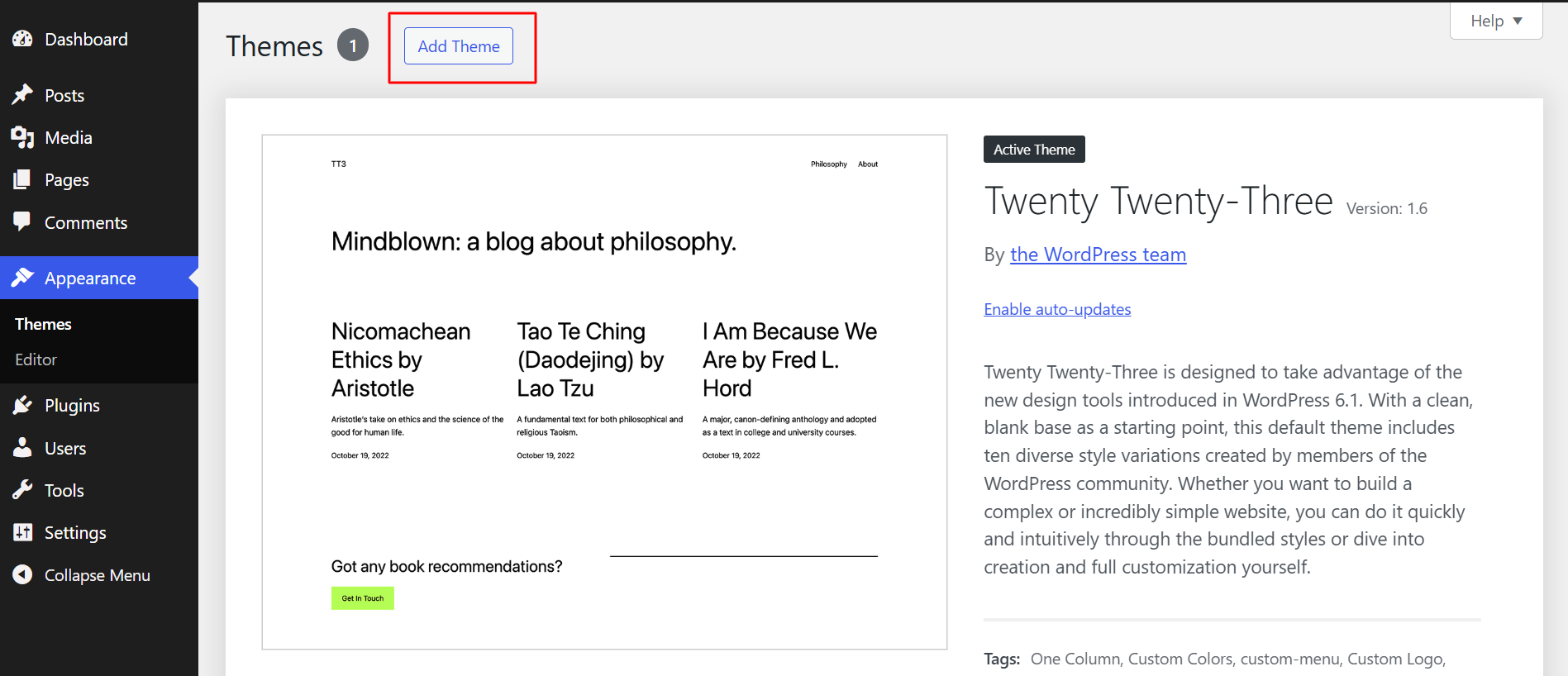
- Click on the Add Theme button
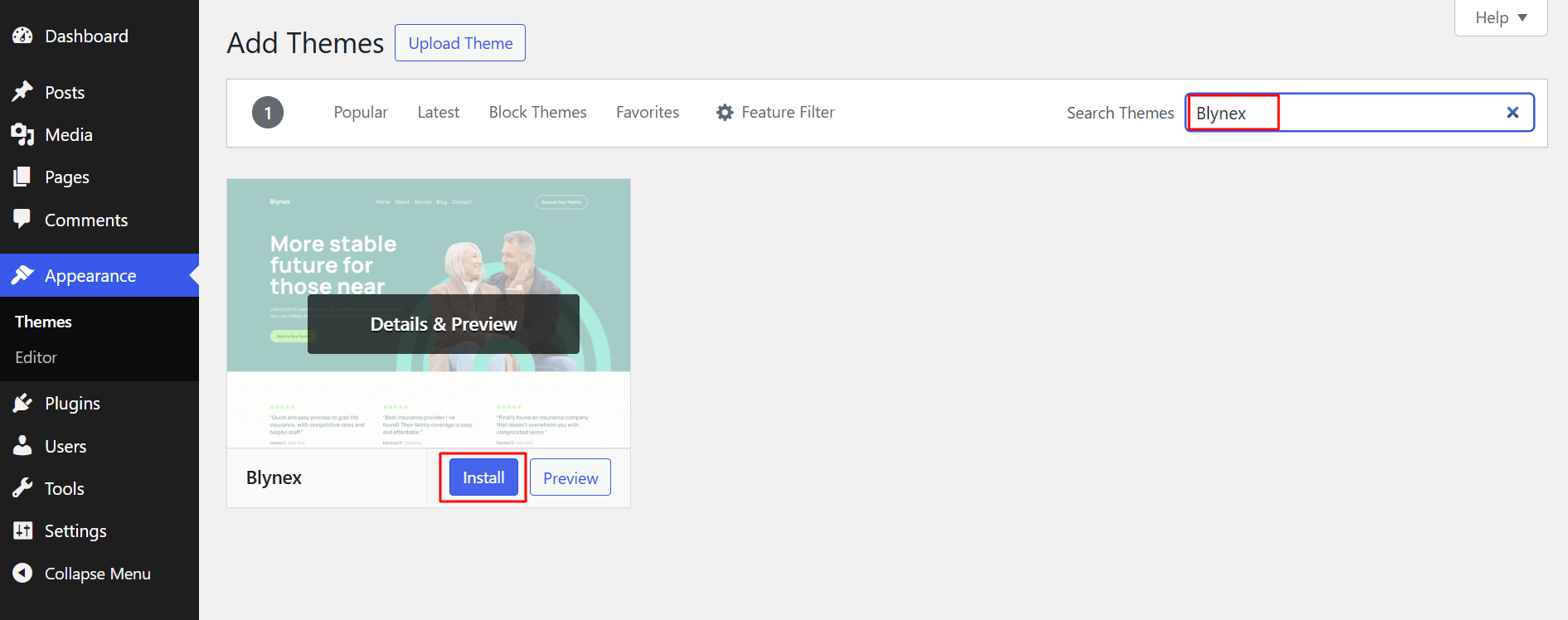
- Search for the theme name, click Install
- Once the theme is installed, click on the Activate button
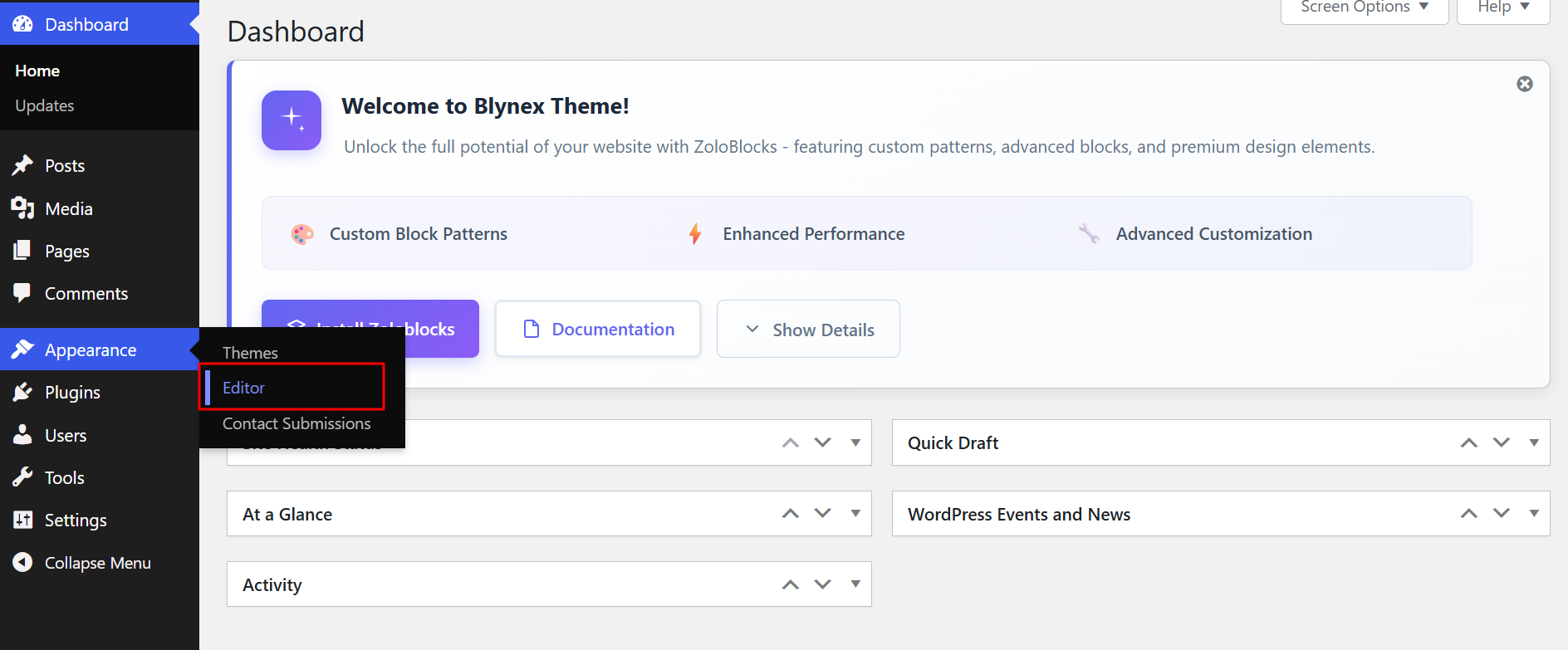
- Visit Appearance → Customize (or Appearance → Editor for block-based themes) to configure your visual settings
Step 5.2: Customizing Your Theme
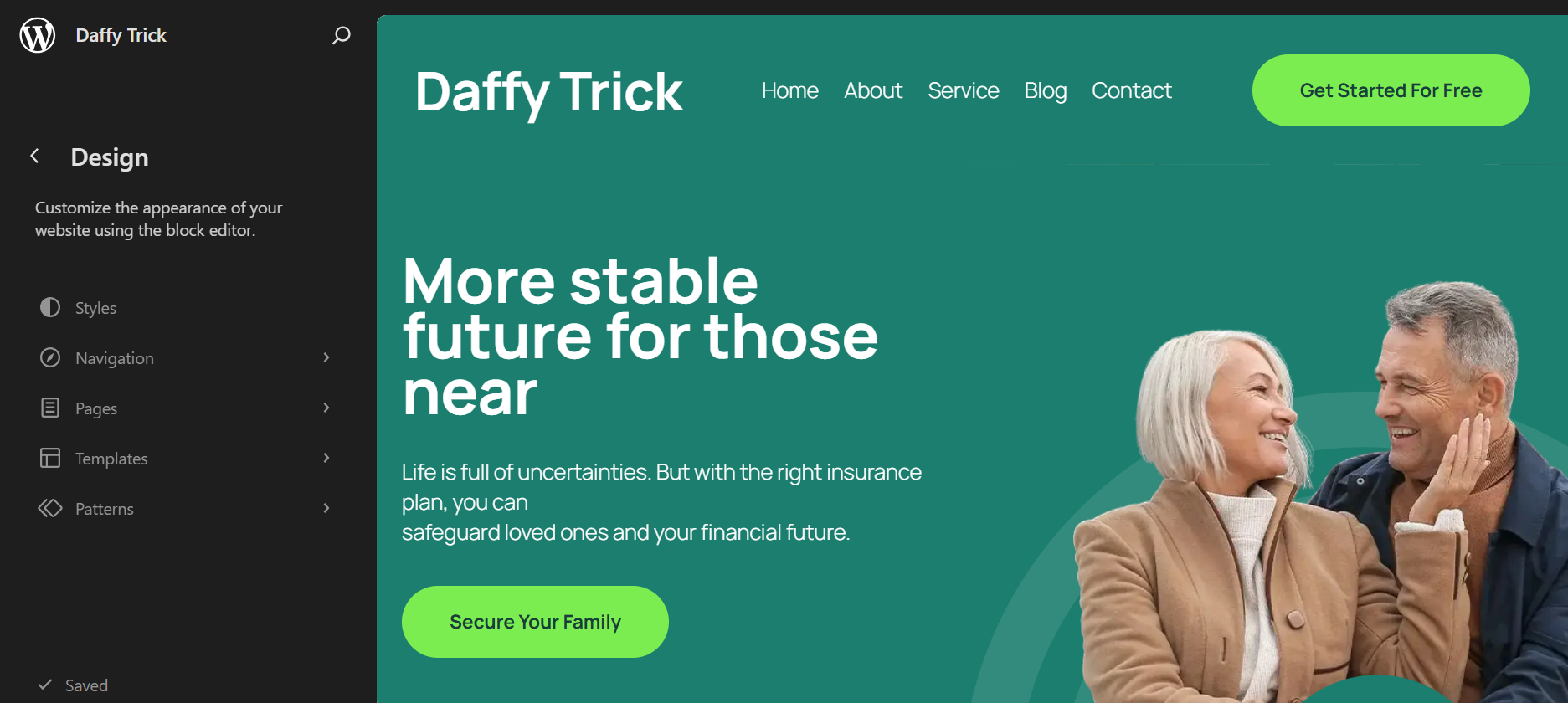
After activating your theme, most themes allow you to adjust the following from the Customizer or Site Editor:
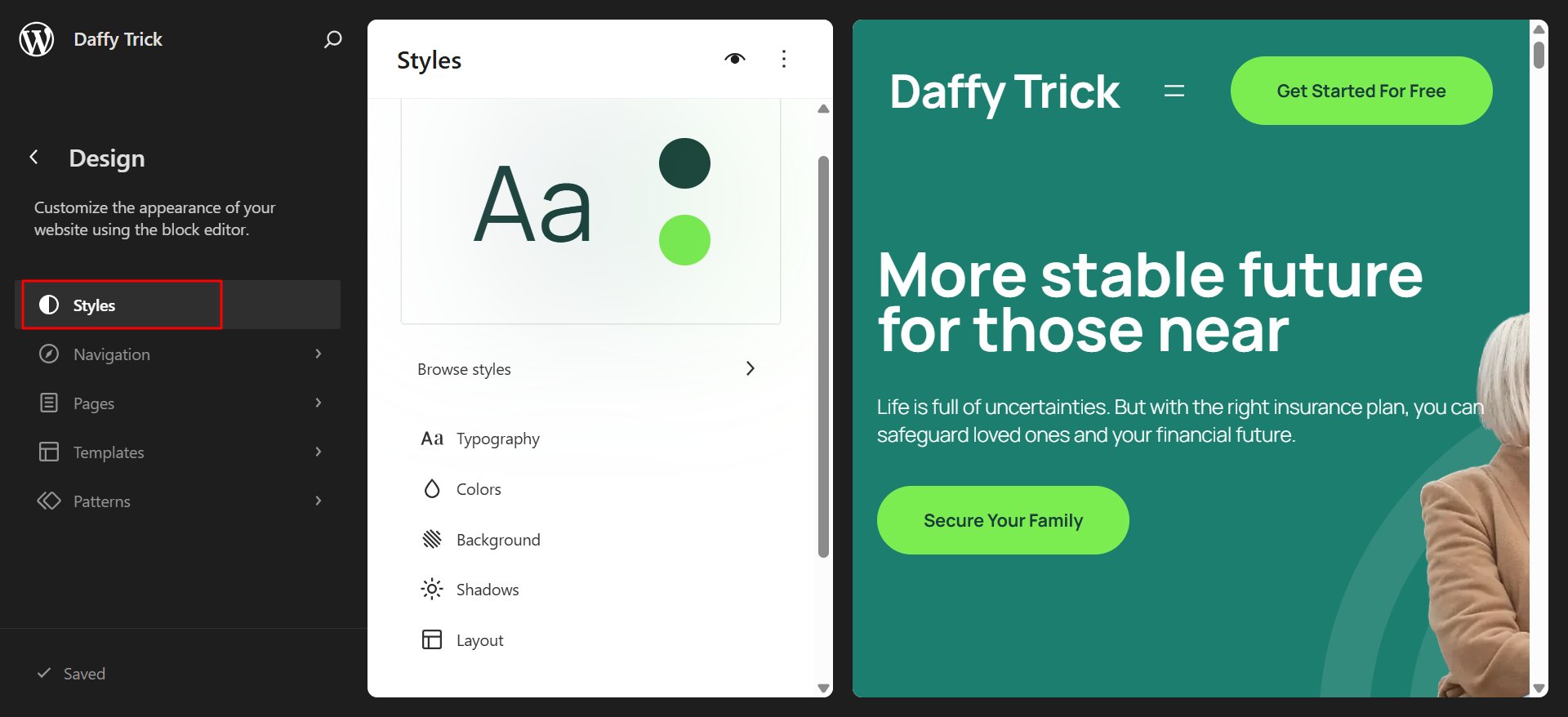
- Navigate to Styles to set the primary and secondary brand colors to match your identity.
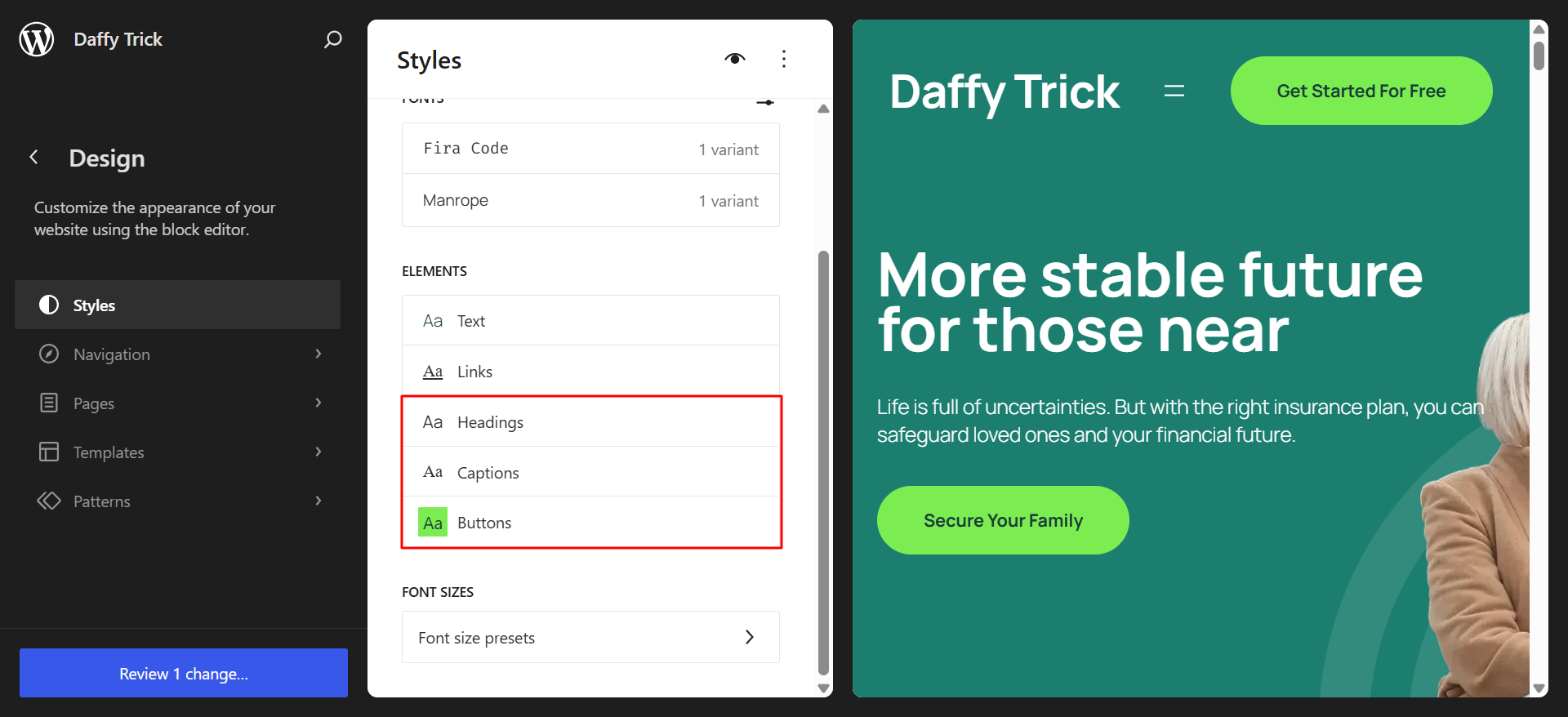
- Choose typography for headings and body text: pick fonts that are readable on every screen size
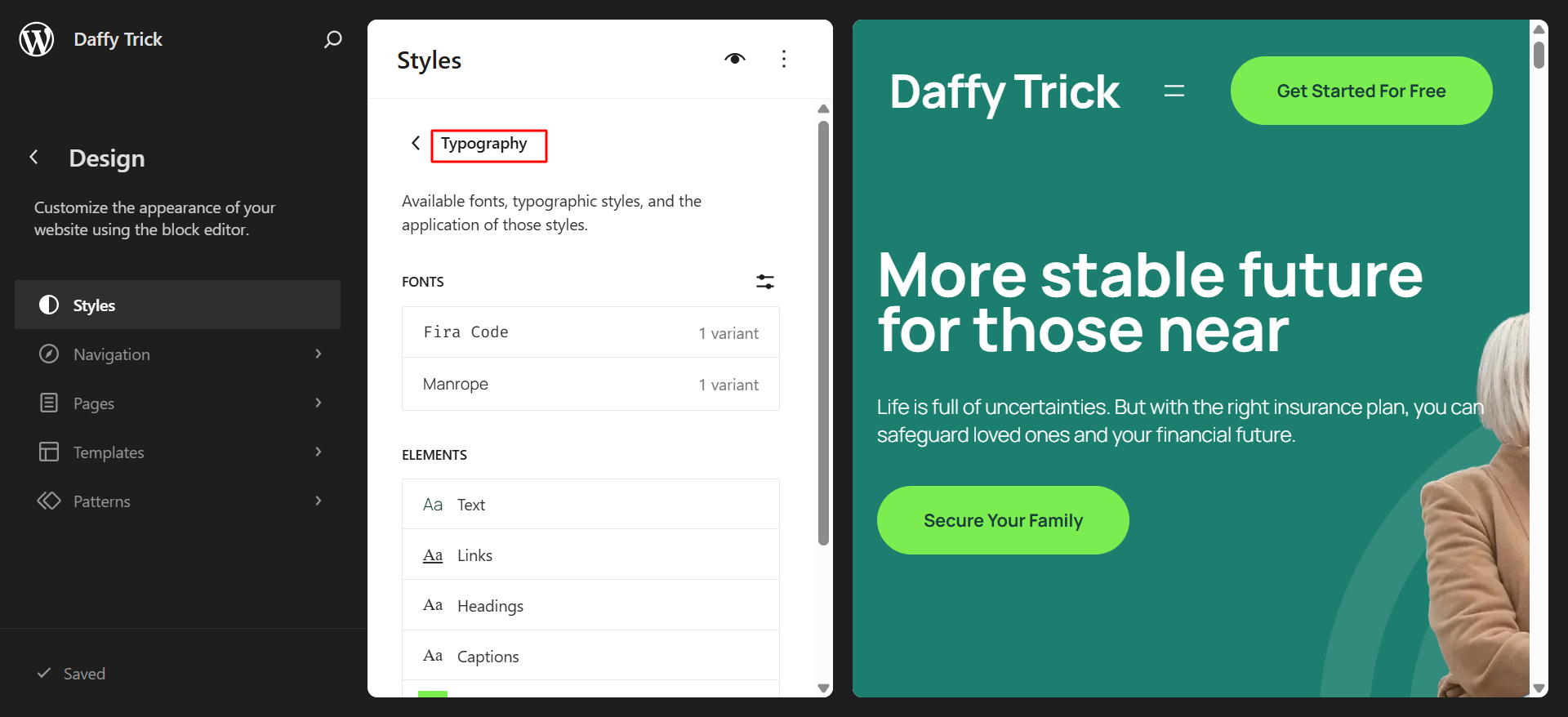
- Adjust the header layout
- Set button styles, border radius and hover states
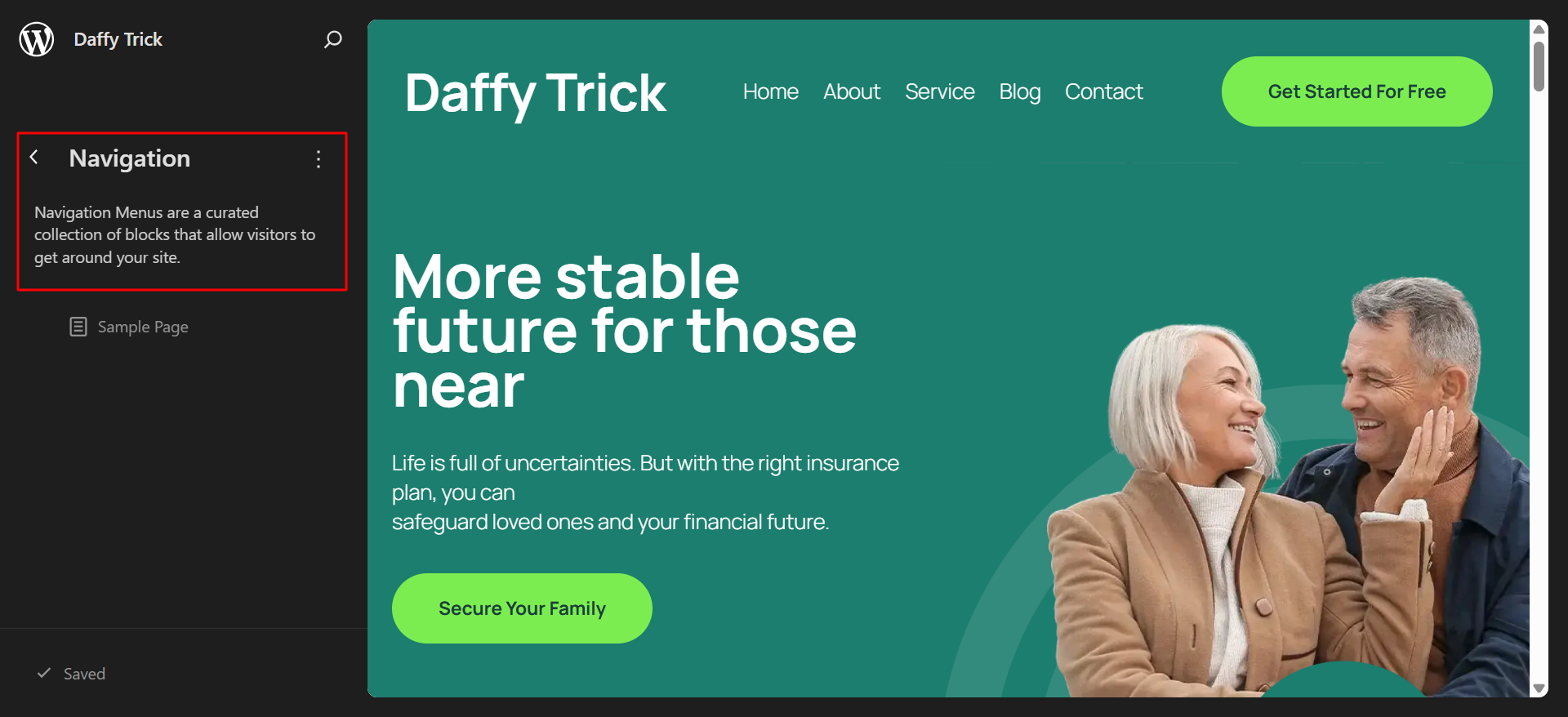
- Make changes to the navigation by adding or removing the unnecessary blocks that comes in the default themes.
- Select the Edit button to make changes to the content.
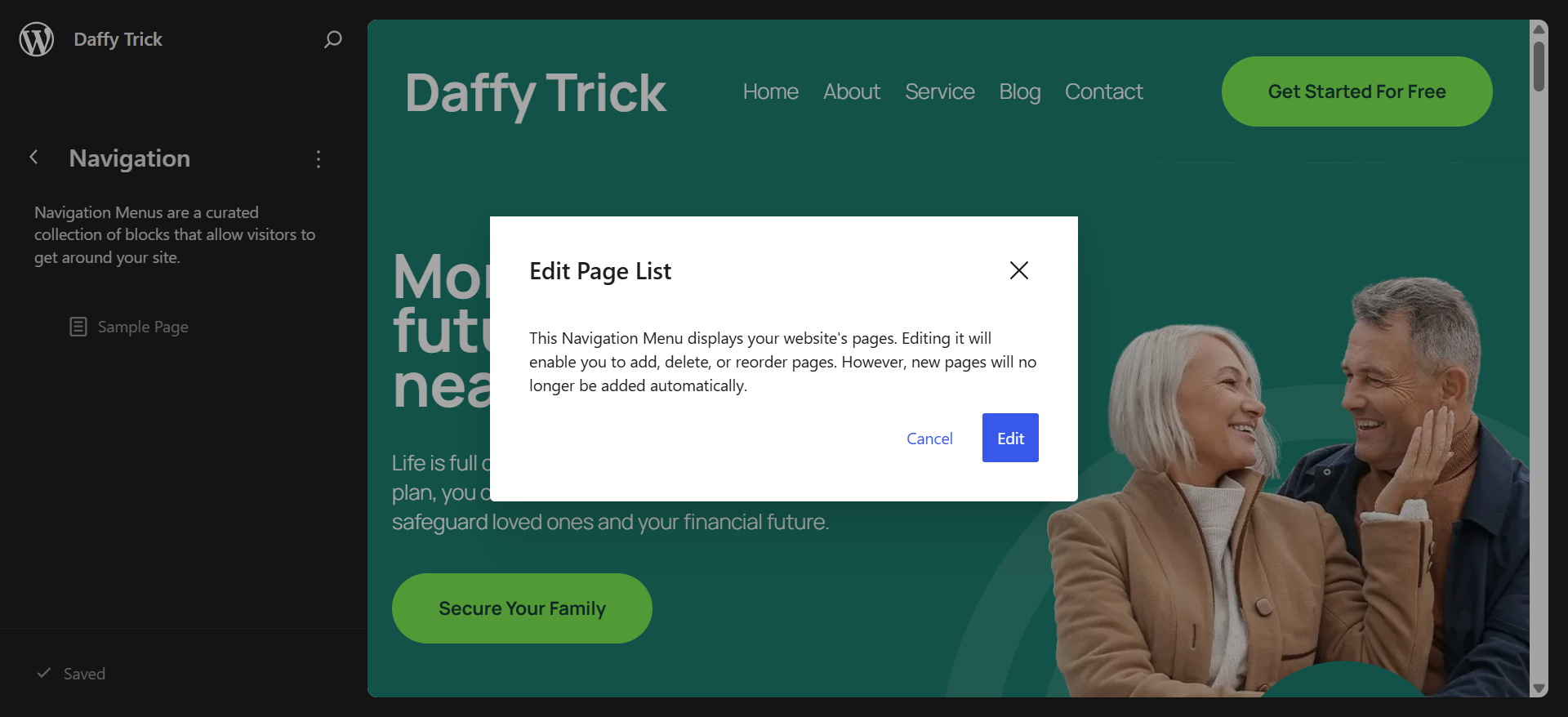
Note: The default theme includes a predefined set of texts. As per your business identity, you will have to make changes to the texts, images and typography, colors and other important areas.
- Make changes to each heading, texts as per the need.
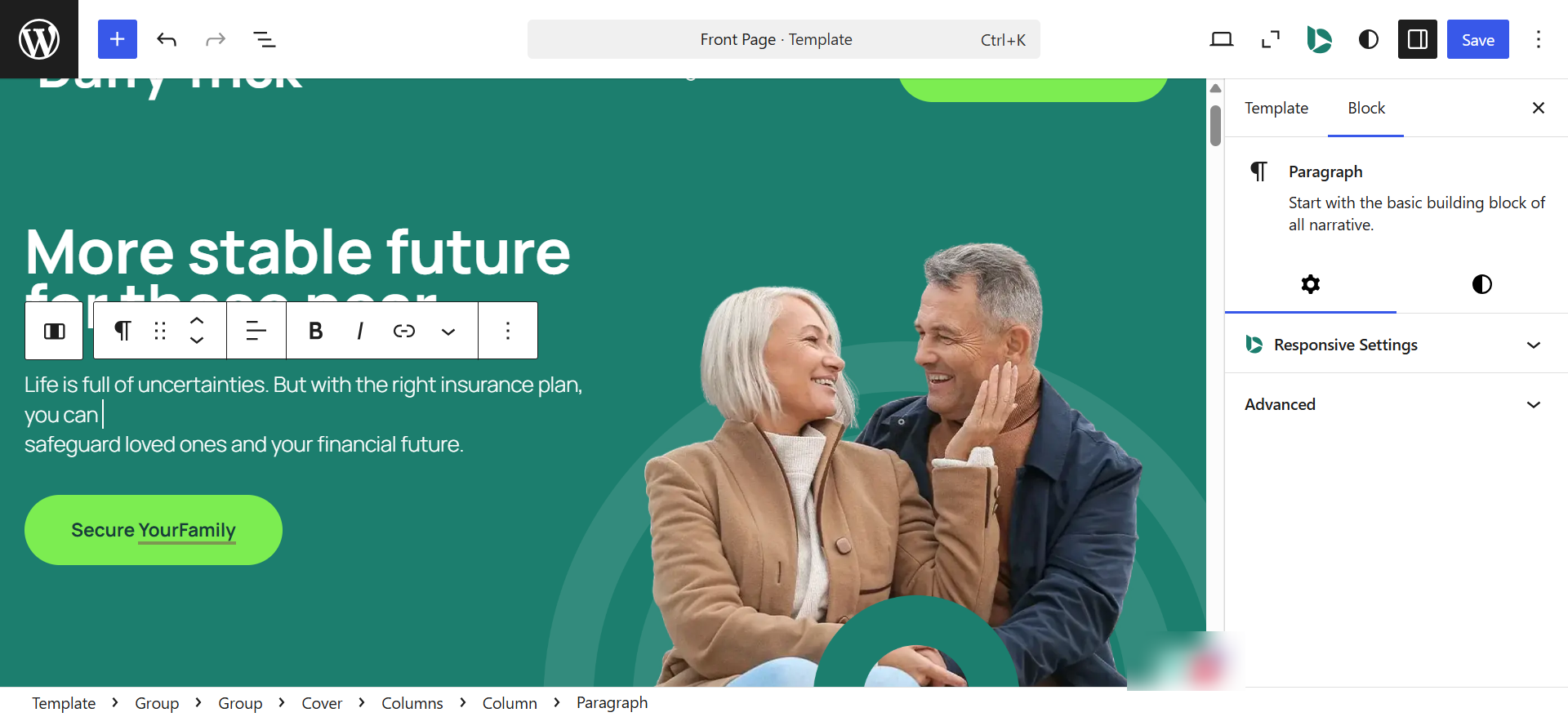
- After making the changes, click on Save button to implement it.
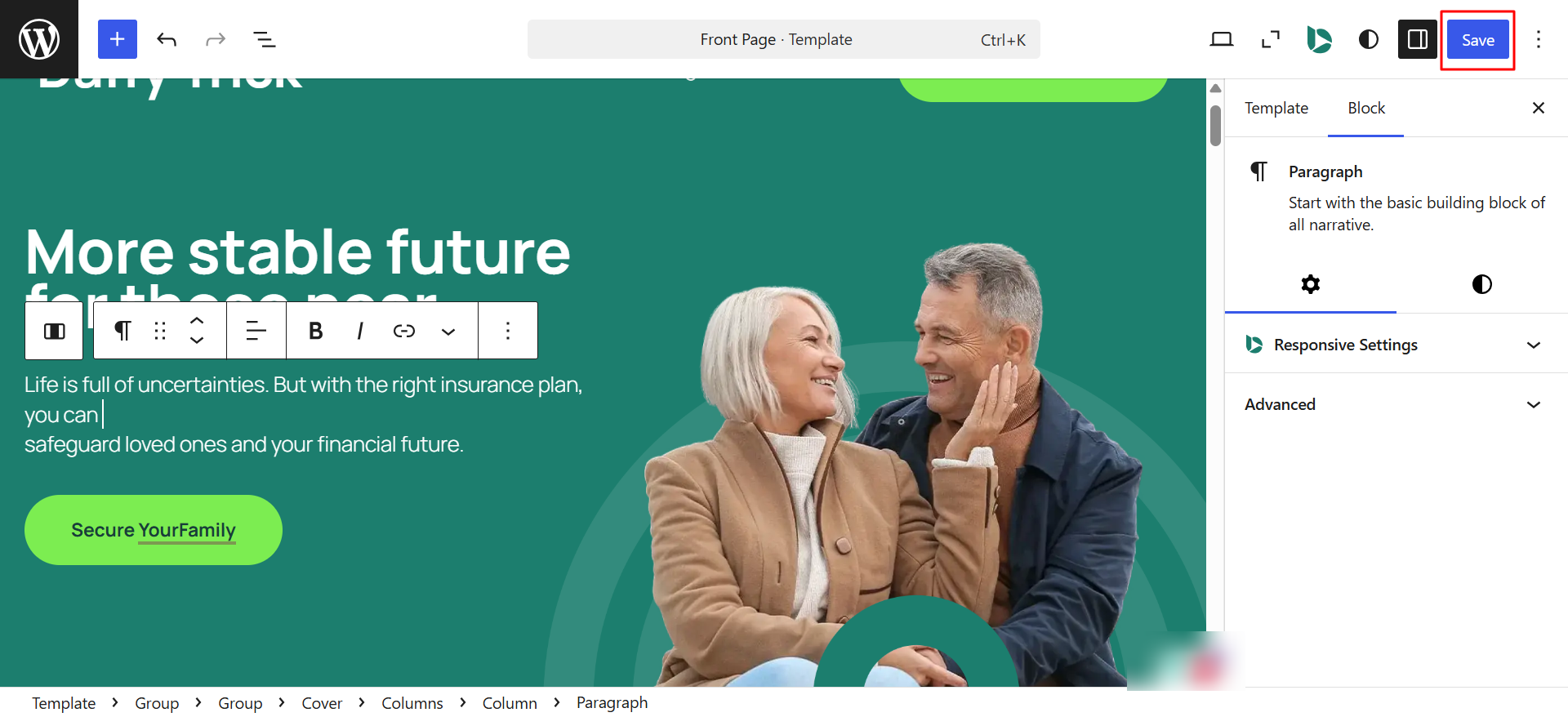
The step-by-step guide on customizing a WordPress theme covers both the Gutenberg block editor and the Elementor workflow in detail, including how to apply sitewide changes without touching a single line of code.
Business Website Design Tips That Actually Move the Needle
- Lead with clarity, not cleverness. Your homepage headline should immediately tell visitors what you do and who you serve. "Reliable Electrical Services for Homeowners in Brisbane" is better than something vague and artful.
- Use white space generously. Crowded pages feel overwhelming and untrustworthy. Give your content room to breathe.
- Limit your color palette to two or three primary colors. Consistency builds brand recognition; too many colors creates visual noise.
- Make your primary call-to-action visible without scrolling on desktop. "Book a Free Consultation" or "Get a Quote" should never be buried below the fold.
- Choose readable fonts. Sans-serif options like Inter, Lato and Open Sans work reliably across devices and screen sizes.
- Compress all images before uploading. Tools like Squoosh are free, browser-based and dramatically reduce file sizes without visible quality loss.
- Test on an actual phone before going live, not just a browser simulation. Over 60% of web traffic globally now comes from mobile devices (Statcounter, 2024) and the difference between a simulated view and a real device experience is meaningful.
- Keep navigation simple. No more than five to seven top-level menu items. If visitors cannot find what they are looking for in three clicks, they leave.
Step 6: Creating Essential Pages for Your Business Website
Every business website needs a core set of pages before launch. Here is what each one needs to accomplish and how to approach building them well.
Homepage
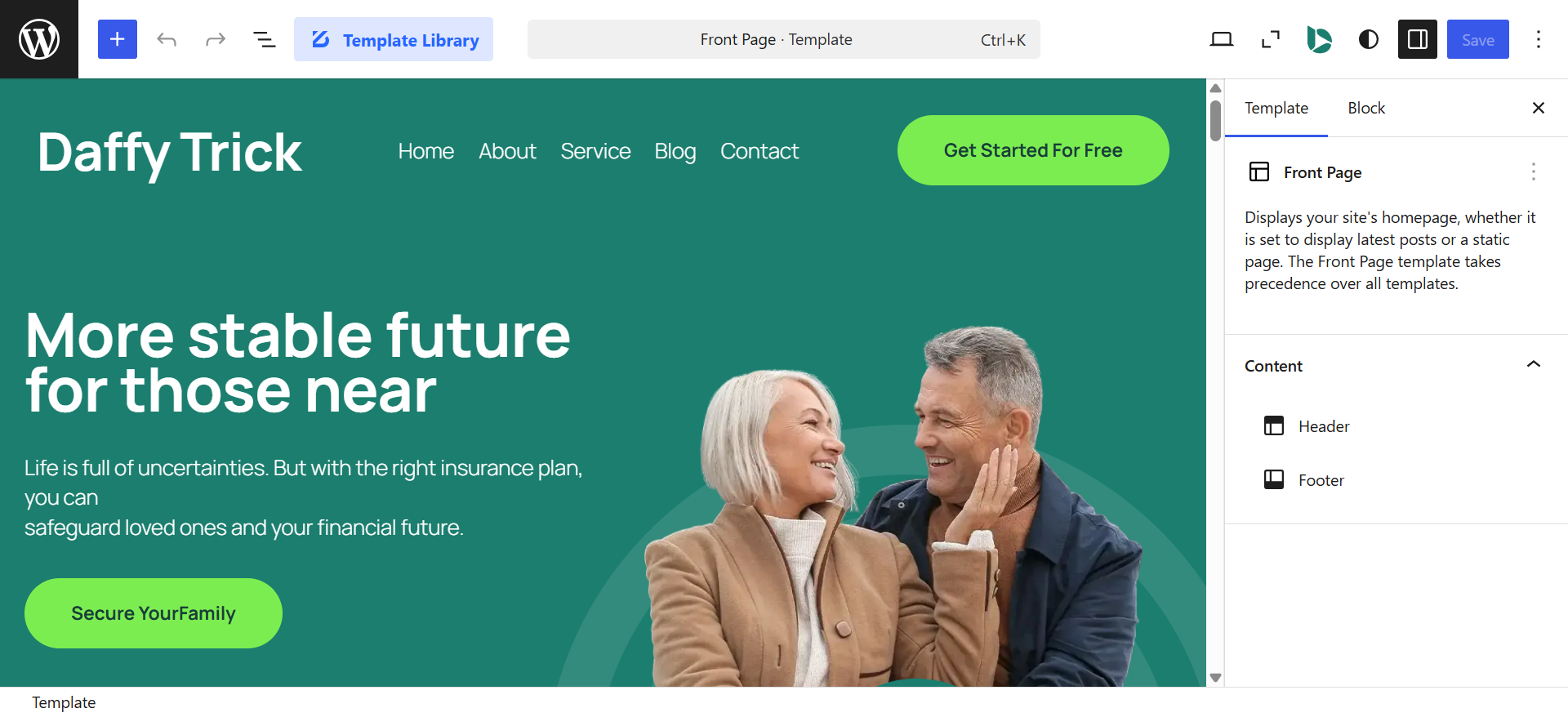
Your homepage is doing the most important job on your entire site: convincing a stranger to stay. Within three to five seconds, a visitor should understand who you are, what you offer and whether it is relevant to them. Structure your homepage with these sections:
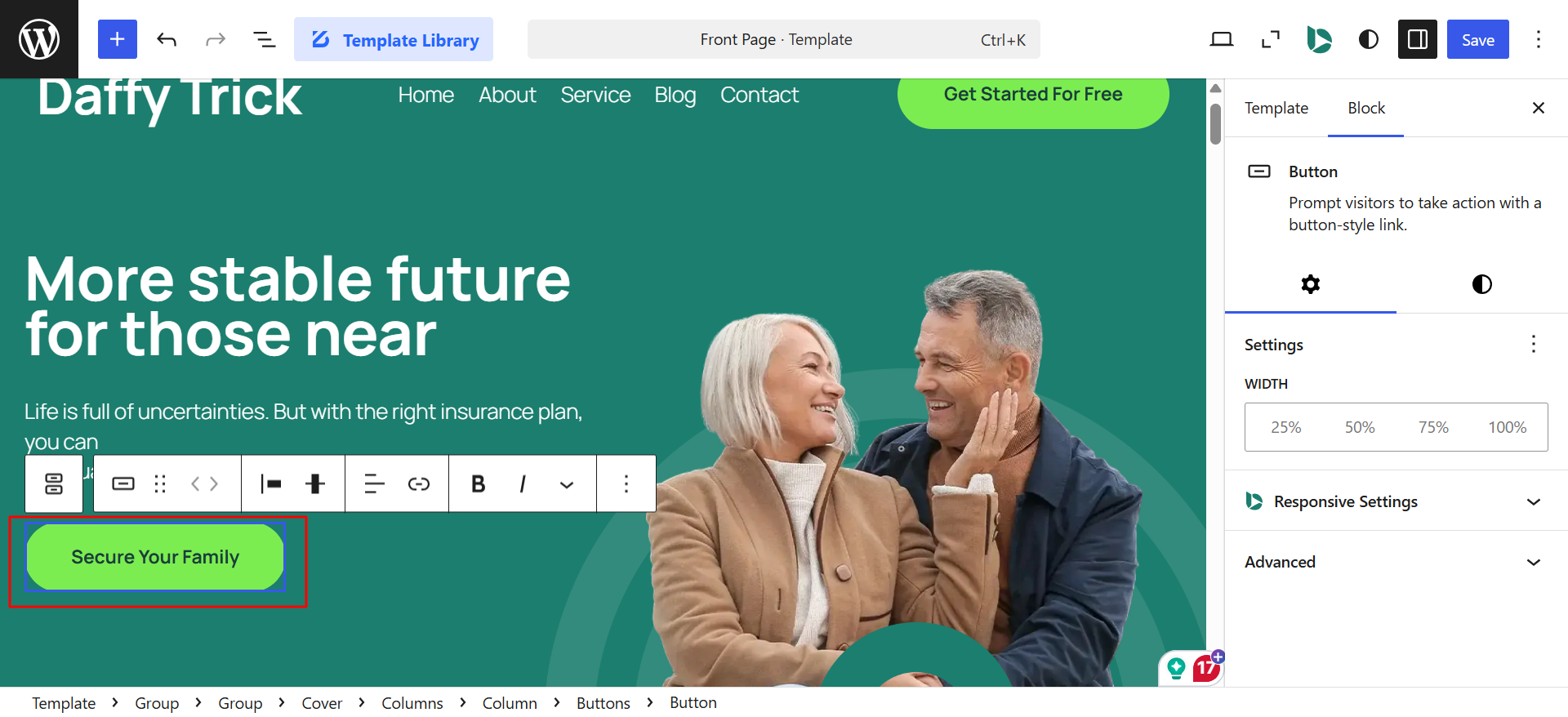
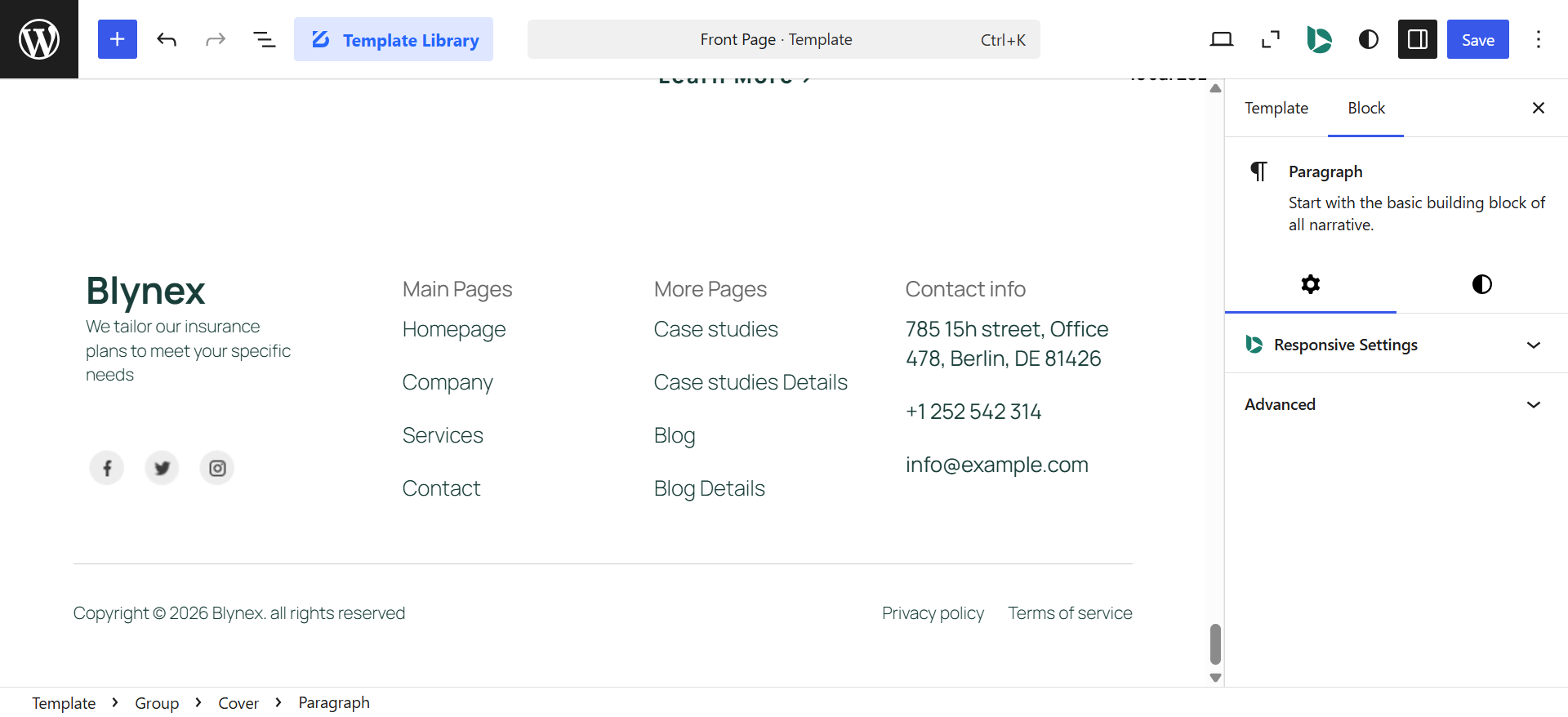
- Hero section: a clear headline that states your value proposition, a supporting sentence and a primary call-to-action button such as Book Now, Get a Quote, or Contact Us
- Trust signals: logos of clients you have worked with, certifications, review ratings, or a brief testimonial near the top of the page
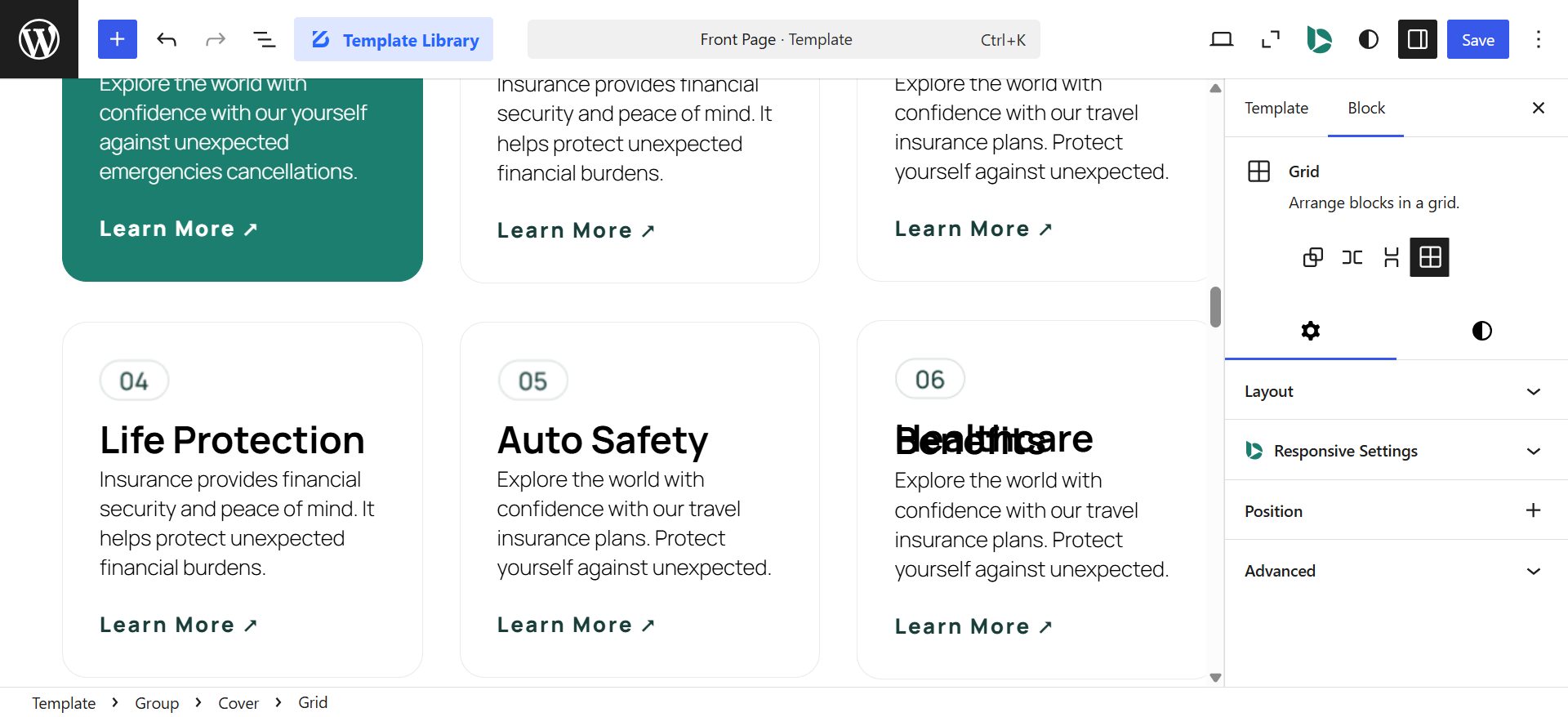
- Services or product overview: a concise summary of what you offer with links to dedicated service or product pages
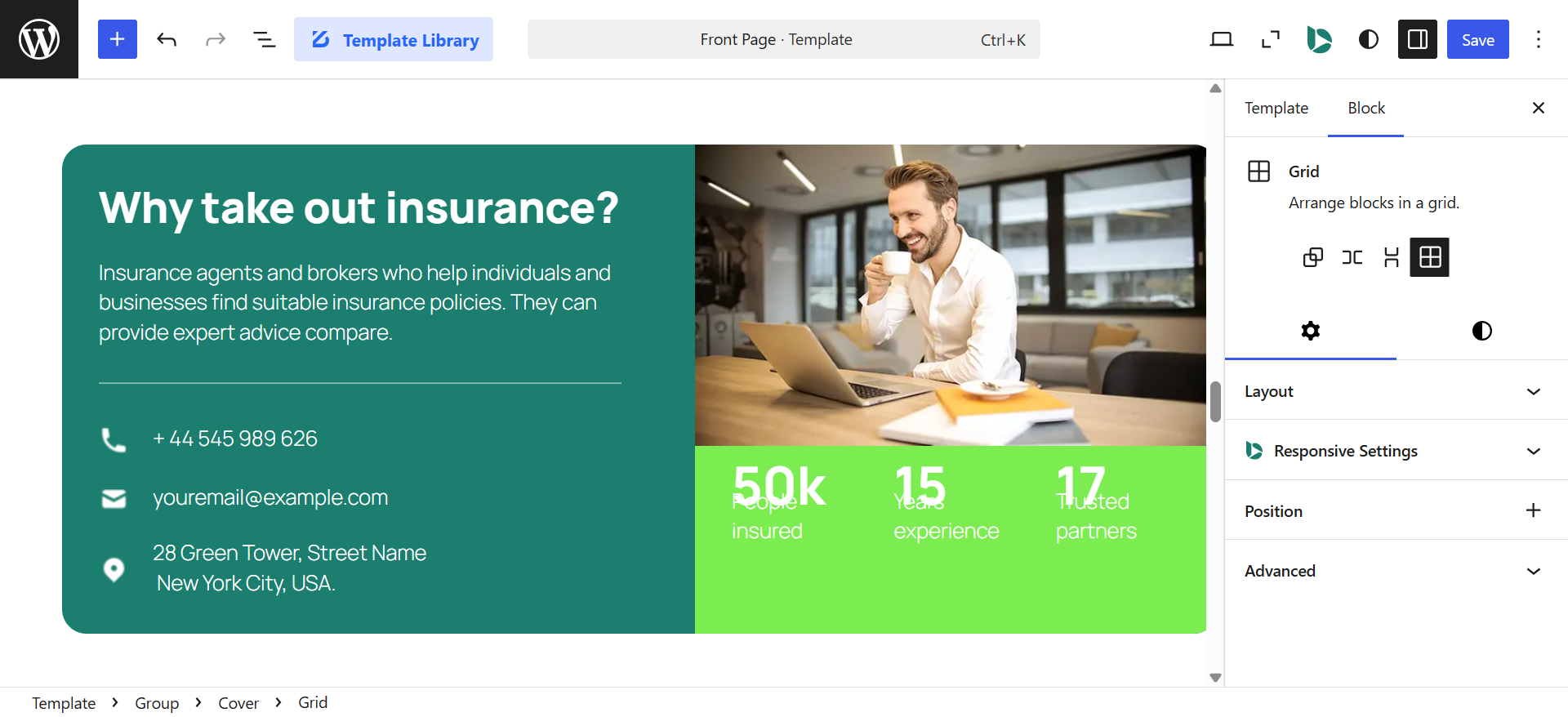
- Why choose us: a short, specific section explaining what sets you apart; keep this honest and concrete, not generic filler
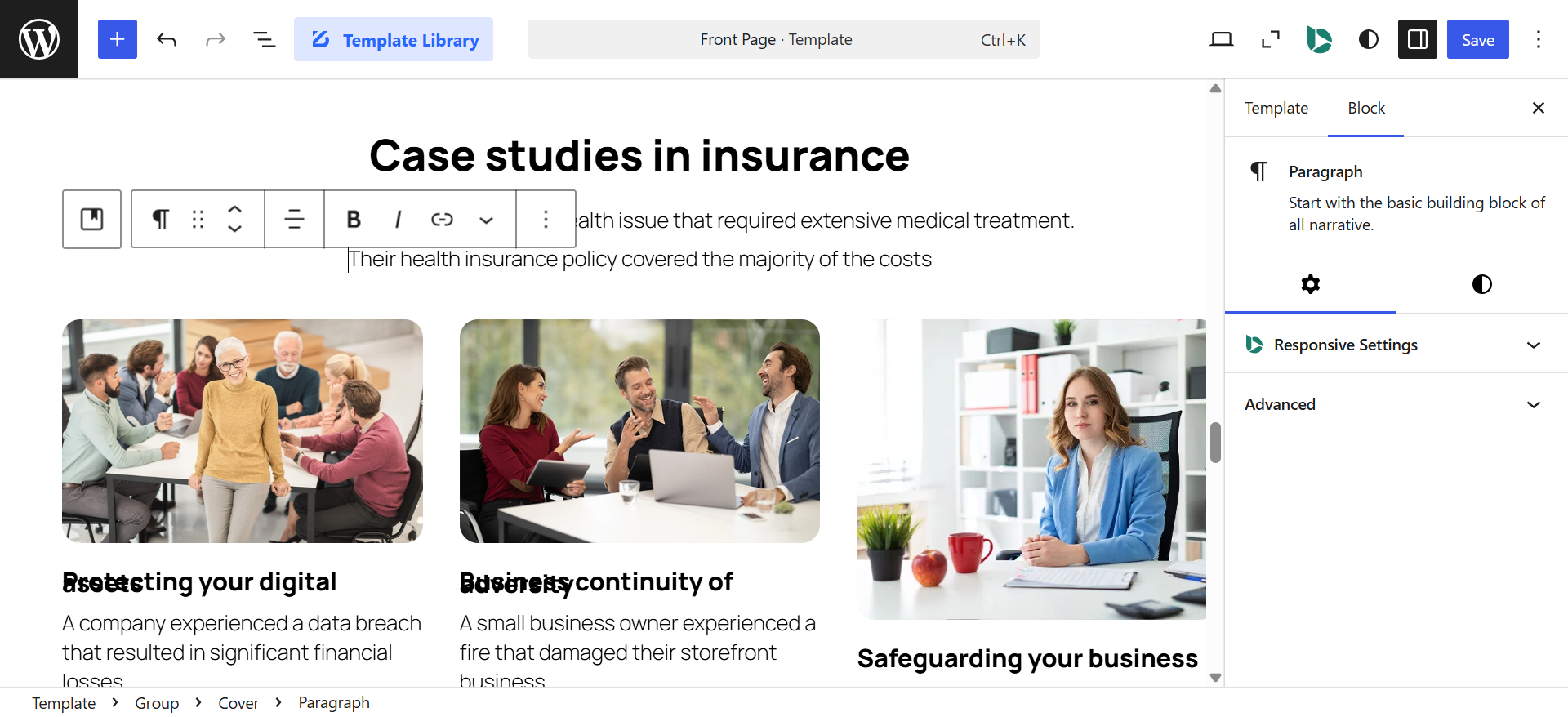
- Case studies: two to four cases with names and, ideally, photos or company logos
- Secondary call-to-action: a contact form or phone number near the bottom so visitors who scroll the full page still have an easy next step
About Us Page
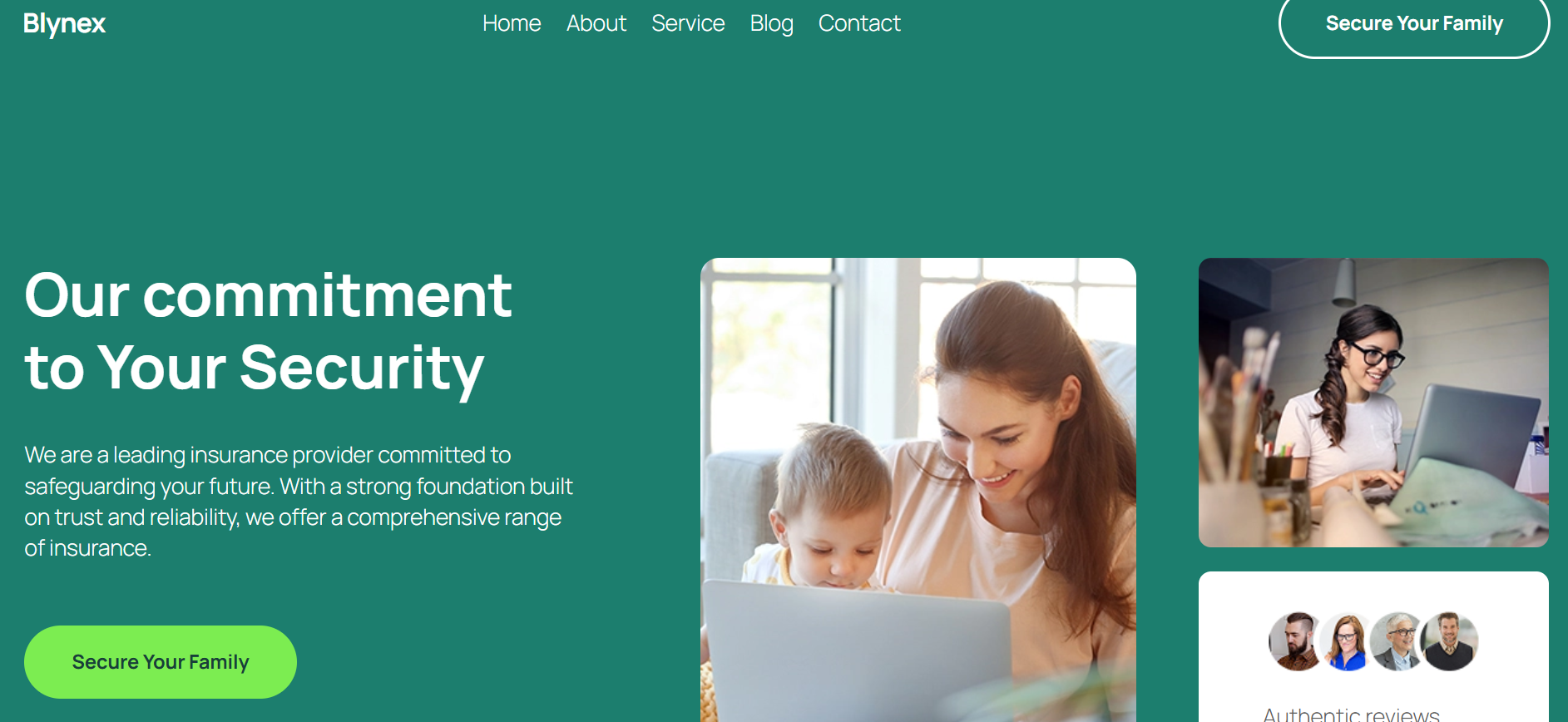
This is often the second most-visited page on a business website and yet most businesses write it last and think about it least. The About page is not about your company history. It is about building a human connection with a prospective customer.
What to include:
- Open with the customer, not yourself. Begin with a line about the problem your customers face or the outcome they want, then position your business as the answer. Many About pages open with "We were founded in 2010...": this is the wrong starting point.
- Your origin story. Why does this business exist? What problem did you see that nobody was solving well? A genuine story is more persuasive than a polished corporate statement.
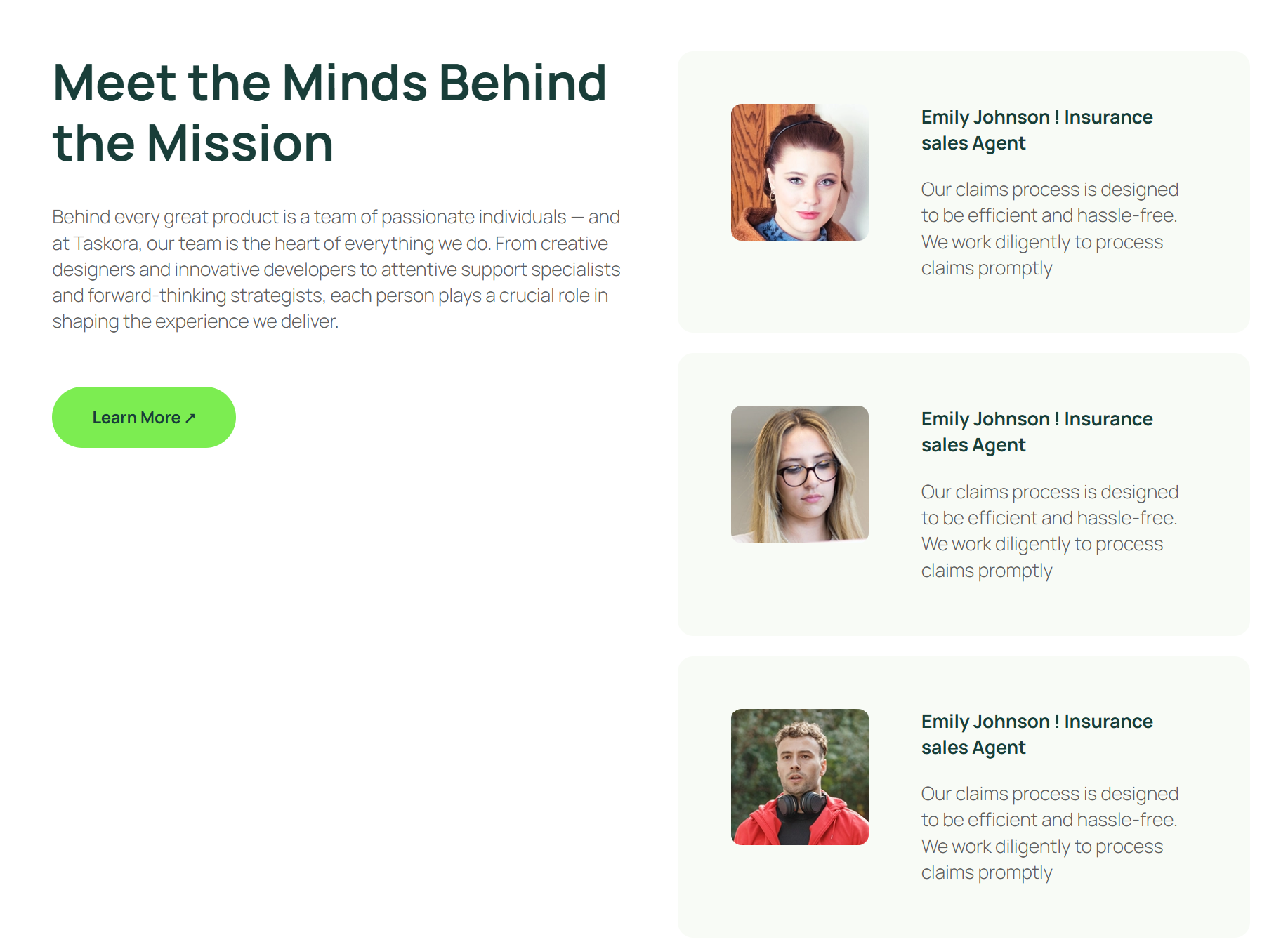
- Team introductions. Include names, real photos and brief bios for the key people behind the business. Headshots should be professional but approachable. People buy from people.
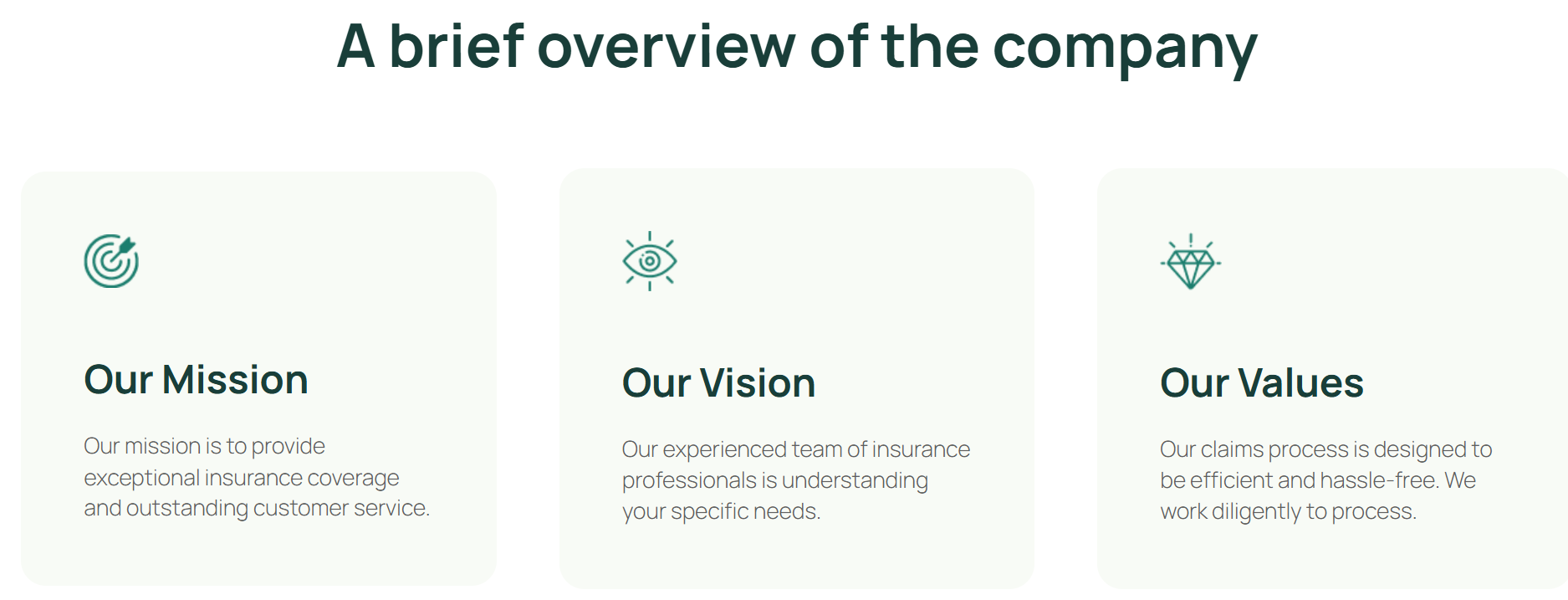
- Your values and working principles. What do you stand for? How do you approach your work? These statements attract the right customers and naturally filter out poor-fit ones.
- A closing call-to-action. The bottom of your About page should not be a dead end. Link to your services, invite visitors to get in touch, or offer a free consultation or discovery call.

Tips for optimizing the About page:
- Keep it to two to four scrolling sections on desktop: do not write an essay
- Use real photos instead of stock images of people who do not work for you
- Write in first person for solo operators ("I") and in plural for teams ("we")
- Proofread carefully: grammatical errors on the About page undermine credibility quickly
- Include at least one keyword naturally in the text to support on-page SEO; for example, if you are a web designer, mentioning "website design" or "affordable website design solutions" in context is enough
- Link internally to your most important service or product page from within the About page copy
Services or Products Page
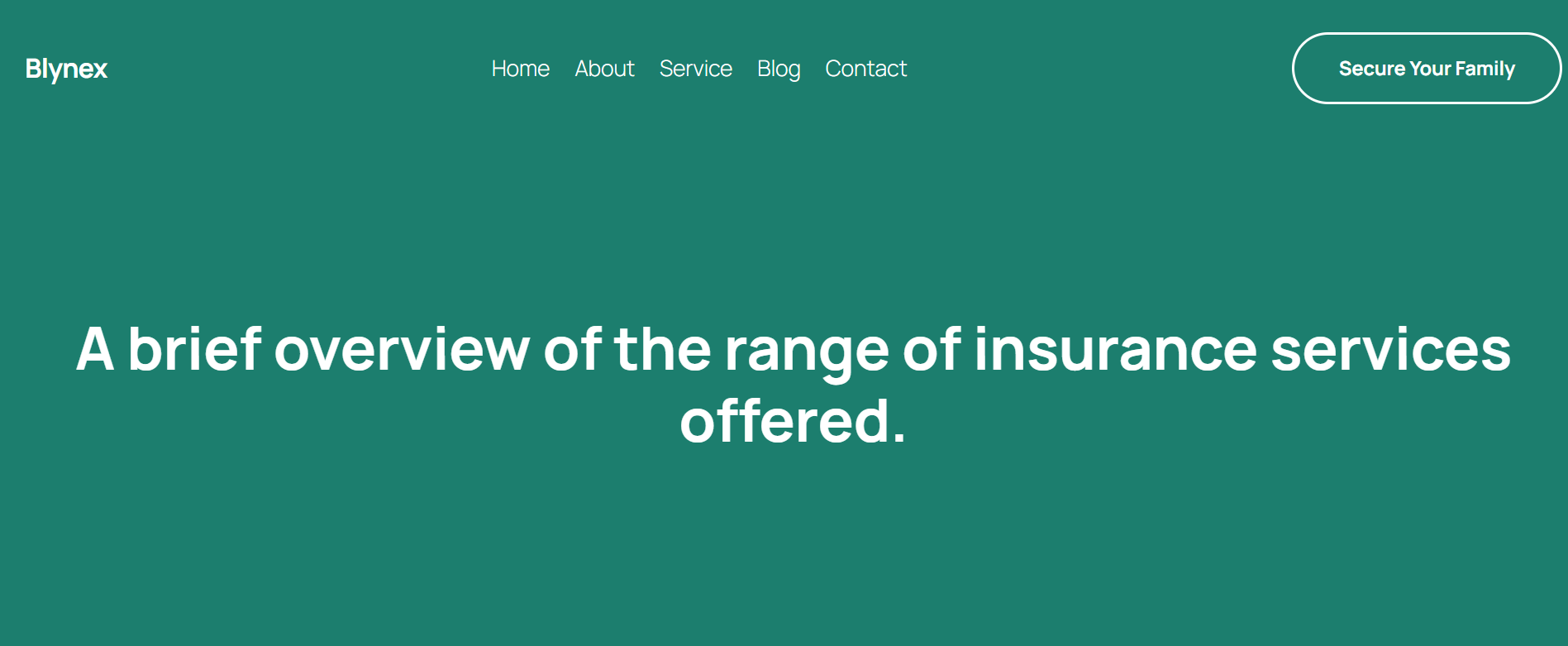
This page needs to be specific. Vague descriptions like "We offer high-quality services" do nothing for a visitor making a purchase decision. For each service or product, make sure you cover:
- A clear, searchable name that matches how customers actually search for it
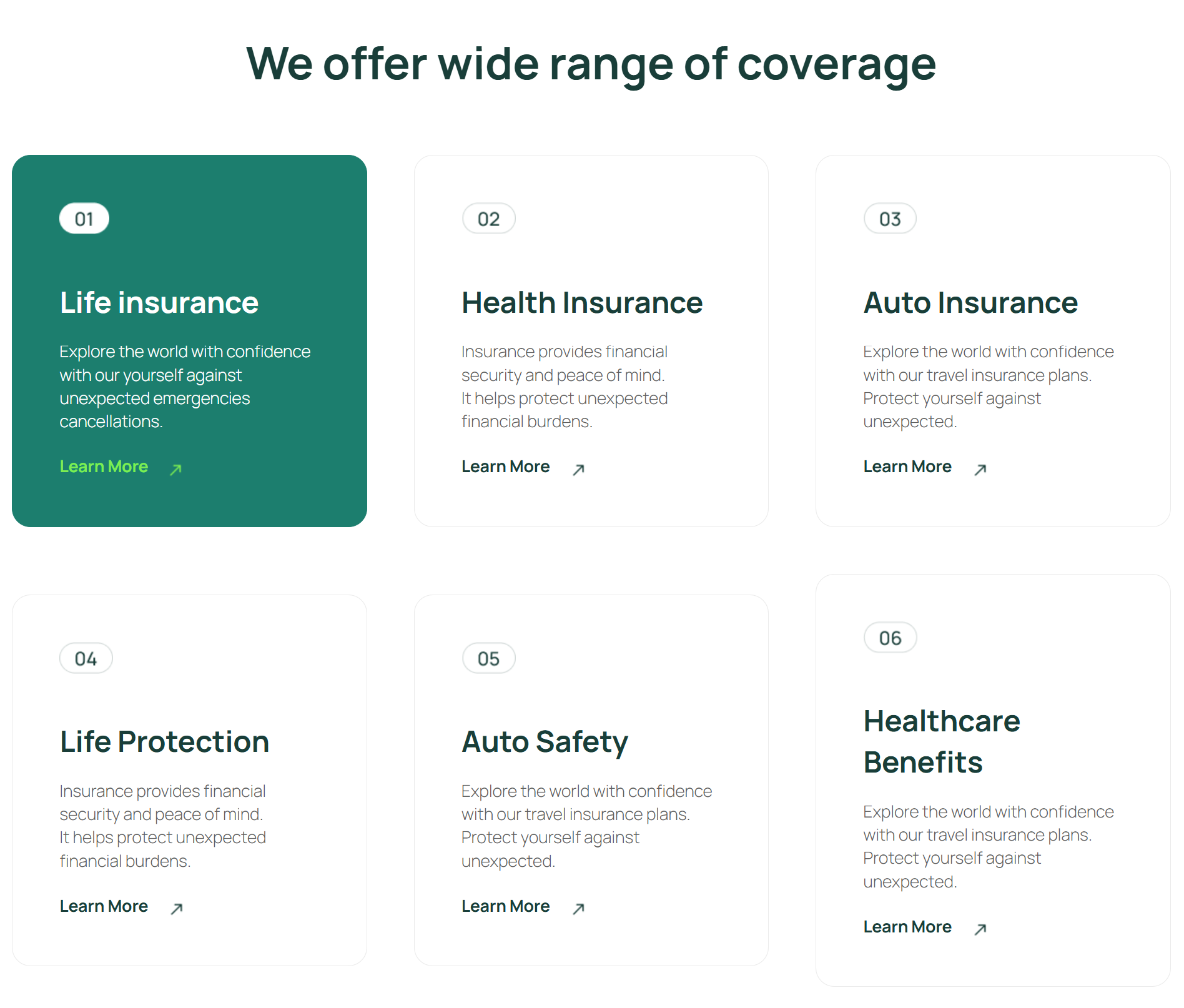
- A plain-language description of what it includes and how it works
- The benefit to the customer: what problem does it solve, what outcome does it deliver?
If you offer multiple services, give each one its own dedicated page rather than listing them all on a single URL. This is better for SEO and gives you the room to explain each offering properly.
Contact Page

Your contact page should make reaching you as frictionless as possible. Include all of the following:
- A contact form with fields for name, email, phone (optional) and a message box
- Your direct email address, even if the form goes to the same inbox
- Your phone number if you take calls
- Your physical address if customers visit your premises
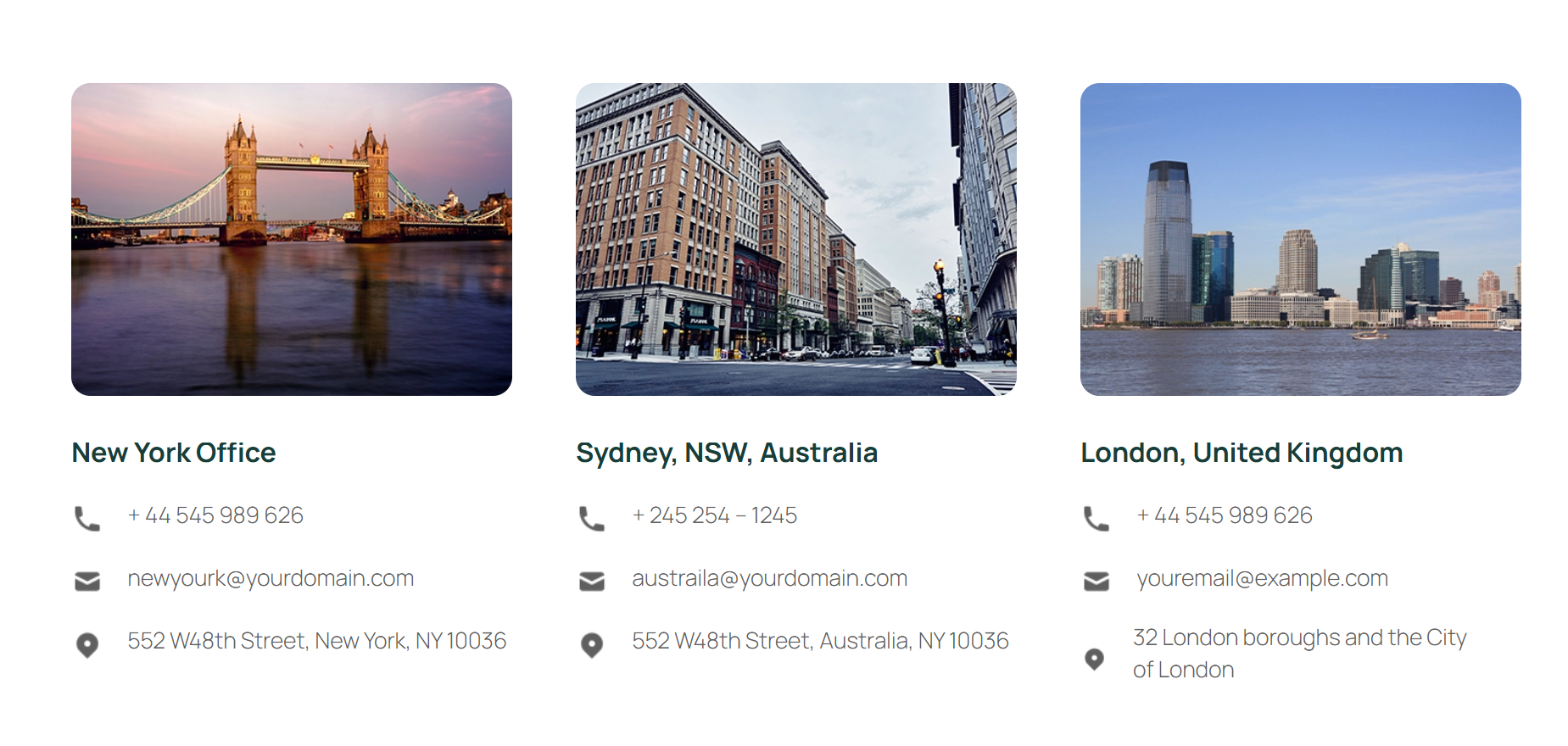
- Your business hours with timezone if you serve multiple regions
- An embedded Google Map if location is relevant to your business
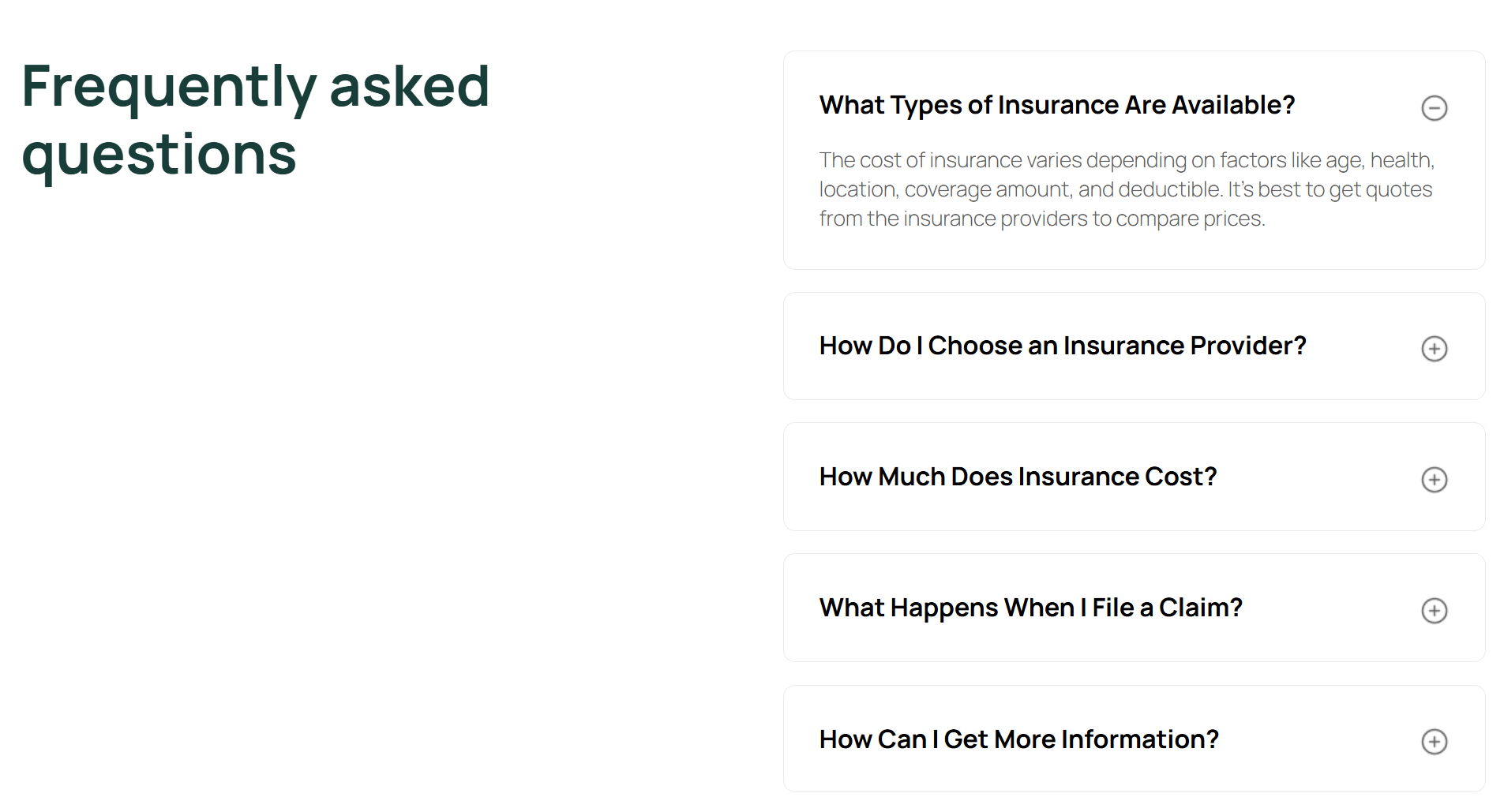
- A set of FAQs with most asked customers from your previous clients or customers
A clean, well-structured WordPress contact form built from a pre-built template using a plugin like Sigma Forms, WPForms, or Contact Form 7 takes under 15 minutes to set up and can be placed on any page with a simple block or shortcode.
If your website collects any user data at all, including through Google Analytics, contact forms, or a newsletter signup, you are legally required to have a Privacy Policy. This applies across virtually every jurisdiction:
- United States: under various state laws including CCPA (California) and others
- European Union: under GDPR
- United Kingdom: under UK GDPR post-Brexit
The WP Legal Pages plugin for WordPress generates properly structured legal pages from templates in minutes, with fields to customize the text to your specific business details. Once created, link to all legal pages in your website footer so they are accessible from every page on the site.
Step 7: Optimizing Your Website for Search Engines
A business website that nobody can find is a business website that is not working. SEO for your business website does not need to be complicated, but getting the foundations right from day one makes everything easier later.
Step 7.1: Install an SEO Plugin
WordPress does not include built-in SEO tools, but two plugins cover the technical side comprehensively:
- Yoast SEO: the most widely used WordPress SEO plugin; excellent for beginners; provides a clear traffic-light scoring system for on-page SEO on every post and page
- Rank Math: more feature-rich with a slightly steeper learning curve; free version is unusually generous
Install one (not both) and run through its setup wizard after activation. Both will walk you through connecting to Google Search Console, setting your site type and configuring sensible defaults.
Step 7.2: Set Meta Titles and Descriptions
For every page and post on your site:
- Write a unique meta title for each page: keep it under 60 characters and include your primary keyword naturally toward the front; this is the blue clickable headline in Google search results
- Write a unique meta description for each page: keep it under 155 characters, make it genuinely descriptive and compelling and include a secondary keyword if it fits naturally; this is the grey supporting text beneath the title in search results
- Never keyword-stuff either field: write for the human clicking through, not just the algorithm
Step 7.3: Use Keywords Naturally in Your Content
Good keyword placement works with your writing, not against it:
- Include your primary keyword in your page title (H1), in the first paragraph, in at least one subheading and in the meta title and description
- Use related and supporting keywords naturally throughout the body text
- Write for the person reading the page first: if a keyword fits naturally, use it; if forcing it makes the sentence awkward, leave it out
Step 7.4: Build a Logical Internal Linking Structure
- Every page on your site should link to at least one or two other relevant pages
- Blog posts should link to relevant service pages when contextually appropriate
- Service pages should link to supporting content, case studies, or FAQs
- Use descriptive anchor text that tells the reader and search engine what the linked page is about: "our small business website setup services" is better than "click here"
Step 7.5: Submit Your Sitemap to Google
- Your SEO plugin automatically generates a sitemap at installation
- Go to Google Search Console, add your property and verify ownership using the method your SEO plugin recommends
- Under Sitemaps, enter your sitemap URL: usually
yourdomain.com/sitemap.xmlfor Yoast oryourdomain.com/sitemap_index.xmlfor Rank Math - Submit and wait for Google to crawl and index your content
Technical SEO Essentials
- Enable caching with a plugin like WP Super Cache (free) or WP Rocket (premium) to improve page delivery speed significantly
- Use Cloudflare's free CDN to serve your site's assets from servers geographically close to your visitors
- Check your speed with Google PageSpeed Insights and work through the specific recommendations provided
- Keep WordPress core, themes and all plugins updated regularly; outdated software is both a security risk and a performance drag
- Ensure your site loads over HTTPS with no mixed content warnings: your browser will show a broken padlock icon if this is an issue
Making Your Business Website Accessible for Everyone
Here is a section most beginner website guides either skip entirely or mention as an afterthought. In 2026, that is a costly oversight.
Web accessibility means building your site so that people with disabilities can use it fully and independently. This includes:
- Users who are blind or have low vision and rely on screen readers to navigate
- Users with hearing impairments who cannot access audio or video content without captions or transcripts
- Users with motor disabilities who navigate entirely by keyboard rather than mouse
- Users with cognitive differences who benefit from clear structure, consistent layouts and readable typography
Common Accessibility Issues to Watch For
- Poor color contrast: text that does not stand out enough from its background; WCAG requires a contrast ratio of at least 4.5:1 for normal text
- Missing alt text: images without descriptive alternative text are invisible to screen readers; every image on your site should have alt text describing what it shows
- Unlabeled form fields: inputs identified only by placeholder text are inaccessible to screen reader users; every form field needs a visible or programmatic label
- No keyboard navigation: buttons, menus and interactive elements that only work with a mouse exclude users who navigate entirely by keyboard
- Auto-playing media: videos or audio that start automatically are disorienting for many users; always require a deliberate action to start media
- Tiny click or tap targets: buttons and links too small to tap accurately on mobile exclude users with motor impairments
The full guide to making a WordPress website accessible covers the WCAG framework levels, what each standard means in practice and specific implementation steps for WordPress sites. If your site includes video or audio content, the guide on making a website accessible for deaf and hard-of-hearing users covers what captioning, transcripts and visual alternatives look like in a real WordPress context.
How to Improve Accessibility
Once you understand the importance of an accessible website design, the practical question is: how do you actually implement it on a WordPress site without spending weeks becoming a WCAG expert?
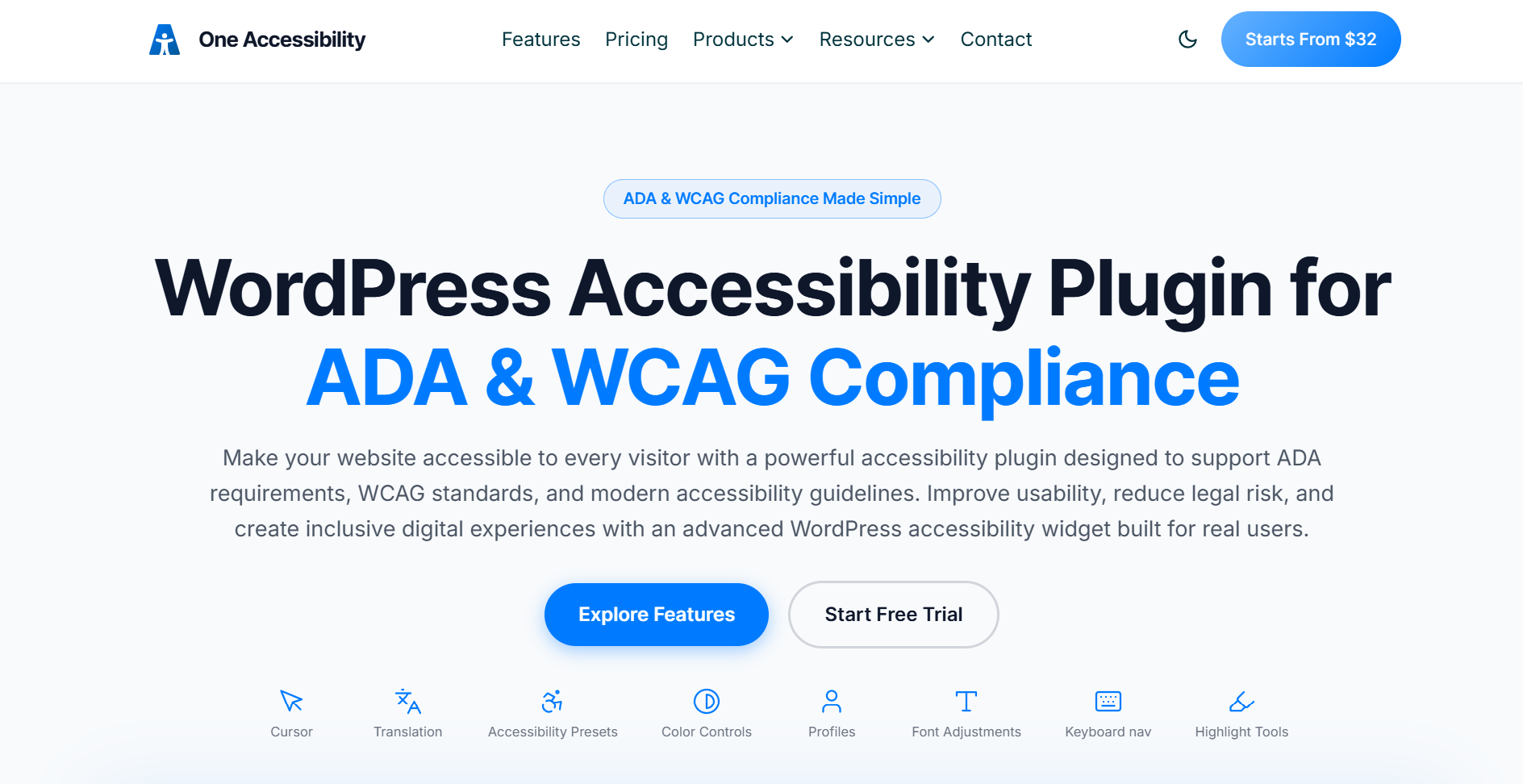
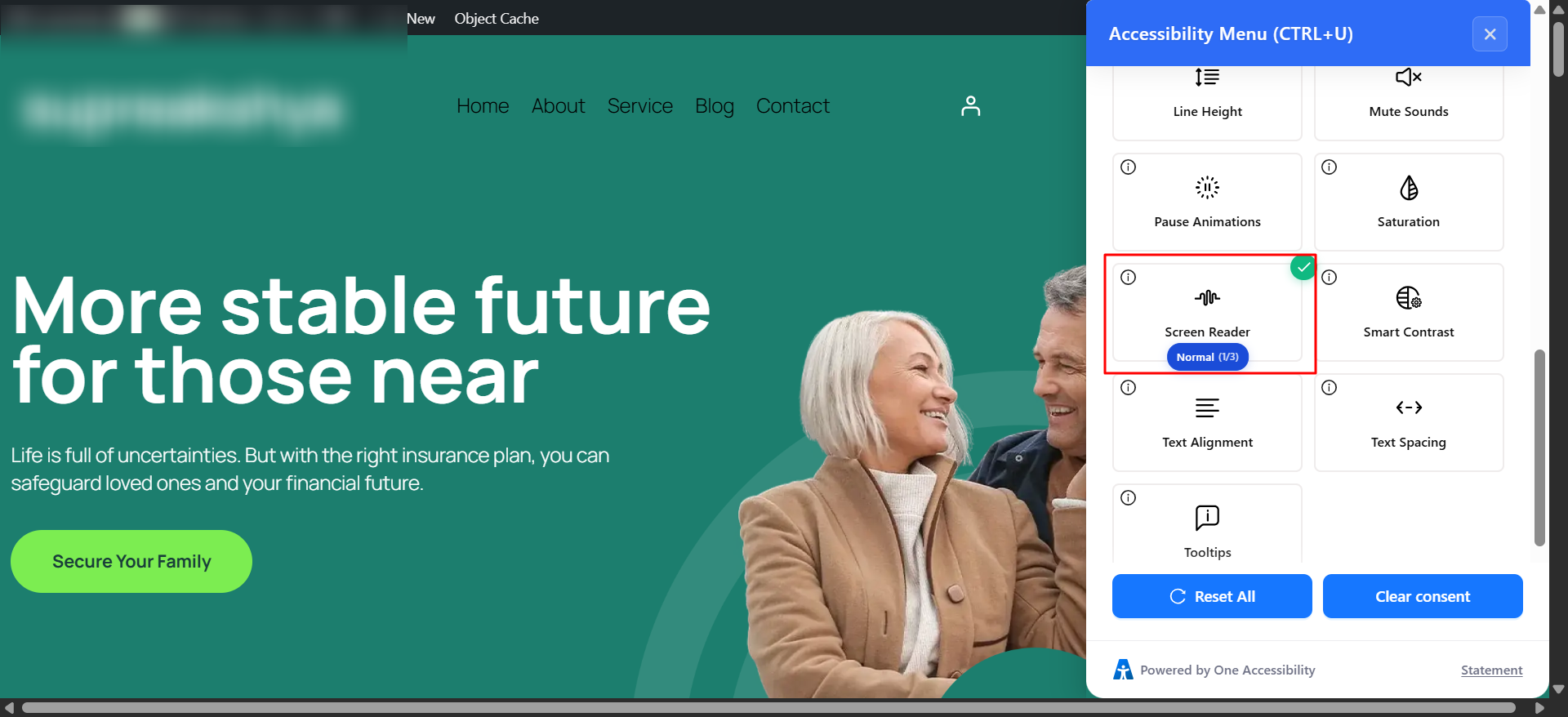
One Accessibility is a WordPress plugin that adds a fully customizable accessibility toolbar to your site. When activated, it gives every visitor the ability to adjust their browsing experience to match their individual needs, from increasing font size to switching on high contrast mode to enabling a screen-reader-optimized navigation layout.
Installing One Accessibility
- Go to your WordPress admin dashboard
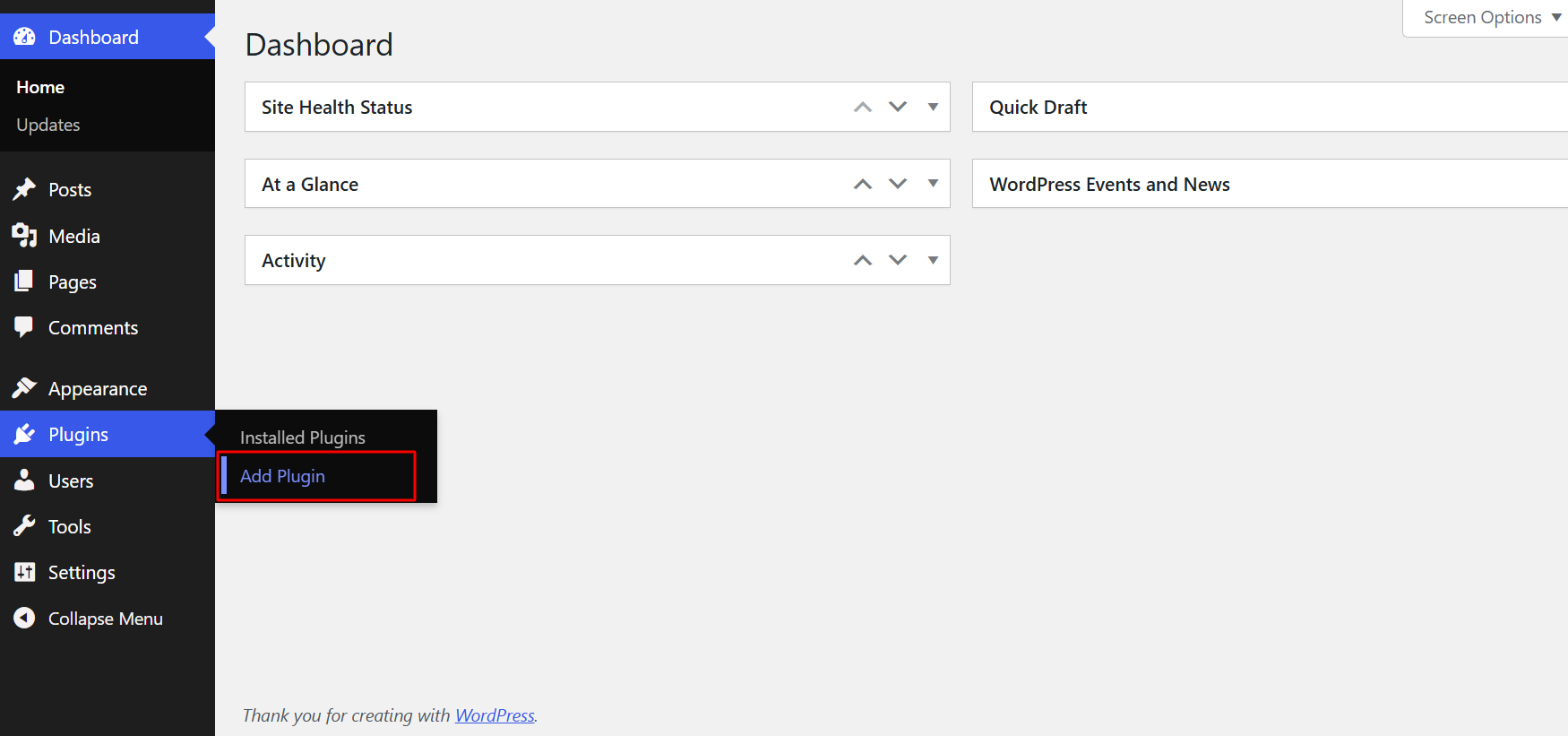
- Navigate to Plugins → Add New Plugin
- In the search bar, type "One Accessibility" or "Website Accessibility"
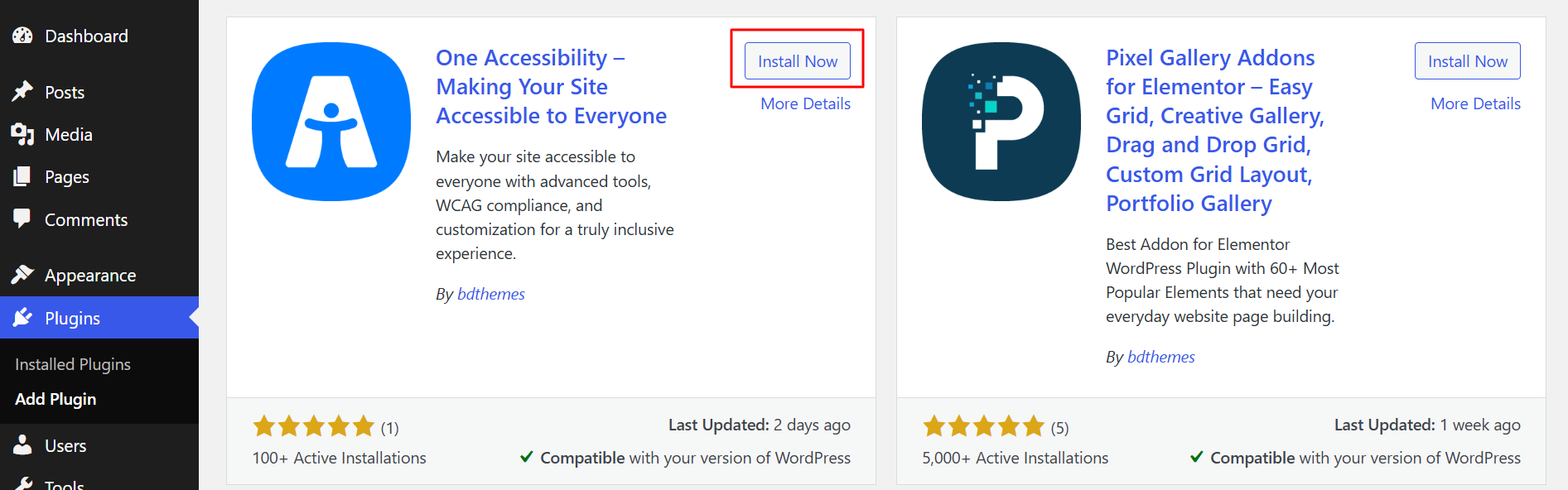
- Locate the plugin by BdThemes and click Install Now
- Click Activate once the installation completes
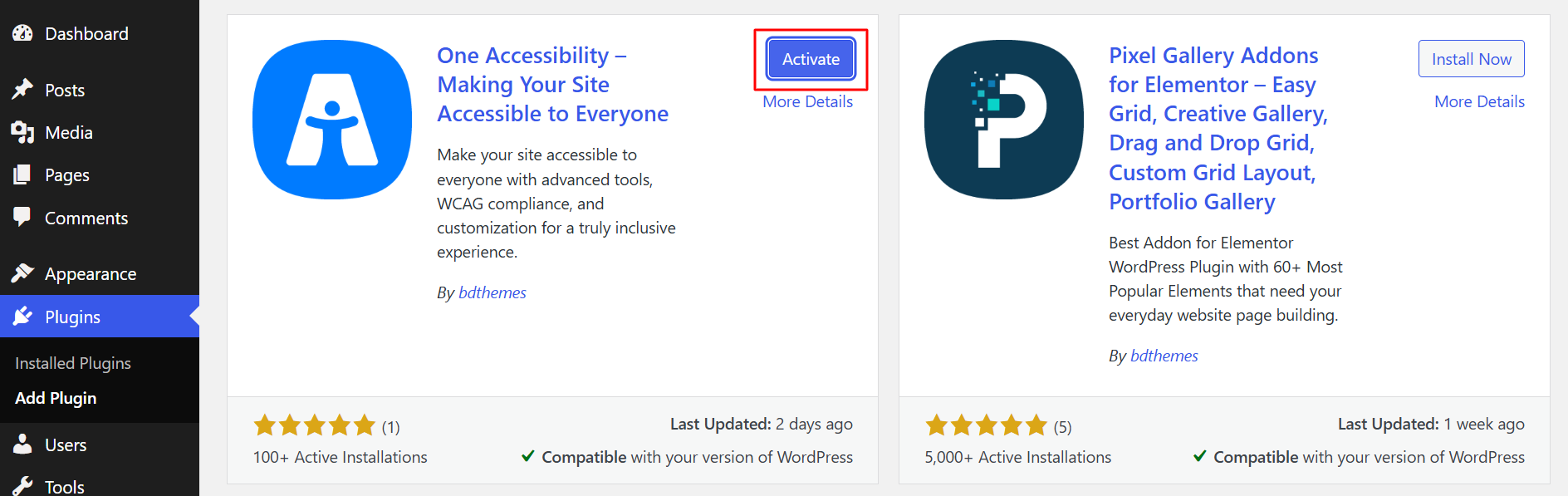
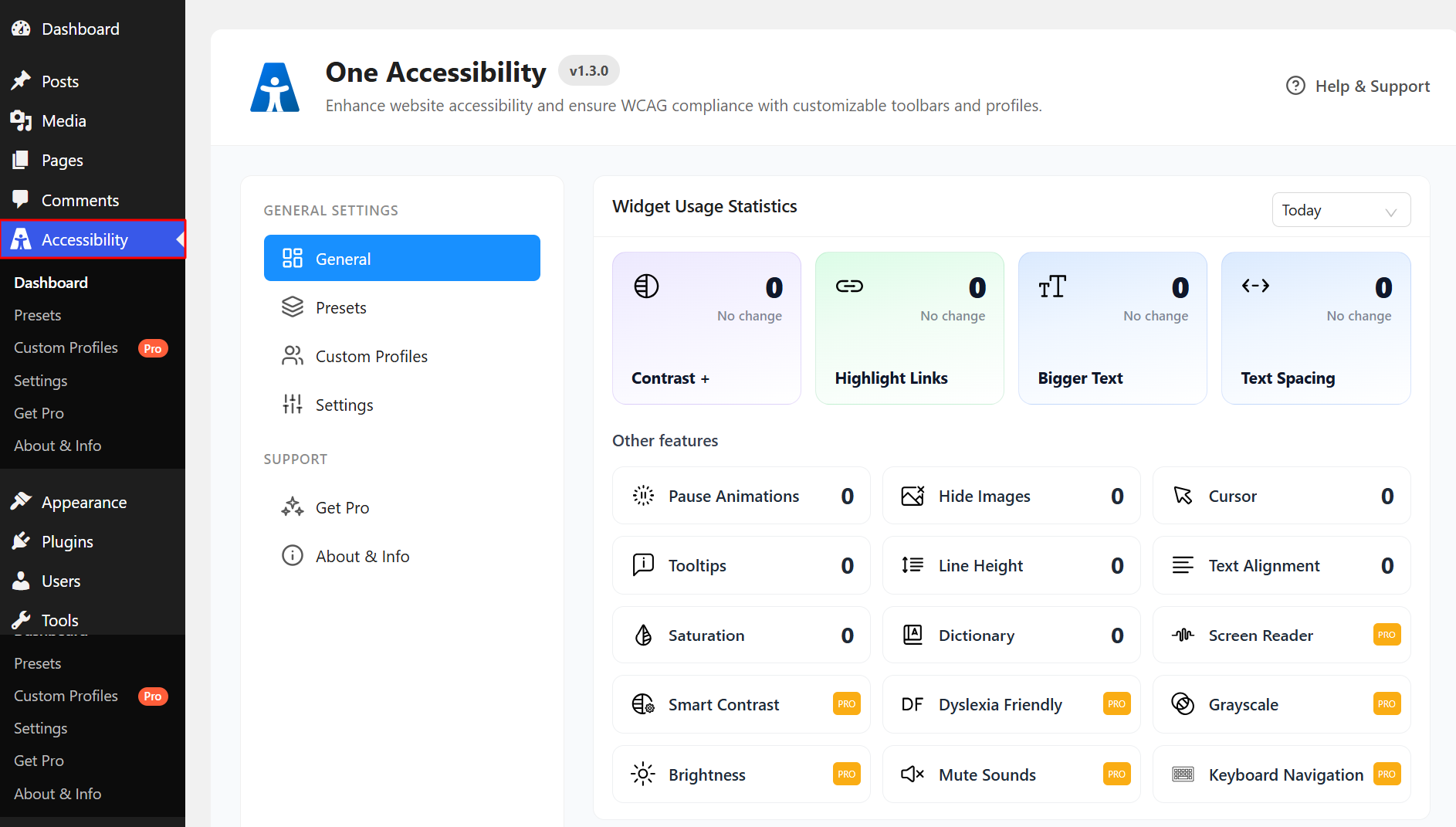
The plugin immediately creates a default accessibility preset on activation: your site gains a working accessibility toolbar with no further configuration required
- To customize the toolbar's appearance and behavior, navigate to Accessibility in your WordPress dashboard sidebar
What It Does for Your Visitors
Once the toolbar is live on your site, visitors can independently adjust:
- Text size scaling for improved readability
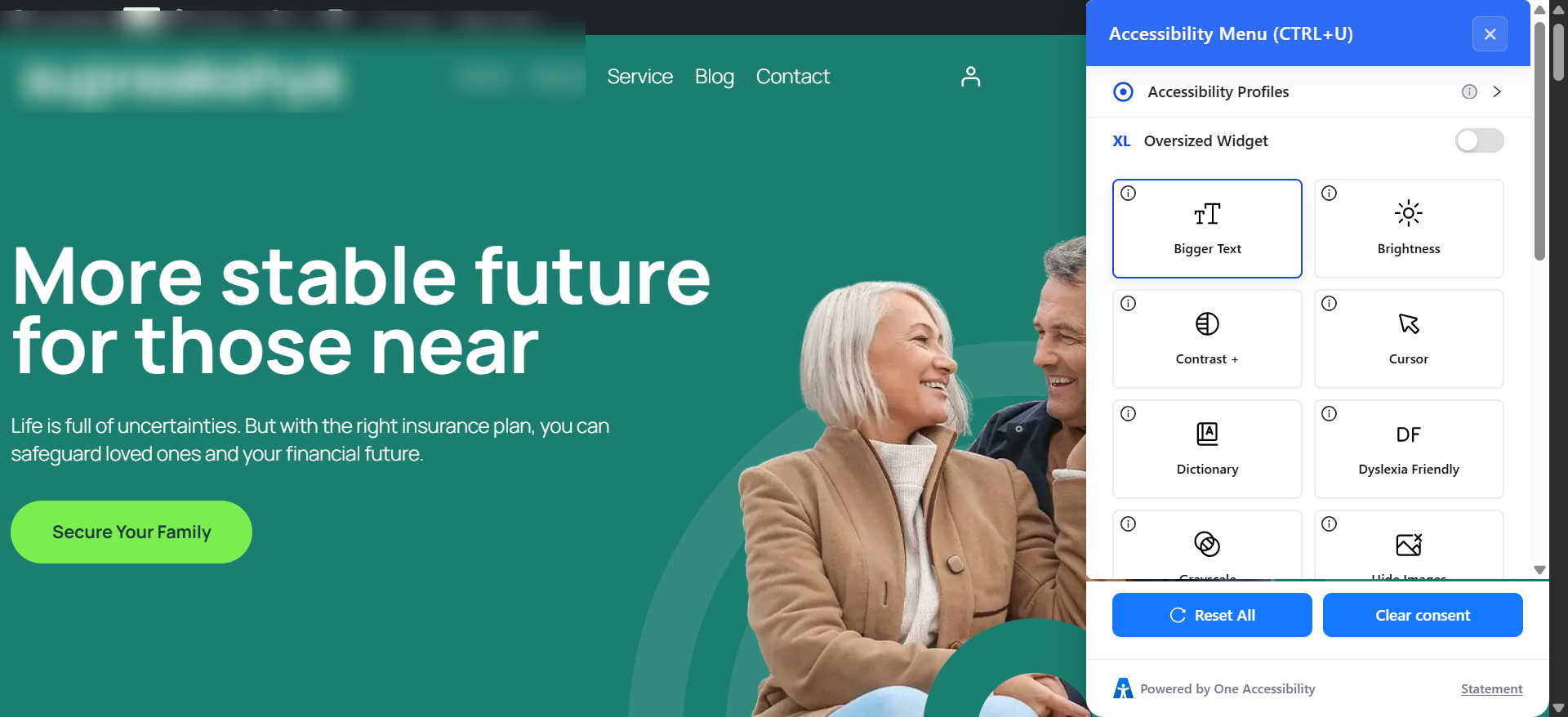
- High contrast mode for users with low vision or contrast sensitivity and option for individuals with Color Blindness
- Color adjustments including desaturation and color-blind friendly palettes
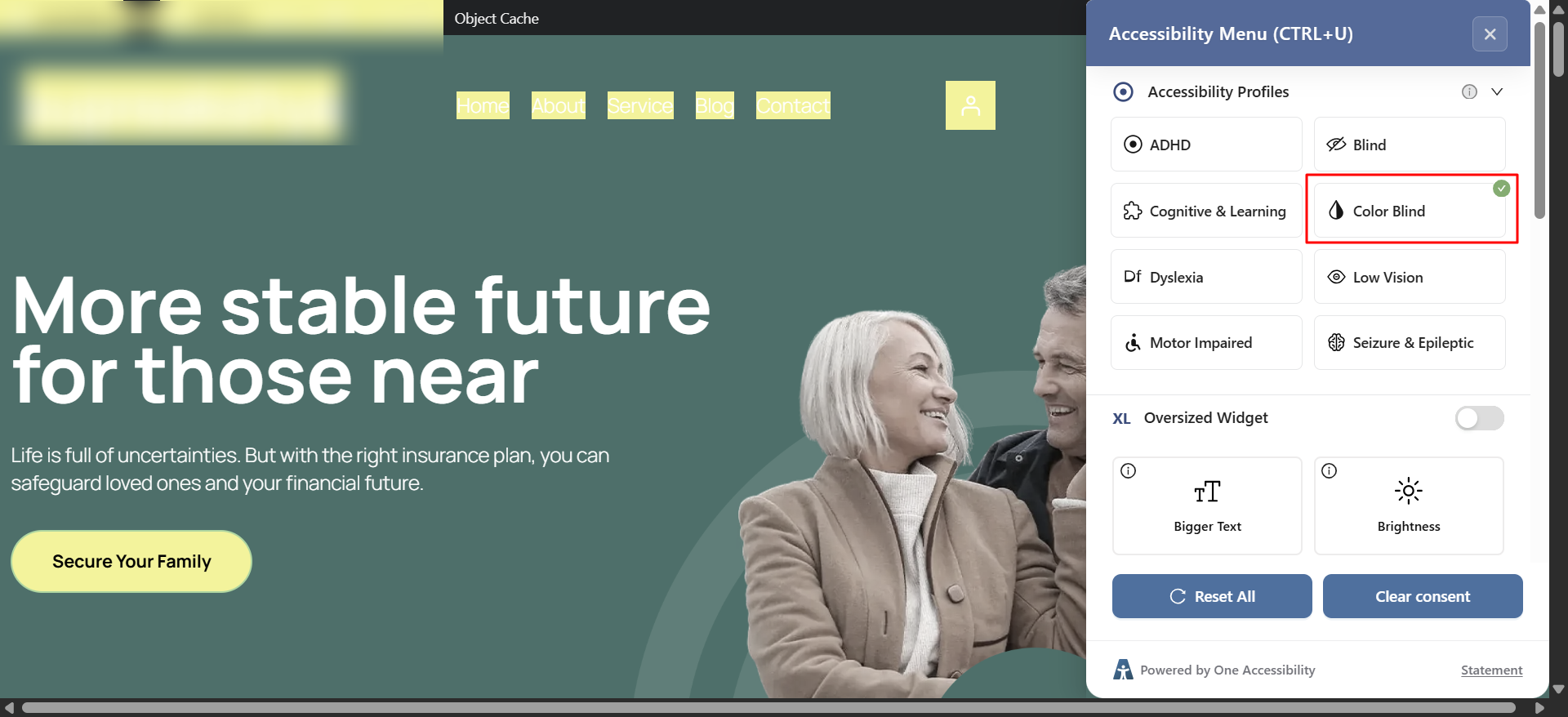
- Screen reader navigation optimization with improved skip links and focus indicators
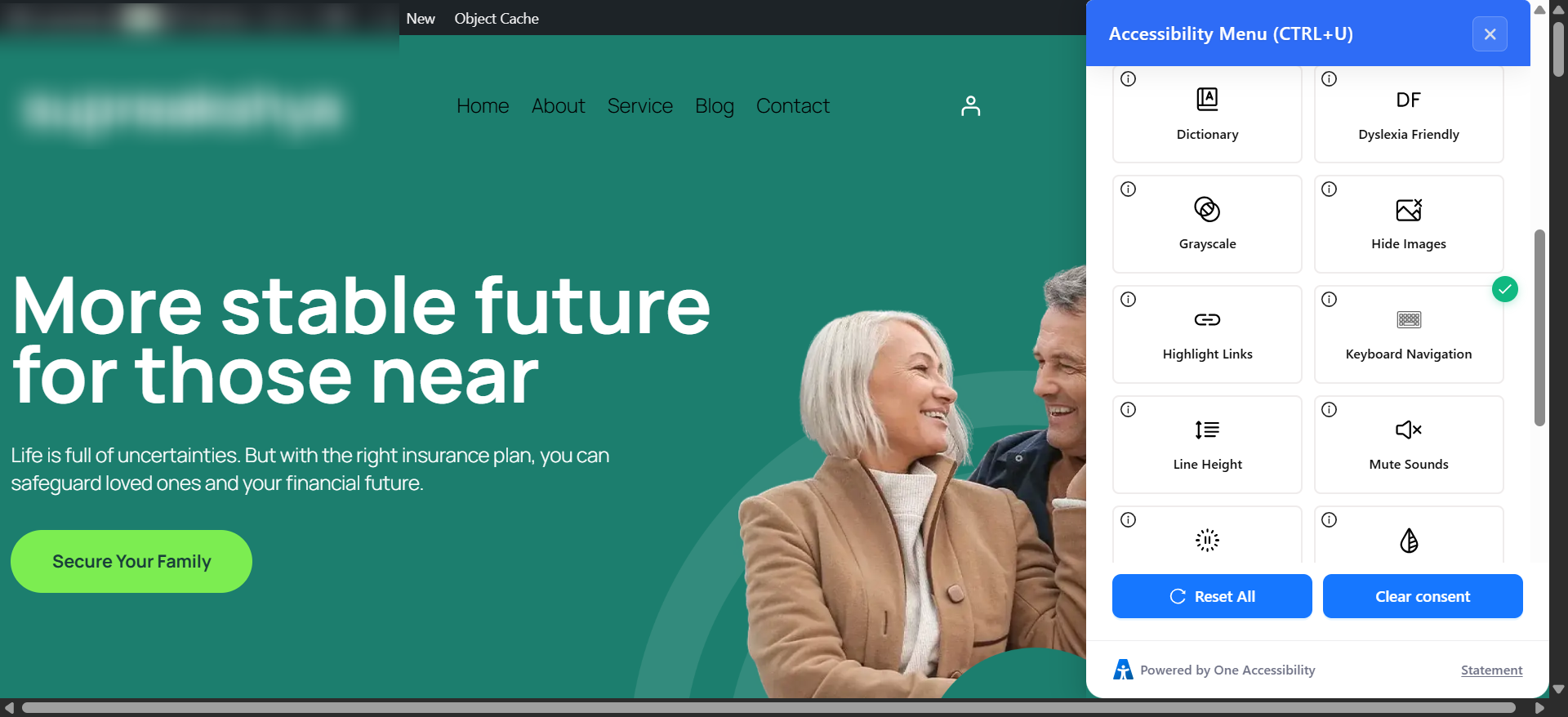
- Reading guides and focus overlays that help users track their position on the page
- Animation and motion reduction for users with epilepsy, seizure conditions, or vestibular disorders
- Text-to-speech functionality for consuming content without reading
- Dictionary tooltips with pronunciation guidance for cognitive accessibility support
- Specialized profiles for users with motor impairments, color blindness, dyslexia, ADHD, seizure conditions and blindness or low vision
One Accessibility supports WCAG 2.1, ADA and Section 508 compliance, covering legal requirements for U.S. businesses under the Americans with Disabilities Act and for businesses operating in the EU under the European Accessibility Act.
The walkthrough on running a more efficient and inclusive WordPress website workflow shows how One Accessibility integrates alongside tools like Sigma Forms and the Smart Admin Assistant for a streamlined, fully managed setup.
Improving Website Performance and Speed
Speed is not a luxury feature. Google uses page speed as a direct ranking signal. Research from Google's own data shows that as page load time increases from one second to five seconds, the probability of a mobile visitor leaving immediately increases by 90%. Every second you cut from your load time keeps more visitors on your page.
Practical Steps to Speed Up Your WordPress Site
- Optimize images before uploading. Images are the single largest contributor to slow load times on most business websites. Use Squoosh to compress images in your browser before uploading. Aim for file sizes under 200KB for most content images. Use WebP format where your theme supports it. Enable lazy loading so off-screen images only load when needed.
- Install a caching plugin. Caching creates static HTML versions of your pages so WordPress does not rebuild them from the database on every visit. Free options include WP Super Cache and W3 Total Cache. WP Rocket is the leading premium option and requires minimal configuration to produce meaningful gains.
- Use a CDN. A Content Delivery Network serves your site's static assets from servers geographically close to each visitor. Cloudflare offers a free tier more than sufficient for most small business websites and takes approximately 20 minutes to set up.
- Choose a lightweight theme. Themes built for visual impact with bundled animations and scripts add load time that most business sites do not need. Performance-first themes like Astra and GeneratePress are fast by design.
- Minimize unnecessary plugins. Every active plugin adds database queries and code execution to your site. Audit your plugin list periodically and remove anything you are not actively using.
- Use the latest PHP version. Your hosting control panel lets you set the PHP version for your site. PHP 8.x is significantly faster than PHP 7.x and is now well-supported by all current WordPress themes and plugins. Check your current version under Tools → Site Health in your WordPress dashboard.
- Check your scores. Run your site through Google PageSpeed Insights and GTmetrix and implement the specific recommendations they provide. Aim for a performance score above 80 on both desktop and mobile.
Testing and Launching Your Website
Before you announce your site to the world, run through a methodical pre-launch review. Launching with a broken link or a form that does not deliver notifications creates a poor first impression with the very first visitors who find you.
Pre-Launch Checklist
- Click every link in your navigation menus and confirm nothing returns a 404 error
- Submit a test entry through every contact form and confirm the notification email arrives in your inbox
- Open the site in Chrome, Firefox, Safari and Edge: layouts can differ meaningfully between browsers
- Test on an actual iPhone and Android device, not just a browser's device simulator
- Read through every page for typos, grammatical errors and placeholder content left over from theme templates
- Confirm your contact details (phone, email, address) are accurate on every page they appear
- Verify the SSL certificate is active and every page loads over HTTPS: your browser should show a padlock icon in the address bar
- Confirm meta titles and descriptions are correctly set on all key pages using your SEO plugin
- Verify Google Analytics is installed and recording active sessions
- Submit your sitemap through Google Search Console and confirm it is processing without errors
- Run the site through the WAVE Web Accessibility Evaluation Tool and address any critical accessibility errors before launch
- Check performance in Google PageSpeed Insights on both mobile and desktop and fix any high-impact issues flagged
If you need to keep the site in a building state before fully launching, a professionally designed coming soon page for WordPress gives visitors a polished holding page while you work, rather than a blank screen or an obviously incomplete layout.
Conclusion: Build a Website That Works for Everyone
Learning how to set up a business website is one of the most practical investments you can make in 2026. Done thoughtfully, your site works for you around the clock, builds credibility with visitors who have never heard of you before and creates a foundation for marketing, SEO and sustained growth that no social media presence alone can provide.
The steps in this guide give you everything you need to move from zero to a fully functional, optimized and accessible business website:
- A strong, memorable domain name
- Reliable hosting built for performance and security
- A well-configured WordPress installation with every setting dialed in
- A professional design that communicates trust and drives action
- The essential pages, written with intention and structured for conversion
- A solid on-page SEO foundation
- A site that every visitor, regardless of ability, can actually use
That last point is worth carrying forward beyond this guide. Accessibility is not a box to check at the end of a project. It is a design principle that, when built in from the beginning, makes your site better for every visitor, not just those who need it most. The businesses that build for inclusion, performance and clarity simultaneously are the ones that stand out in increasingly crowded markets.
FAQs
How much does it cost to set up a business website?
A professional WordPress business website can realistically be launched for $50 to $200 in the first year. This covers domain registration (around $12 to $15), shared hosting (around $30 to $60 annually) and a quality free theme. Optional premium plugins and tools can bring the total higher but are not necessary to start.
Can I build a website without coding?
Yes and the tools available in 2026 make it more accessible than ever. WordPress's Gutenberg block editor is fully visual and requires zero coding. Page builders like Elementor with the Element Pack Pro addon offer complete drag-and-drop control over every element of your design. For anyone focused on small business website setup as a beginner, coding knowledge is genuinely not required at any stage.
How long does it take to launch a website?
A focused beginner can have a functional five to eight-page business website live in one to two weekends of dedicated work. Using a theme with pre-built starter templates, which both Rooten and Blynex offer, cuts design time significantly. More complex sites with custom functionality or e-commerce can take several weeks.
Why is website accessibility important?
1 in 6 people globally lives with some form of disability: an inaccessible website excludes them entirely. The ADA applies to business websites in the United States and non-compliance can result in lawsuits and settlement costs of $25,000 or more. The European Accessibility Act mandates WCAG 2.1 AA compliance for sites operating in the EU. Accessible sites tend to rank better on search engines because accessibility best practices align closely with Google's core ranking factors.
What is the best platform for small business websites?
WordPress is the most widely recommended platform for small businesses, powering over 43% of all websites globally. It offers unmatched flexibility, a vast plugin ecosystem, strong SEO capabilities and a mature community of resources and support. Wix and Squarespace are simpler to start with but offer less control as your business and website needs evolve.
Supreakshya Shrestha
The BdThemes team builds WordPress plugins trusted by 3M+ users worldwide. We write about web accessibility, WCAG compliance, and inclusive design.